
 Club Benefits





The best Wi-Fi routers are here to make the most out of your internet, from gigabit to multi-gig plans, with excellent download speeds, a far-reaching range to eliminate Wi-Fi dead zones and future-proof features. And I'm here to guide you to the right one.
At Tom's Guide, we determine which Wi-Fi routers are truly the best in our extensive tests in a real, multi-story home. In addition to real-world testing, our team of experts runs benchmarks at multiple distances and locations, including through walls, to measure both their speed and range under realistic conditions.
Right now, the Asus RT-BE96U is our top recommendation, thanks to its incredible throughput and range. But there are Wi-Fi routers fit for different needs and budgets, and my goal is to help you get the best Wi-Fi router that's worth the money. So, let's upgrade your connectivity with our highly rated Wi-Fi routers.
Meet our testers

As someone who's been working from home for the past seven years, Anthony Spadafora has tried everything from Wi-Fi extenders to powerline adapters to get the most out of his home network before finally upgrading to a mesh Wi-Fi system. Along the way, he's tested out loads of different routers and network configurations. Based on what he's learned, Anthony tries to highlight the critical role Wi-Fi routers play in our day to day lives and how a mesh network can help solve the most common connectivity issues like Wi-Fi dead spots.

With experience in testing, using and evaluating wireless data from before Wi-Fi was even a word, Brian Nadel has tried out and reviewed every major router available in his home networking lab. A LAN nerd, his philosophy is to use the router the way you would, testing networking gear for ease of setup, performance, security and above all for value. The result is peace of mind when it comes to choosing the right router.
The best Wi-Fi routers you can buy today
Why you can trust Tom's Guide Our writers and editors spend hours analyzing and reviewing products, services, and apps to help find what's best for you. Find out more about how we test, analyze, and rate.
Best Wi-Fi router overall


The Asus RT-BE96U delivers blazing-fast Wi-Fi 7 speeds and excellent range, but its biggest draw now is the new, lower $549 price tag — a significant drop that makes this powerful router accessible to far more users. Our reviewer Brian Nadel was immediately blown away by the raw performance data when testing one of the first Wi-Fi 7 routers from Asus.
During real-world testing at Brian’s 100-year-old home, the RT-BE96U achieved an impressive max download speed of 1.94 Gbps at close range (15 feet). Crucially, its sustained performance was equally impressive.
Even at 75 feet, Brian still recorded speeds of over 400 Mbps, which is fantastic at that distance. Likewise, the RT-BE96U handled interior walls like a champ, and in penetration tests, it maintained a blistering 1.8 Gbps download speed while sending a signal through a wall at a distance of 25 feet.
Design-wise, this all-black router features a futuristic design and eight adjustable antennas that allow you to optimize its impressive signal. Though on the larger side at 13.8 x 13.8 x 3.0 inches, this extra space is put to good use with a wealth of ports, including both 10 GbE and gigabit input options, another 10 GbE output port, three additional gigabit Ethernet ports, and two USB ports for network-wide data sharing.
Coupled with built-in security features like Asus’ free AiProtection software, parental controls and the ability to work as a VPN client or server, this feature-packed Wi-Fi 7 router is easy to recommend, even for power users. Based on Brian’s thorough testing, the Asus RT-BE96U is a future-proof and incredibly fast Wi-Fi 7 router, especially as it's now significantly cheaper than it was at launch.
Some newer Wi-Fi 7 routers have since beaten it when it comes to pure download speeds, but the RT-BE96U remains an absolute powerhouse overall, which is why it still holds my top spot among the best Wi-Fi routers.
Read our full Asus RT-BE96U review.
Best budget Wi-Fi router


The TP-Link Archer BE3600 is a dual-band Wi-Fi 7 router that’s incredibly wallet-friendly and often available for just $100. Even at its full $129 price, it offers remarkable value by including almost all of Wi-Fi 7’s best features. The only major thing missing is support for the dedicated 6 GHz band, but for those upgrading from an older Wi-Fi router or who no longer want to rent one from their ISP, the performance difference with the Archer BE3600 will be immediately noticeable.
Despite its budget price, the Archer BE3600 held its own when Brian put it through our real-world testing in his home. Even without the 6 GHz band, it still managed to reach a max download speed of 1.38 Gbps at close range (15 feet).
What really surprised Brian, however, was its sustained performance at long range. It reached over 700 Mbps at 50 feet and at 75 feet, it still hit 205 Mbps. That long-range achievement handily beat the more expensive, TP-Link Archer GE800 gaming router, which clocked in at 355 Mbps and 91.5 Mbps in those same 50 and 75 foot tests, proving its surprising reach.
In terms of design, the Archer BE3600 is a rectangular router with a plain, all-black look and four repositionable antennas on the back. It features a nice selection of ports, including a 2.5 GbE input port, a 2.5 GbE output port, three gigabit Ethernet ports, and a USB port, alongside physical buttons for power and settings.
Buying your own networking equipment might seem expensive at first, but the BE3600 is proof that it doesn't have to be. The TP-Link Archer BE3600 is easy to recommend for anyone who wants the latest Wi-Fi spec without needing the fastest, most premium router available.
Read our full TP-Link Archer BE3600 review.
Best mesh router for reliability


The eero Pro 7 is a mesh router with full Wi-Fi 7 support that’s incredibly easy to set up and use. Like the Netgear Orbi 870, the Pro 7 sits between the dual-band eero 7 and the flagship eero Max 7, but delivers excellent performance and whole-home coverage for less.
At $700 for a three-pack, it's still a significant investment. However, if you're tired of manual troubleshooting and constant firmware updates, it’s absolutely worth paying slightly more for a true plug-and-play Wi-Fi 7 experience.
During real-world testing, the Pro 7 managed to hit a max speed of 1.9 Gbps at a close distance (15 feet), putting it slightly ahead of the more premium Orbi 870 (1.8 Gbps) at the same range. However, Brian was most impressed with the Pro 7's ability to punch through walls. At 25 feet and through a wall, this mesh kit still delivered a blazing fast 1.63 Gbps. The Pro 7 also excelled at middle distances, maintaining speeds of just under 1 Gbps at 50 feet.
Design-wise, the Pro 7 features the same taller, minimalist design of the Max 7 but shrunk down slightly to a more manageable size, making the devices in this mesh system easier to place around your home. Around back, you only get two 5 GbE ports, but for most, this will be enough—you can always add a separate network switch for more ports.
Like with other eero devices, you’re paying for the ease of use, reliability, and the company’s strong ecosystem. For instance, all eero devices are intercompatible, meaning you can mix and match based on your home network’s coverage and speed needs. If you’re after a frustration-free mesh Wi-Fi system that packs a punch with excellent reliability, the eero Pro 7 is a fantastic option, especially for the less tech savvy.
Read our full Eero Pro 7 review.
Best Wi-Fi router for range


The TP-Link Archer BE9700 may bear a striking resemblance to the budget BE3600, but make no mistake: this is a much more powerful router with full Wi-Fi 7 support. At just $250 (and it frequently goes on sale), you're getting a device with incredible range, fantastic speeds, and a wealth of high-speed ports. Both Brian and I were genuinely amazed at how much power TP-Link managed to pack into this very affordable package.
In his real-world testing, Brian was blown away by the BE9700’s close-range performance. At 15 feet, it managed to hit a blistering 2.2 Gbps, easily outperforming the significantly more expensive Asus RT-BE96U (1.9 Gbps) and the Netgear Nighthawk RS700S (1.7 Gbps).
It continued this solid performance at middle distances, reaching over 700 Mbps at 50 feet. Furthermore, the BE9700 demonstrated incredible signal reach, holding a strong connection that delivered 191.1 Mbps at 90 feet. Impressively, the router had a max recorded range of 120 feet and it successfully filled Brian’s large, multi-story home from end to end with a strong wireless signal.
While its all-black look makes it resemble the BE3600, the BE9700 is a different machine, featuring a wider, slimmer chassis that houses six repositionable antennas. The biggest upgrade is in the port selection: around back, you get a blazingly fast 10 GbE port (which can be WAN or LAN) alongside four additional 2.5 GbE ports, ensuring you won’t face a wired bottleneck. There’s also a single USB port discreetly located on the side for sharing data across your network.
For anyone seeking an affordable, feature-packed Wi-Fi 7 router with impressive range, the TP-Link Archer BE9700 delivers performance that is almost too good for its price tag.
Read our full TP-Link Archer BE9700 review.
Best Wi-Fi router for gamers


Asus couldn't make its ROG Rapture GT-BE1900AI look more like a gaming router even if it tried. And that's no bad thing, as this slick Wi-Fi 7 router is just about the most powerful we've ever tested, meaning this will put a smile on any gamer's face. Or anyone willing to part with $900 for the ultimate Wi-Fi connectivity experience.
If you're after lightning-quick download speeds, the ROG Rapture GT-BE1900AI has it. In our testing, it achieved an impressive 3.519 Gbps over a wired 15-foot connection, but going wireless is where things get interesting. This router boasted 2.580 Gbps of real-world throughput at 15 feet, and 1.006 Gbps at 50 feet. So, whether you're using up bandwidth for lag-free gameplay across the house, while others are watching 8K videos or listening to music, this router has plenty of bandwidth and speed to go around.
This is a tri-band Wi-Fi 7 router with all the perks you'd expect, such as 2.4, 5 and 6 GHz data, along with dual 10Gbps ports (one dedicated specifically for gaming) and four 2.5Gbps ports. Plus, it even runs its AI engine, with 7.9 TOPS (trillions of operations per second), 4GB of RAM and 32GB for storage to run machine learning models and automatic game-boosting features.
The problem is just how pricey it is for it all. Not just the price tag, but also the 26.0 watts of power it hogs, leading to a spike in annual electricity bills (around $33). But if you're after the ultimate connectivity around your home, then the ROG Rapture GT-BE1900AI is well worth the money.
Read our full Asus ROG Rapture GT-BE19000AI review.
Best Wi-Fi router for value


The TP-Link Archer GE650 is an affordable, feature-packed Wi-Fi 7 router that delivers excellent performance. While it aimed at gaming, that doesn't stop it from being a fantastic choice for any kind of household. At just $350, it’s an absolute bang for your buck, offering full Wi-Fi 7 support, a low-latency design, multiple multi-gig ports and built-in RGB lighting.
Compared to its larger and more expensive sibling, the Archer GE800, the GE650 is an absolute steal, delivering faster speeds up close where they matter most for gaming, all at a lower entry price.
During his real-world testing, Brian was particularly impressed by the sheer performance of the Archer GE650 at close range. It reached a max speed of just over 2 Gbps at 15 feet, successfully outperforming its more expensive sibling. This strong trend continued at 50 and 75 feet, where it maintained speeds of 552.5 Mbps and 238.2 Mbps, respectively.
While there was a significant drop off in performance at 90 feet (meaning the GE650 couldn't quite fill Brian’s whole house), limited range isn’t a deal breaker, as serious gamers will likely use a hardwired connection anyway for the lowest latency and best overall performance.
Compared to the Archer GE800 with its larger footprint and winged design, the Archer GE650’s triangular shape feels like a breath of fresh air. The RGB lighting extends up the center of the front panel. Around back, you get a powerful set of multi-gig ports: a 5 GbE input port, a 5 GbE output port, three 2.5 GbE output ports (one of which is designated as the dedicated gaming port) and a USB port. Finally, the router comes loaded with TP-Link’s Game Center dashboard, where you can boost network performance in certain games, change the RGB settings, and monitor traffic.
If you’ve always wanted one of the best gaming routers but were deterred by the high price, the TP-Link Archer GE650 delivers that same functionality and look for much less.
Read our full TP-Link Archer GE650 review.
Best mesh router for large homes


The Netgear Orbi 870 is a full Wi-Fi 7 mesh system that can fill the largest homes with a strong wireless signal, covering up to 9,000 square feet with a three-pack. While its $1,000+ price tag is a significant investment, it sits right between the top-tier Orbi 970 and the more affordable Orbi 770. For this guide, I chose the Orbi 870 because it strikes the ideal balance between sheer performance and features.
During Brian’s real-world testing, the Orbi 870 managed to hit a download speed of 1.82 Gbps at close range (15 feet), placing it squarely between the Orbi 770 (1.7 Gbps) and the flagship Orbi 970 (2 Gbps) at that same distance.
What truly stood out, however, was its handling of middle and long distances. The system maintained a consistent speed of 628 Mbps at both 50 and 75 feet. Even at the edge, the Orbi 870 still delivered just over 100 Mbps at 90 feet, with a maximum recorded range of 115 feet overall.
The Orbi 870 also benefits from Netgear’s updated design, featuring elegant, sculpted towers instead of the wider, low-profile wedge-like shape of past models (like the Orbi RBKE963). Functionally, the system maintains the classic Orbi layout: one unit acts as the dedicated router and the others are satellites. The router provides a powerful wired main connection with a 10 GbE input and four 2.5 GbE output ports. The satellites offer the same four 2.5 GbE ports for hard-wired devices.
If you have the budget and a large home that demands a fast, reliable, and full Wi-Fi 7 mesh system, the Orbi 870 is a compelling choice.
Read our full Netgear Orbi 870 review.
Testing results
| Header Cell - Column 0 | 15 Feet | 50 Feet | 75 Feet | 90 Feet |
|---|---|---|---|---|
1.948 Gbps | 392.7 Mbps | 402.1 Mbps | 1.4 Mbps | |
2.201 Gbps | 700.7 Mbps | 146.9 Mbps | 191.1 Mbps | |
1.905 Gbps | 994.4 Mbps | 234.7 Mbps | 20.8 Mbps | |
1.138 Gbps | 702.3 Mbps | 205.2 Mbps | 15.5 Mbps | |
2.580 Gbps | 1.006 Gbps | 528.3 Mbps | 49.1 Mbps | |
2.019 Gbps | 552.5 Mbps | 238.2 Mbps | 4.3 Mbps | |
1.820 Gbps | 627.4 Mbps | 628.6 Mbps | 102.6 Mbps |
How to choose the best Wi-Fi router for you
If you’re buying your own Wi-Fi router for the first time, it can be difficult to narrow things down when you have so many options to pick from. Likewise, if you’re upgrading from an older Wi-Fi router, there’s still a lot you need to consider before making your final decision. To make things easier for you, I’ve narrowed down what factors you need to take into consideration before upgrading your home network.
By answering the three questions below, you’ll be in the perfect position to choose a new Wi-Fi router that makes full use of your current internet speeds, crushes dead zones in your home, and takes advantage of the latest wireless tech.
What's your internet speed?
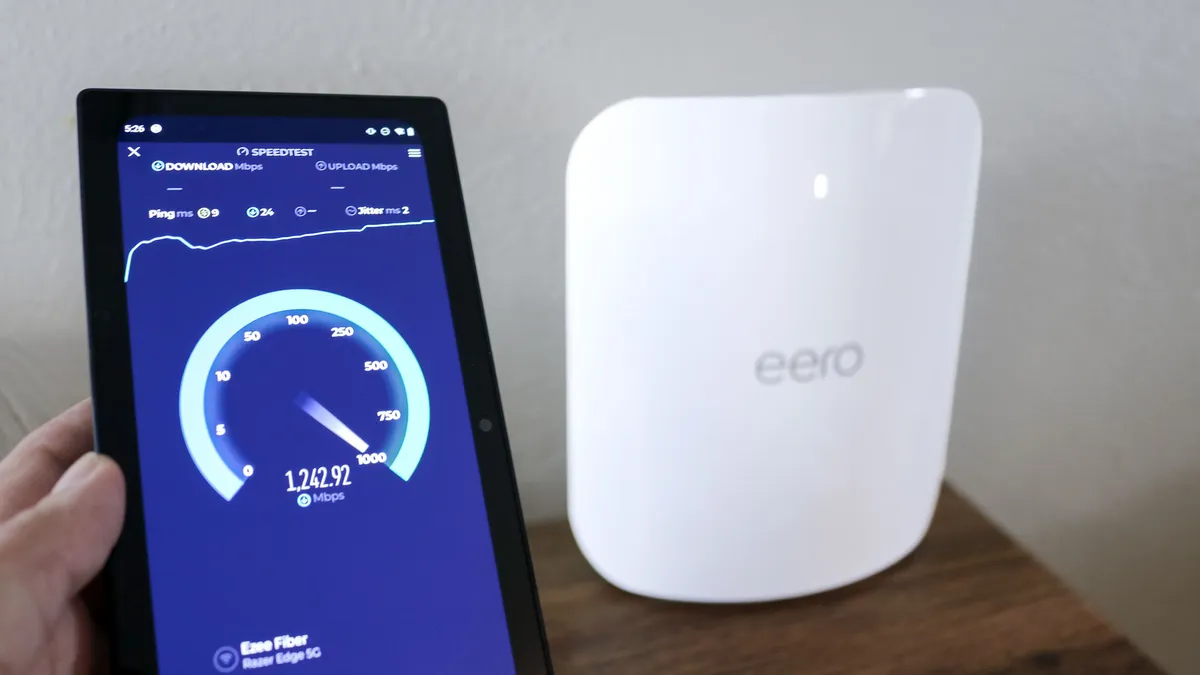
Before buying a new Wi-Fi router, the first and most important step is finding out the internet speeds you're currently paying for and the actual speeds you're getting.
Even if you’re paying top dollar for the fastest plan available, your Wi-Fi router acts as a bottleneck. If your router is old or doesn't have the capacity for higher speeds, you won’t be able to utilize those faster download and upload speeds you’re paying for. Similarly, buying an expensive, overpowered router with only a basic internet plan is a waste since you won’t be able to take advantage of its faster speeds and extra features.
For the best experience, you want your router and internet speed to be a seamless match. However, if you plan to upgrade to a faster internet plan in the near future, you should consider buying a more powerful router now to future-proof your home network.
Currently, most cable internet providers offer plans that range from around 500 Mbps (Megabits per second) up to a full Gigabit (1,000 Mbps or 1 Gbps) or even higher at 2 Gbps. On the other hand, fiber internet providers offer plans that start at 1 Gbps and go as high as 5 Gbps or 10 Gbps.
Here’s how to find your actual speed:
- Check your advertised speed: Look at your monthly bill or service agreement. This document tells you the maximum speed your internet provider is supposed to deliver. Keep in mind that most plans are advertised as "up to" a certain speed, meaning your real-world speeds will often be slightly lower.
- Find your maximum wired speed: To do this, grab an Ethernet cable and plug your laptop or desktop directly into your router. Make sure you pause all other downloads or streaming on your network first, then run a few speed tests (using a reliable service like Ookla or Fast.com) to get the most accurate picture of the maximum speed your internet provider is actually delivering to your home.
- Map Your Wi-Fi Speed: From there, you can see if your router is creating a bottleneck. To do so, run multiple speed tests on your phone or tablet while connected to Wi-Fi, either in your browser or by using one of the best speed test apps. Be sure to move around your house or apartment and test in different rooms multiple times. This will give you a clear picture of how well your current Wi-Fi router spreads your internet throughout your home.
Now that you know your current internet speed, it's time to determine whether a traditional Wi-Fi router or a mesh Wi-Fi system is the better upgrade for your home network.
Router vs Mesh: What should I buy?

When upgrading your home network, you have two main choices—a traditional Wi-Fi router or a mesh Wi-Fi system. The right one for you is determined by the size of your home and the results of your Wi-Fi speed testing.
If you live in a small home or apartment, then a traditional Wi-Fi router should be able to fill your whole space with a strong Wi-Fi signal. I say ‘should’ here because the placement of your Wi-Fi router plays a big role in its coverage. Ideally, you want your Wi-Fi router in the middle of your home and far away from large appliances, thick walls, and other obstacles that can interfere with its signal.

Unfortunately, router placement is often easier said than done, as it's determined by where the cable or fiber line comes into your home or apartment. You can always run an Ethernet cable from one of the best cable modems (or your Optical Network Terminal box if you have fiber) to your router if you want a more central location.
However, there’s another option that’s simpler and won’t have you tripping over cables.

Unlike a regular Wi-Fi router, a mesh router or mesh Wi-Fi system is made up of multiple devices designed to carry your internet signal throughout your home in a more uniform manner. This is a key advantage: the placement of the main unit isn’t as critical. This is because, alongside it, you also have additional devices that act as satellites, which take the main unit’s signal and then distribute it through other parts of your home, either wirelessly or over a wired connection if your house is wired for Ethernet.
Besides the placement of your router, the main reason to choose a mesh Wi-Fi system over a standard Wi-Fi router is dead zones. Even the most powerful Wi-Fi routers can have trouble getting a strong signal to certain parts of your house, which is why those with multi-story or larger homes often go with a mesh system instead.
Deciding between a Wi-Fi router and a mesh router will come down to the size of your home or apartment and whether you currently have any dead zones where you just can’t get a connection. With that decision made, it’s time to determine which wireless standard is right for your new gear.
What is Wi-Fi 7?
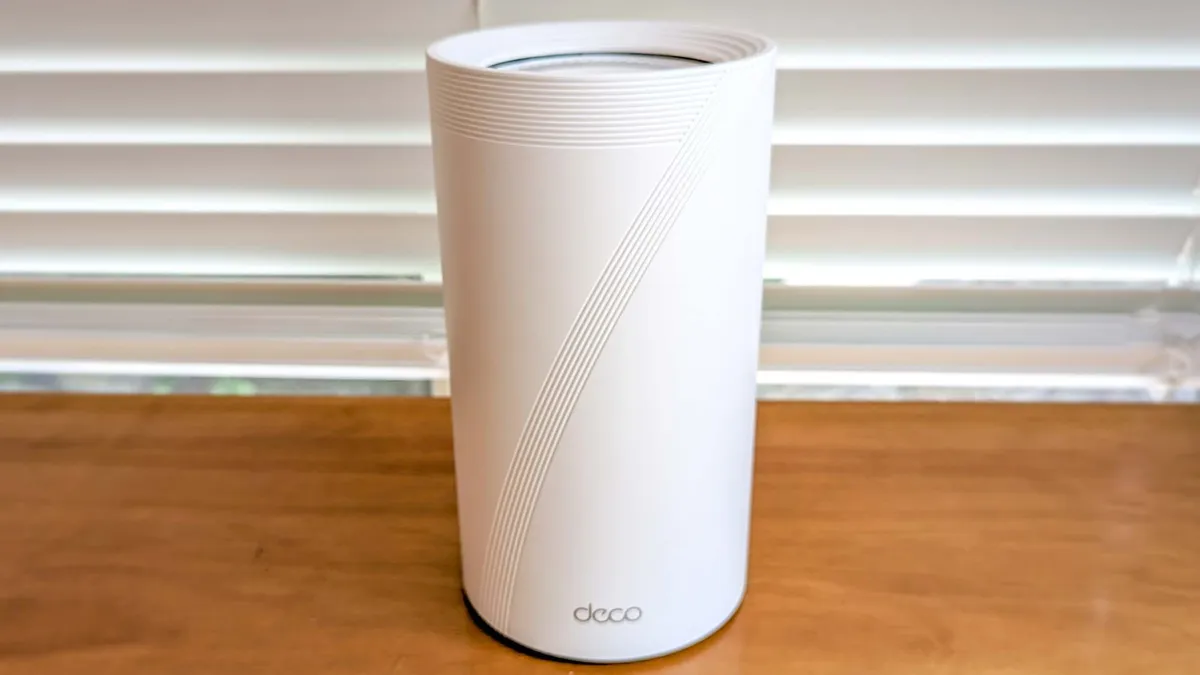
Wi-Fi 7 is the latest wireless standard and it builds on previous ones by adding new features and capabilities designed to deliver a massive upgrade when it comes to download and upload speeds as well as reliability. If you’re shopping for a new Wi-Fi router or mesh router, it’s definitely worth spending a bit more on one with Wi-Fi 7 support to not only futureproof your home network but also to take advantage of its new features.
Wi-Fi 7's performance leap over previous generations like Wi-Fi 6 and Wi-Fi 6E comes down to three main upgrades that work together: wider data channels, the ability to use multiple wireless bands simultaneously and greater signal density.
With a wider channel, you’re able to move more data, which results in faster speeds. While 160 MHz channels were first introduced with Wi-Fi 5 and then greatly improved with Wi-Fi 6E, Wi-Fi 7 supports even wider 320 MHz channels. As a result, Wi-Fi 7 has a max theoretical speed of up to 46 Gbps.
If you’ve ever logged onto a Wi-Fi network and seen “2 GHz” or “5 GHz” at the end of its name, those numbers refer to wireless bands. Until Wi-Fi 6E introduced the new, faster 6 GHz band, you could only connect to one of these bands at a time. This changes with Wi-Fi 7's key feature: Multi-Link Operation (MLO). With one of the best Wi-Fi 7 routers and a Wi-Fi 7-equipped phone or laptop, you can connect to multiple bands simultaneously. Doing so results in faster speeds, better reliability, and lower latency overall.

In addition to wider data channels and being able to use multiple bands at the same time, Wi-Fi 7 also uses denser signals to carry more data in the form of 4K QAM (Quadrature Amplitude Modulation). With Wi-Fi 6 and 6E, there was only support for 1024-QAM, but by moving to 4K QAM instead, Wi-Fi 7 is 20% faster over the previous generation.

Although I wholeheartedly recommend upgrading to Wi-Fi 7, you can save some money and still get a very capable router or mesh router by going with one of the best Wi-Fi 6 routers instead. You’ll miss out on some features and faster speeds, but a router with Wi-Fi 6E support will still give you access to that faster 6 GHz band.
Speaking of that 6 GHz band, one thing to watch out for with Wi-Fi 7 is that not all routers that support this new standard give you access to all three bands (2.4, 5 and 6 GHz). To cut costs, some networking companies have begun selling cheaper, dual-band Wi-Fi 7 routers. They have most of Wi-Fi 7’s best features, but not all of them. Still, your budget can go a lot farther with a dual-band Wi-Fi 7 router, especially for mesh. Just be aware that if you forgo the 6 GHz band, you won’t see those blazing fast speeds like in our full test results.
Frequently Asked Questions
When should I replace my old Wi-Fi router?

A high-quality Wi-Fi router can last anywhere from three to five years. Power users—who rely on 4K streaming, online gaming, or many smart home devices—will want to upgrade closer to the three-year mark to stay current with the latest Wi-Fi generation (like Wi-Fi 7 now and eventually Wi-Fi 8). You can tell your router needs an upgrade when you experience frequent connectivity drops, slower speeds even with a fast internet plan, or constant problems that require a reboot. Finally, if your router is no longer supported by its manufacturer, it won’t receive critical security updates, leaving both it and all of your connected devices vulnerable to hackers.
Can I use my cable modem with my new Wi-Fi router?

Yes, you absolutely can. If you have a separate, standalone modem that connects your home to your ISP's line, you can plug any new Wi-Fi router into it, and it will work immediately. The one exception is if your internet provider gave you a single device that serves as both a modem and a router—often called a "gateway." You can still use this with your new Wi-Fi router, but you'll have to go into its settings first and activate bridge mode (or passthrough mode) to disable its built-in Wi-Fi functionality, as your new router will handle this task.
Where is the best place to put my Wi-Fi router?

Since Wi-Fi signals radiate outward in a 360-degree, sphere-like shape, the best place to put your router is in the most central location in your home. For the best coverage, you want it up high—like on a shelf or table—and out in the open. You don’t want any metal objects, large appliances (especially microwaves), mirrors, or large bodies of water (like a fish tank) nearby, as these can disrupt its signal and lead to interference.
What is a Wi-Fi extender and do I need one?
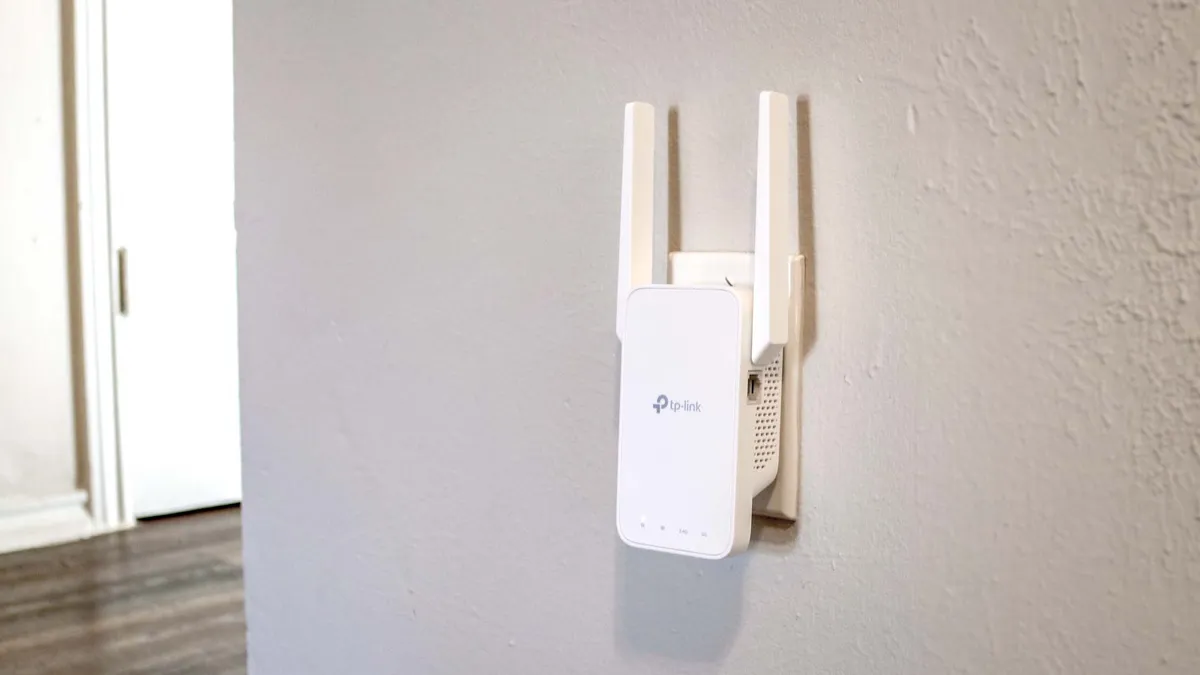
A Wi-Fi extender (also known as a booster or a repeater) is a separate device you plug into any outlet that takes the signal from your router and then rebroadcasts it in other areas of your home. This helps expand your router’s coverage, and they’re often recommended as an easy fix for dead zones. However, standard extenders can often cut your network speeds in half and may be more trouble than they’re worth. For slightly more money and much less hassle, a mesh Wi-Fi system is usually the better long-term upgrade. That said, one of the best Wi-Fi extenders still has its place in small homes or apartments where a mesh router would be overkill.
How we test the best Wi-Fi routers
To determine the best Wi-Fi routers, we subject them to a rigorous gauntlet of both real-world and benchmark testing: we accurately measure performance under both typical daily use and ideal testing conditions.
In our real-world tests, we set up each Wi-Fi router or mesh router in a 100-year-old, multi-story home. This allows our expert team to test their ability to transmit data between floors and, critically, through walls. Throughout the review period, we use each router as our daily driver, pushing the limits with tasks like transferring large files, 4K video streaming, and competitive online gaming.
For our benchmark testing, we use Keysight’s IxChariot software to simulate complex network traffic in a repeatable and controlled way with 10 active users simultaneously. This lets us measure the quality and stability of a network powered by a Wi-Fi router or mesh router—including metrics like latency, jitter, and packet loss—rather than just peak download speeds. IxChariot then provides us with the key performance metrics that form the basis of the performance sections of our reviews and the testing data you see throughout this guide.
Finally, we test data transmission throughput at set distance intervals of 15, 50, 75, and 90 feet. This process gives us a clear idea of performance both up close and at a distance, and allows us to determine a router’s maximum effective range.
Since we use the same testing process for each router we review, we can then compare speed test results between models to tell you exactly why one router is better in certain situations and households than another.
For more information on how we test networking devices, check out our guide on how we test Wi-Fi routers, along with our more general how we test page for Tom's Guide.
Check out all of our home networking coverage:
Best mesh routers | Best Wi-Fi 6 routers | Best Wi-Fi 7 routers | Best gaming routers | Best Wi-Fi extenders | Best powerline extenders | Best cable modems

