







Just about every gadget in your house is wireless, but that doesn’t mean they always play nicely together. Take, for example, streaming content from your PC to your television. Seems like it would be simple, right? Not necessarily, as forum user dnaeeeutd discovered:

“At the moment, I have a PC on the 3rd floor, and my not-so-smart TV on the 1st floor in my house,” he wrote. “The network connections are available everywhere in my house. Both my PC and TV are capable [of connecting] to the network … I want to stream something wirelessly from my PC to my TV. I usually watch live football using AceStream, and I want to stream that match to my TV.”
The good news is, there are two different methods of doing this. The bad news is, neither method is perfect. Still, with a sufficiently strong Wi-Fi connection and an inexpensive gadget or two, dnaeeeutd can probably get his football fix without having to hunch over a computer screen. Here’s how to do it:
First off, dnaeeeutd mentions that his TV supports DLNA protocols. This is a good thing in general, but it doesn’t help with live streaming. DLNA is great at letting you watch prerecorded video from a media server, but using it for live content is extremely difficult, if not outright impossible.
MORE: Our Favorite Streaming Media Players and Sticks
Instead, he should be looking into two live-streaming video protocols: Miracast and Google Cast.
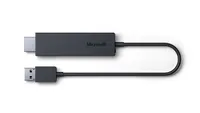
Miracast is a ubiquitous screen-mirroring technology that works with most Android phones and Windows PCs. Assuming that dnaeeutd’s PC is fairly modern, all he needs to do is connect a Miracast receiver to his TV. There are lots of receivers available, and many are of dubious quality. We like the Microsoft Wireless Display Adapter, although common streaming players like Roku and Amazon Fire TV also have this technology built in. Some TVs are even Miracast-enabled, but if dnaeeeutd’s is “not so smart,” we wouldn’t count on it.
Assuming that’s the route you want to go, we have a guide that walks you through setting up Miracast devices.
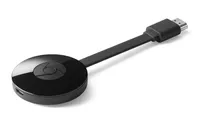
The other option — and this is a better one, in my opinion — is to invest in a Google Chromecast and use Google Cast technology. Also called “tabcasting,” the Chromecast allows you to broadcast any tab in Chrome to a Chromecast device. This means that if you can bring up AceStream in Chrome, you can get it to display on your TV.
The reason why I recommend Google Cast over Miracast is because while Miracast is a more versatile technology, it’s also a more dubious one. Miracast streams tend to be unreliable, and the quality of transmitters and receivers is hard to predict. Google Cast, on the other hand, is a little more limited in scope, but tends to be more reliable. Furthermore, if your TV doesn’t have any smart capabilities, a Chromecast doubles as a versatile streaming device.
We also have a device that explains how to use Google Cast, if that’s what you decide to do.
Just a word of warning: with two floors between your PC and your TV, it may not be possible to get an absolutely perfect screen-mirroring experience. Even under ideal circumstances, streams tend to lag and get grainy now and then. But as a wise man once said, it’s better than nothing. Good luck!
Credit: Google

