Google TV is one of the most popular streaming platforms right now. Not only are there several Google TV-based streaming devices to hoose from, many of the best TVs you can buy come with Google’s software baked in, including Hisense, Sony and TCL.
Google TV is known for its robust app support and its relatively easy-to-use interface. That said, it doesn't put many of its handiest features right up front for all to see. Here are 5 Google TV features you're probably not using but definitely should.
1. Enable apps-only mode for a streamlined home screen

Like all streaming platforms, Google TV is constantly bombarding the user with recommendations for what to watch. If you’d rather have a home screen free of the visual clutter that comes with this content, you might be interested in Google TV’s apps-only mode.
As the name implies, apps-only mode strips away nearly everything from your home screen except your chosen apps. It’s not difficult to access, either.
From the profile selection screen, select Manage accounts. From here, select the profile you’d like to edit.
Scroll down to the Apps only mode toggle and enable it. Afterwards, there will still be a large banner ad on the Google TV home screen, but the rest of the content on the screen will be your chosen collection of apps.
2. Personalize your home screen

If you’d rather not strip away all of Google TV’s recommended content, why not tailor the platform’s suggestions to your preferences?
Navigate to the Manage accounts page from the profile selection screen, then scroll down and select Your services. This allows you to pick and choose which streaming services are included in your recommendations.
With only your chosen services piping-in suggestions on what to watch, your Google TV home screen is less cluttered with unwanted content. It's a nice middle ground for folks who'd rather not do away with recommendations entirely.
3. Unlock Ambient mode to showcase artwork and photos
Need a break from streaming? Google TV comes with a nifty feature that turns your TV into a gallery of artwork or personal photos.
Access the General settings menu and scroll down to System. From the System submenu, select Ambient mode.
From here, you'll have the option of choosing Start now or Ambient mode Settings. Within settings, you can pick and choose from several sources which images are shown. This includes curated works of art as well as your own personal photos.
4. Ping your lost Google TV remote
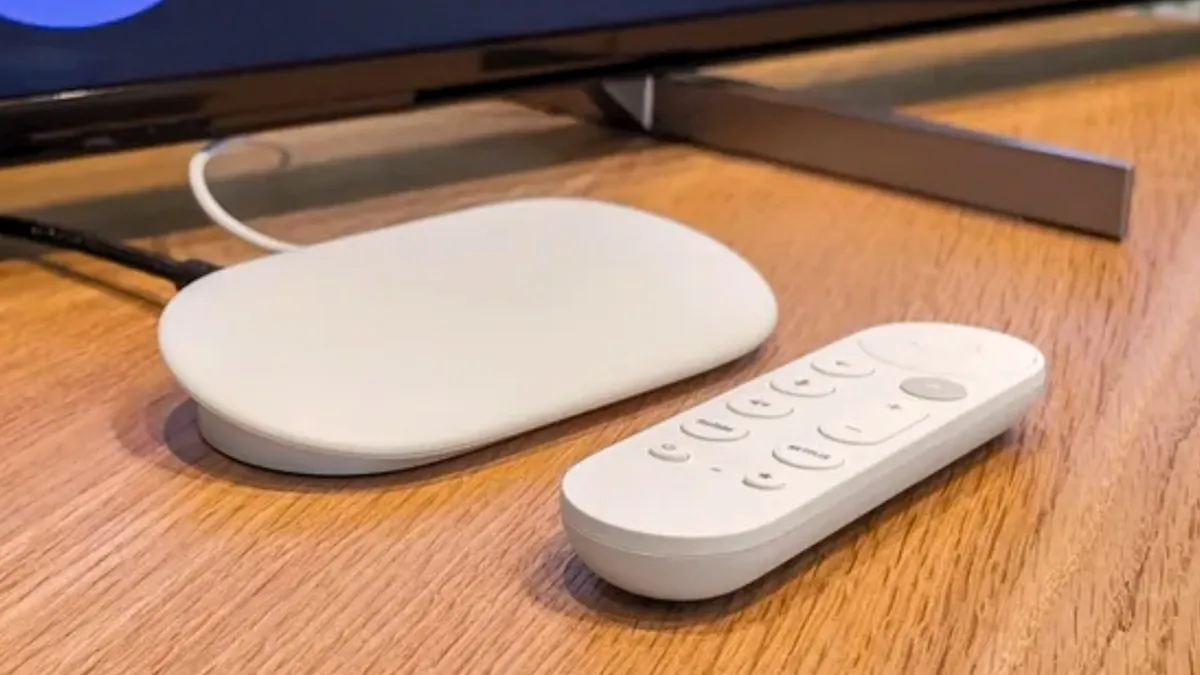
If you own a Google TV streamer with a dedicated remote control, you've got access to a handy feature that'll help you find it when it inevitably falls between the couch cushions.
From the Settings menu, scroll down and select Remotes & Accessories. This will open a menu of connected accessories, including the Google TV voice remote.
Select Find my remote. Your Google TV streamer's remote control should emit a loud noise.
5. Enable basic mode to simulate the ‘dumb TV’ experience

If you encounter Google TV by way of a smart TV and you'd rather exchange it for a non-smart experience, consider Google TV's basic mode. This will eliminate everything from apps to advertisements, leaving only the devices you've connected to your TV.
To access this mode, you'll need to run Google TV's initial setup process. This means performing a factory reset. Be forewarned: Performing a factory reset will erase all of your personal data, including apps, login information and any changes you've made to the TV's settings.
To do this, open the Settings menu, select the All Settings option, scroll down to the System submenu and select About. From here, you will be prompted to either accept or cancel your decision.
During the Google TV setup (and after you've selected your preferred language and region), you will be given two options: Set up Google TV and Set up basic TV. Choose the latter.
In basic mode, Google TV will be limited to live TV and any external devices. This includes streaming boxes or streaming sticks, gaming consoles, cable boxes and indoor antennas. It's certainly not for everyone, but if you're looking for a stripped-down TV experience, basic mode is worth checking out.

Follow Tom's Guide on Google News and add us as a preferred source to get our up-to-date news, analysis, and reviews in your feeds. Subscribe to Tom's Guide on YouTube and follow us on TikTok. Finally, you can visit our dedicated Tom's Guide Savings Squad hub for expert help on getting the best products for less.
More from Tom's Guide