







There's a particular kind of evening that feels almost cinematic in itself. The living room is dim, everyone's finally settled, and the TV is yours.
You scroll through your Roku the same way you always do: muscle memory guiding you past the same apps, the same rows, until something decent enough appears and the night begins. It's comfortable. It's familiar. And if you're anything like most people, you've barely scratched the surface of what your device can actually do.
Roku has built a surprisingly thoughtful set of features into its platform. Here are five of my favorites.
1. Private listening

Private listening routes all Roku audio to headphones instead of your TV speakers. This solves late-night volume issues. you hear everything clearly without disturbing anyone sleeping nearby.
For wireless headphones, download the Roku mobile app and connect your Bluetooth headphones to your phone. Open the app, tap "Devices," select your Roku, then tap the headphones icon in the bottom right corner of the remote screen. Audio switches from TV to headphones instantly.
If you own a Roku Voice Remote Pro (the one with a headphone jack), you can plug wired headphones directly into the remote. Audio automatically routes to the headphones without needing the app or Bluetooth connection.
2. Create a master watchlist across all apps
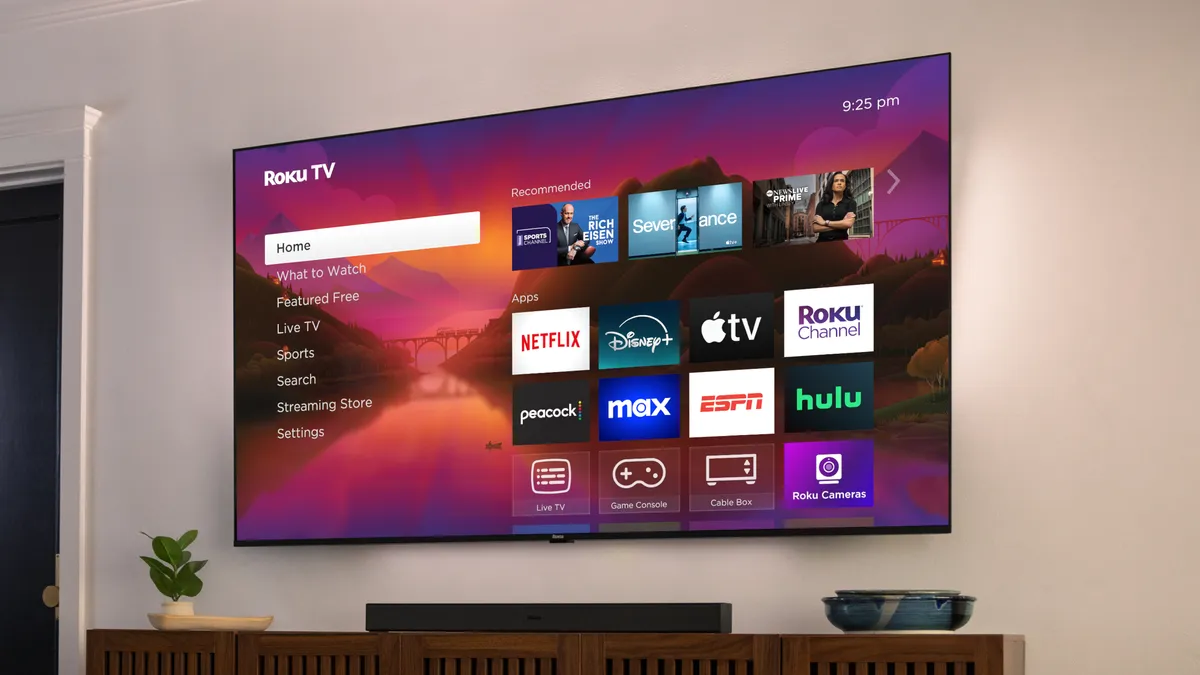
Instead of remembering which streaming service has the show you wanted to watch, Roku lets you save everything to one unified watchlist that spans all your subscriptions.
Search for any movie or show using Roku's search function. On the title's details page, select "Add to Save List." Repeat for anything else you want to watch. Access your complete list by going to the main menu and selecting "What to Watch."
This aggregates content from Netflix, Hulu, Disney+, and every other service you use into one organized place. The "Continue Watching" section below your save list shows everything you started but didn't finish, regardless of which app it's on.
3. Access hidden menus
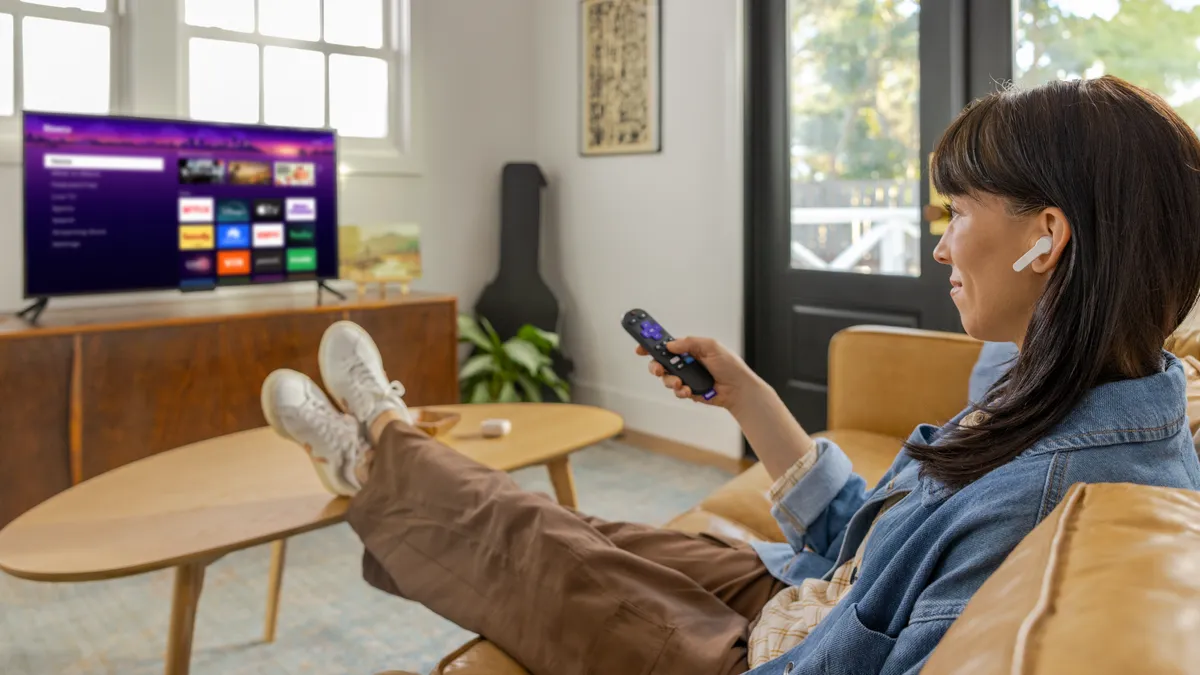
Roku hides advanced menus behind secret button combinations. These aren't necessary for normal use, but they're helpful for troubleshooting slow performance or connection issues.
To open the wireless secret screen, press Home five times, then Up, Down, Up, Down, Up. This displays detailed Wi-Fi diagnostics, speed tests, and options to reset your wireless connection. Use this when your Roku feels sluggish or buffers constantly.
For HDMI information, press Home five times, then Down, Left, Up, Up, Up. This shows resolution, HDR formats, and HDCP status, which is useful if you're having picture quality or compatibility issues with your TV.
4. Turn photos into TV slideshows
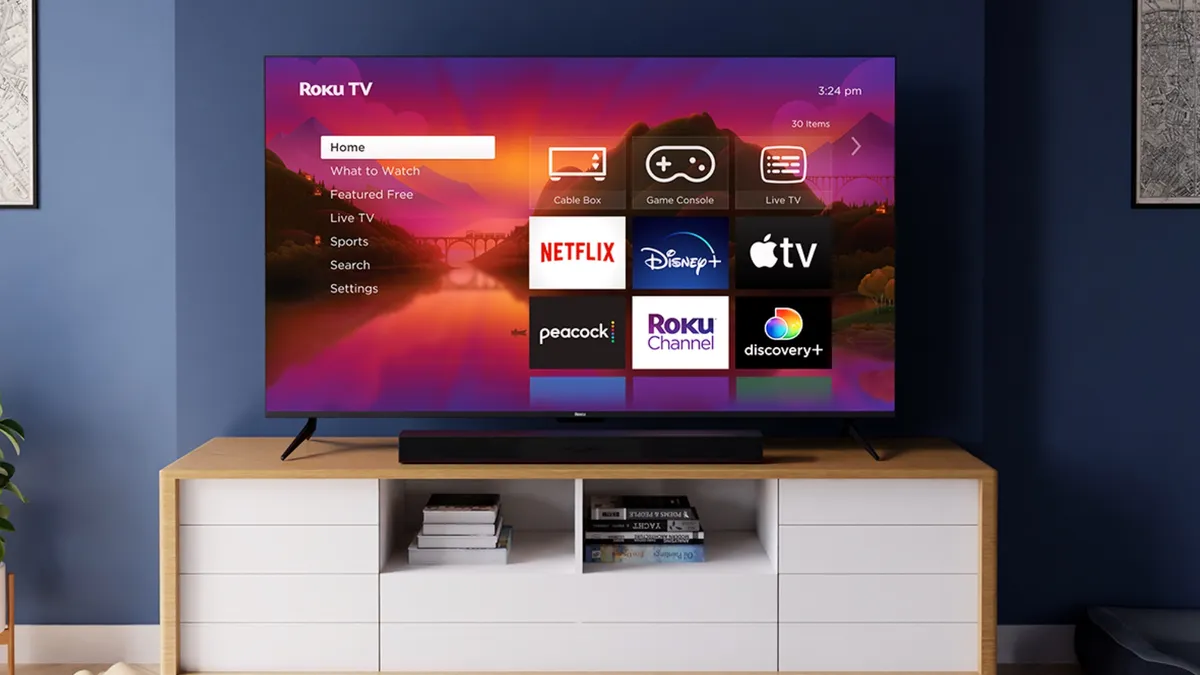
Photo Streams converts batches of photos into slideshows that play on your TV. This works great for displaying vacation pictures, family photos, or any image collection you want to showcase on a bigger screen.
Go to photostreams.roku.com on your computer and sign in to your Roku account. Click "Create Stream" and upload your photos (PNG, JPG, HEIC, WEBP formats supported). When finished, the stream appears on your Roku device.
On your Roku, press Home, Photo Streams, select your stream, then select "Slideshow" to start playback.
You can also set photo streams as screensavers by going to Settings, Themes, Screensavers, and Photo Streams.
5. Enable Guest Mode
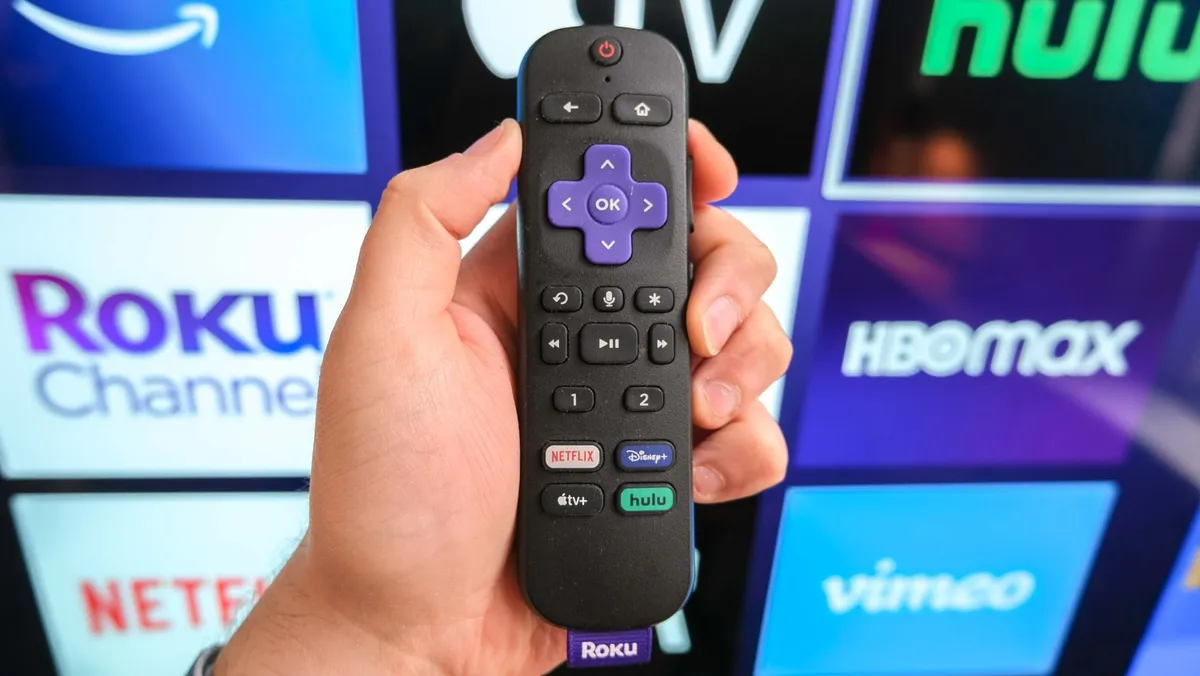
Guest Mode lets visitors use your Roku without affecting your watchlists, recommendations, or viewing history. They sign into their own streaming accounts, and everything they watch stays separate from your profile.
First, create a PIN in Roku settings if you haven't already. Press Home, Settings, System, Guest Mode, and Enter Guest Mode. Then enter your PIN and press OK to activate it.
While in Guest Mode, your Roku operates normally, but guests must sign into streaming apps with their own credentials. Nothing they watch or search impacts your algorithm.
To exit Guest Mode, go to Settings, Guest Options, Sign Out and Clear Info, then enter your PIN.

Follow Tom's Guide on Google News and add us as a preferred source to get our up-to-date news, analysis, and reviews in your feeds. Subscribe to Tom's Guide on YouTube and follow us on TikTok.
More from Tom's Guide
- Try these Roku tips to instantly improve your TV experience
- How to fix Roku freezing and buffering — including a secret remote shortcut
- 5 ways to mount your TV safely without a stud finder

