



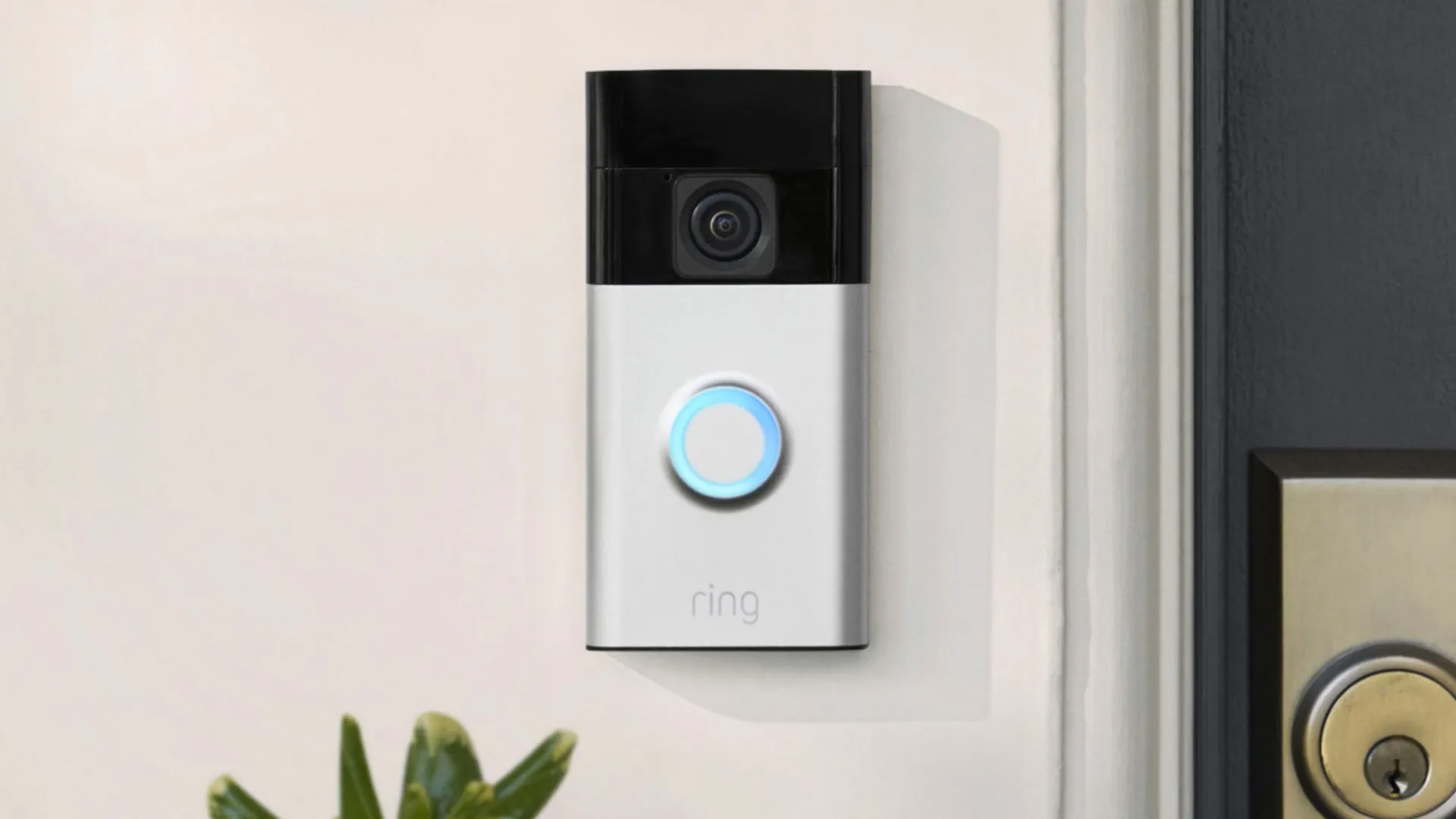
If you have an Amazon Echo smart speaker or an Echo Show smart display, you can get more out of your Ring devices by linking them with Alexa.
Once connected, you can create routines triggered by specific actions. For example, when someone rings your doorbell, Alexa can make a custom announcement, trigger an indoor camera to start recording, or turn on a smart light. It’s a simple way to take your smart home to the next level.
These routines are easy to set up. Once you know where to find the feature and create your first routine, the process quickly becomes intuitive. Routines work on an “if this, then that” basis — for instance, "if the doorbell is pressed, then make an announcement."
Because you can assign multiple actions to a single trigger, you can build more advanced and tailored automations. Here’s how to set one up.
1. Sign into the Alexa app
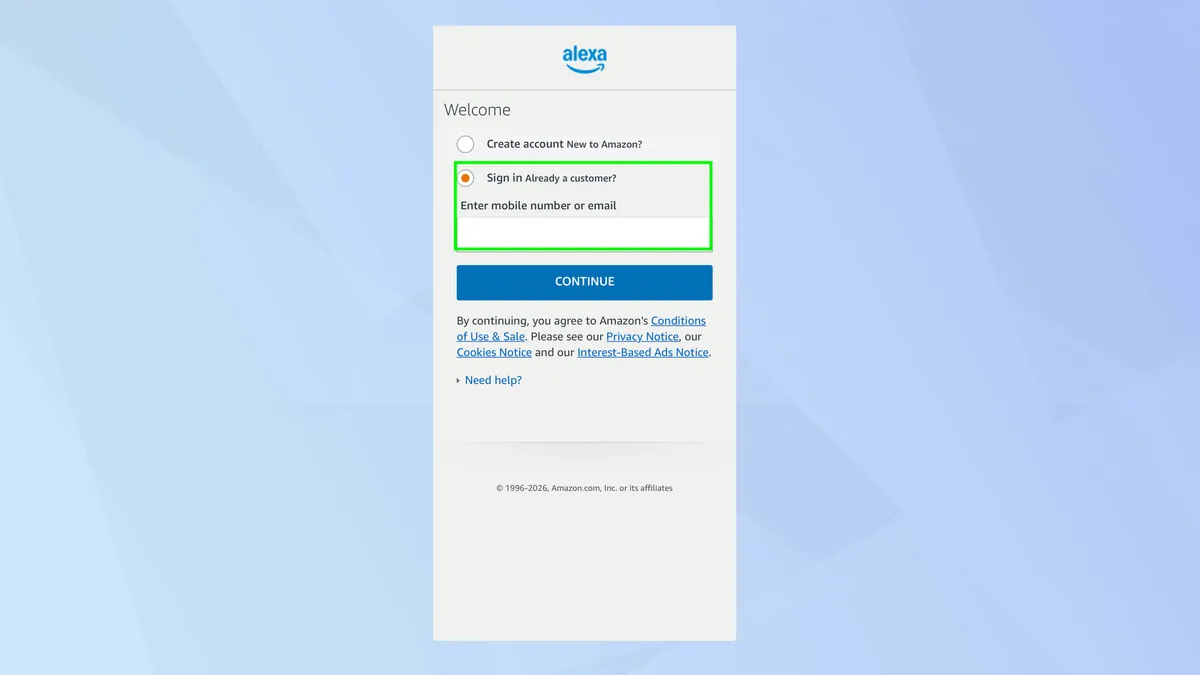
Install and open the Alexa app on your smartphone and sign in using the same Amazon account that is being used with your Ring account. This will ensure the Alexa app will recognize and work with your Ring devices.
2. Select the More menu
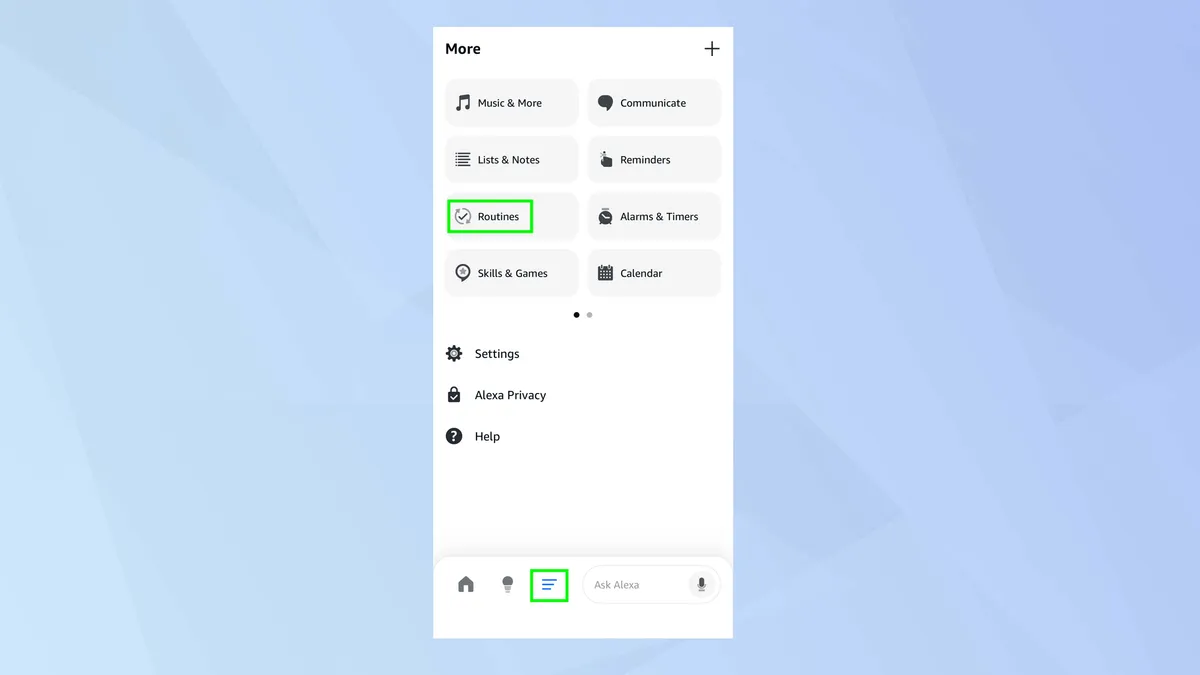
When you’re ready to create a routine, tap the three-line icon at the bottom of the app and select Routines from the menu which appears at the top of the screen.
3. Create a routine
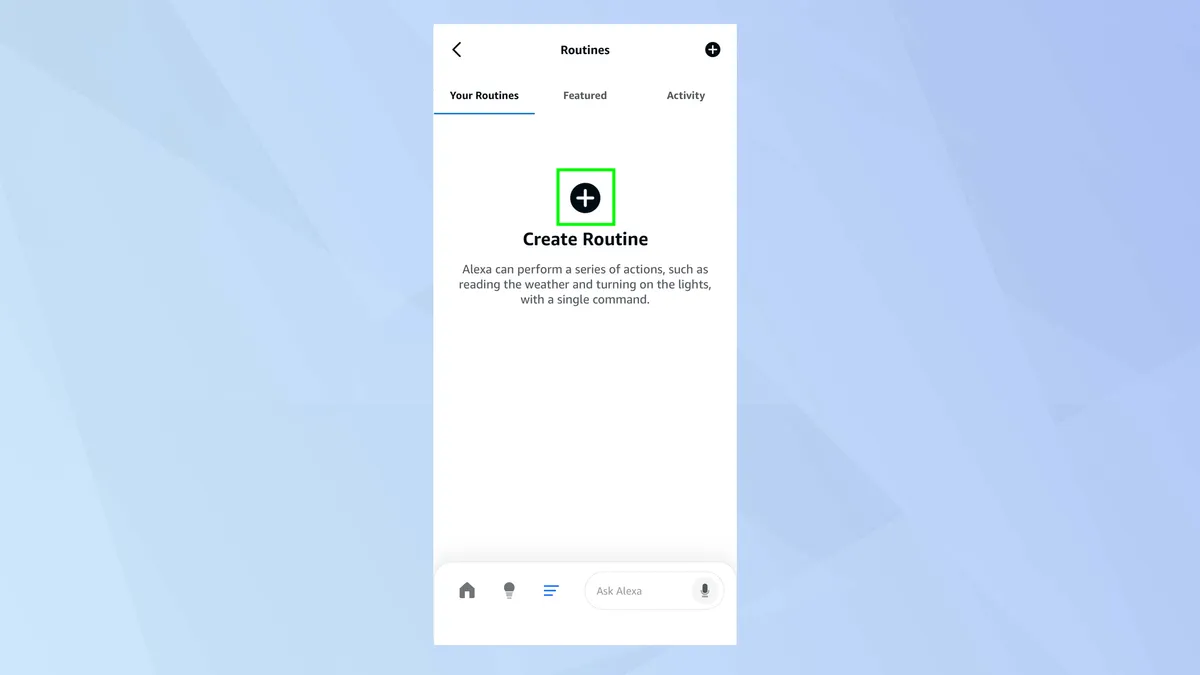
Now select + to Create a Routine. If you look at the top of this screen, you will see three tabs. Your Routines is where any routines you have made will be listed.
Featured shows a list of inspiring ready-made routines and Activity is where routines triggered in the last 30 days will be shown. It’s worth bearing these tabs in mind for the future.
4. Add an event
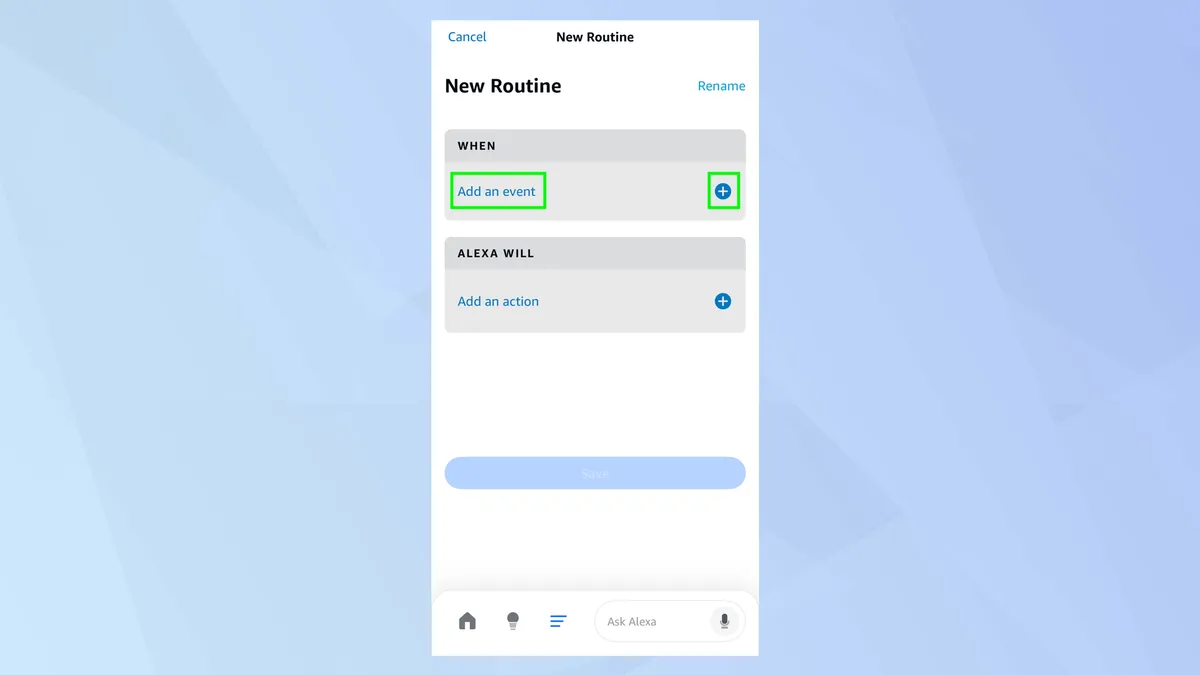
Now you’re ready to start building the routine. To start, select Add an event.
5. Select Smart Home
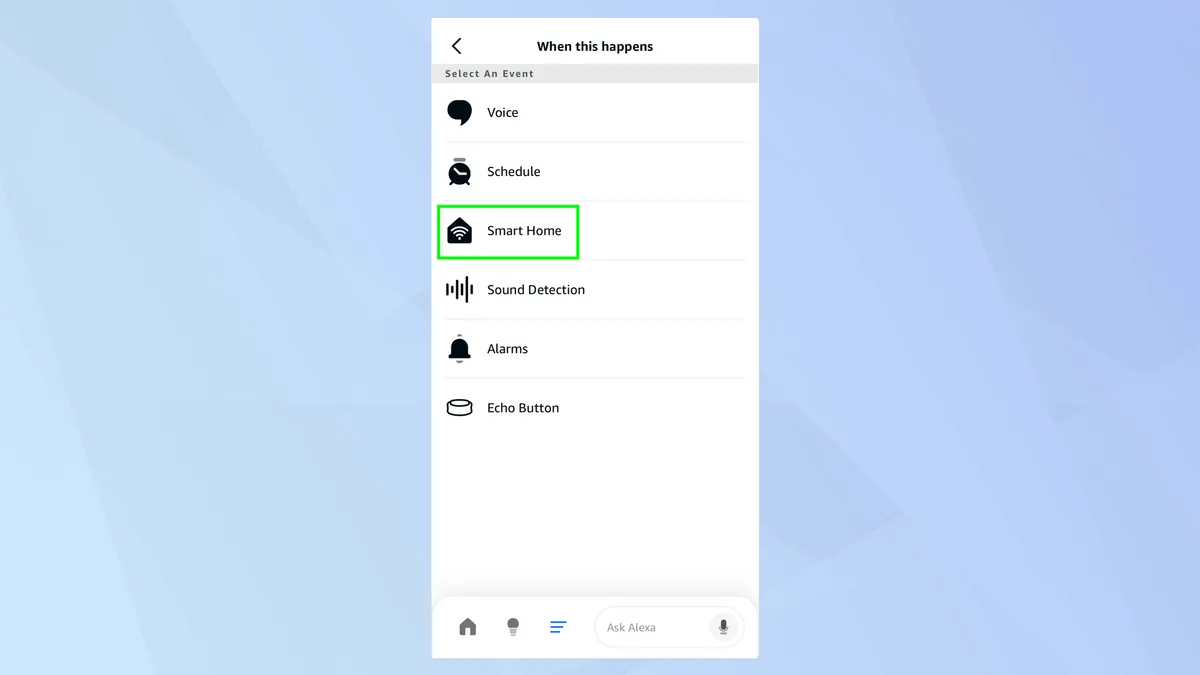
Since you’re looking to create a routine that affects a Ring device, you need to select Smart Home.
6. Choose a device
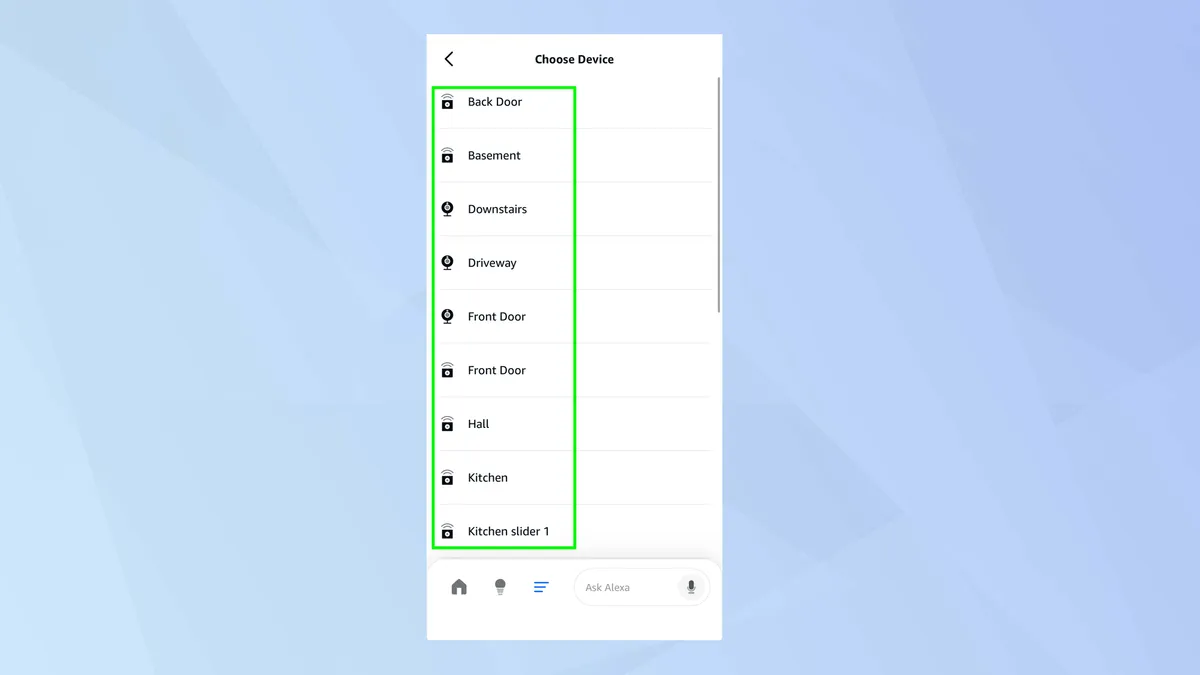
Assuming you’ve integrated Ring with Alexa properly, you should see a list of all of the devices associated with your Ring account from doorbells to sensors. Select a device that you wish to work with.
7. Pick a behavior
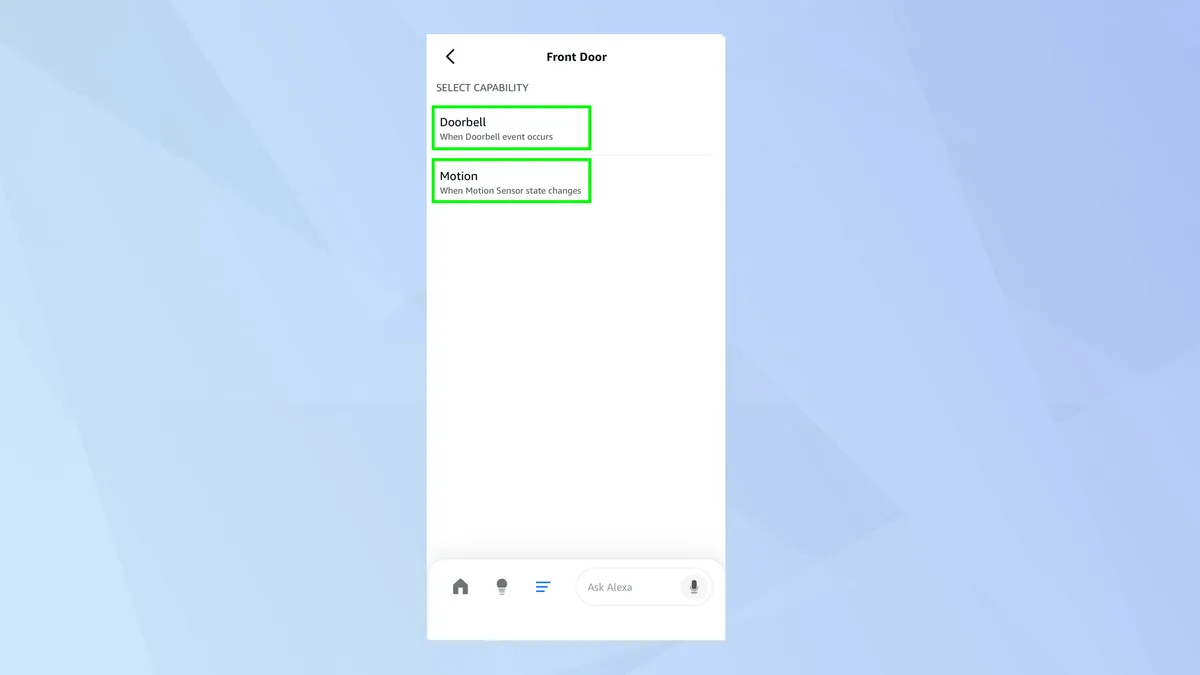
You’ll now be asked to select a specific behavior, the action that will trigger your routine. For example, if it’s a Ring doorbell, you can choose to run a routine whenever the doorbell is pressed or motion is detected.
When you’ve chosen, select Next.
8. Add an action
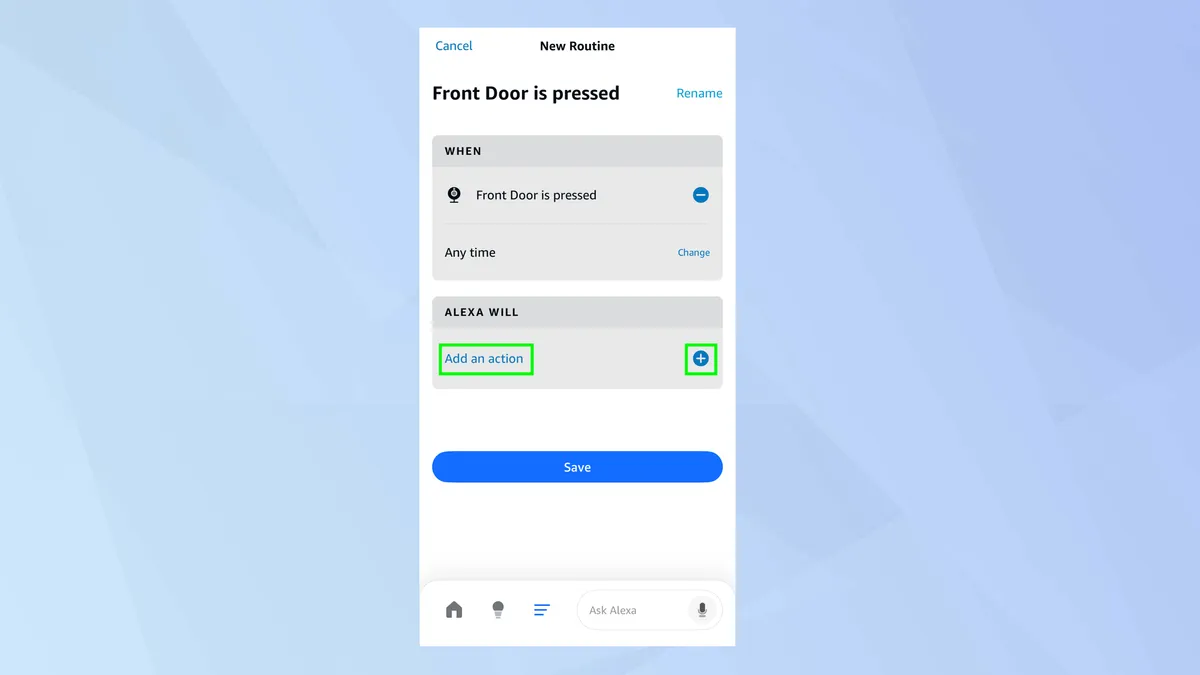
Your next step is to decide what will happen when the routine is triggered: what will be the consequence of someone pressing the Ring doorbell, for example.
Select Add an action and you can look through the list.
9. Choose an action
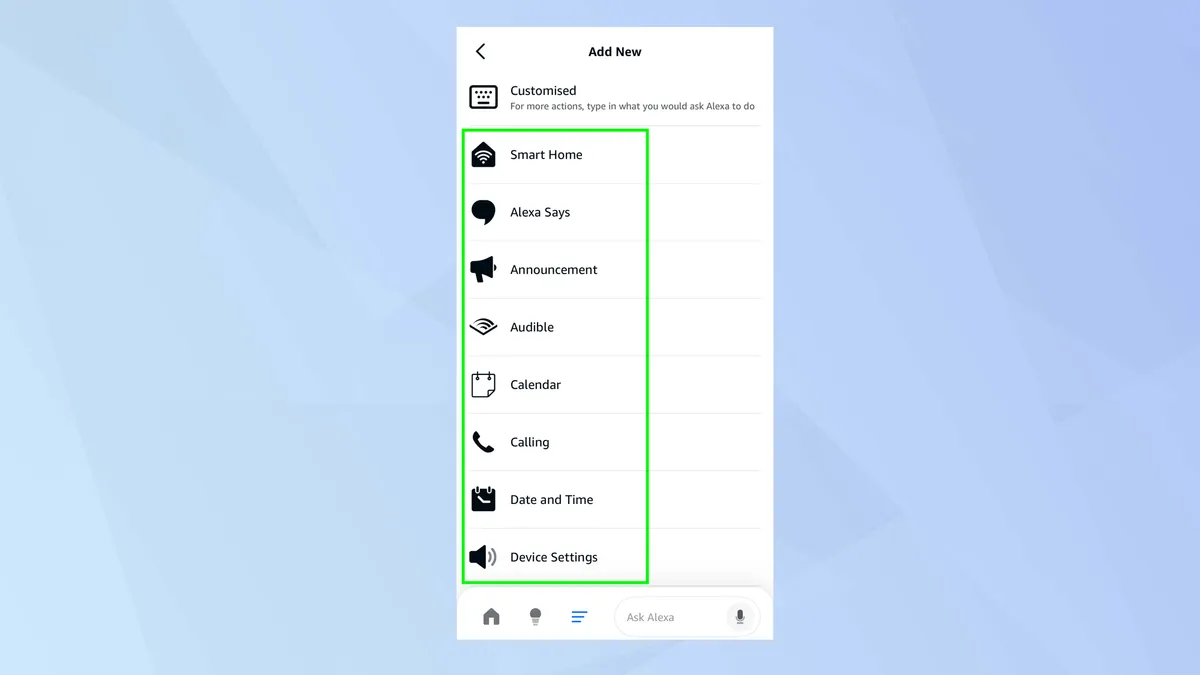
Tap Smart Home and you will find actions related to the camera, contact sensors, motion sensors and security panels. Simply pick an action you want and tap Next.
10. Save the routine
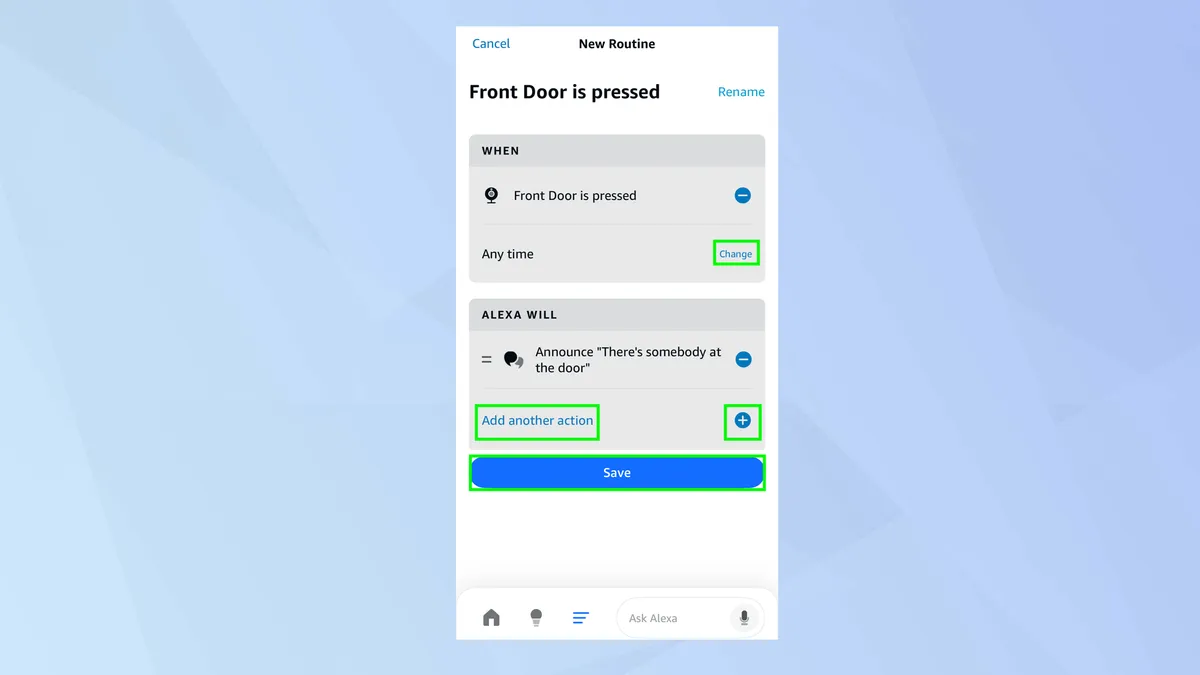
You’ll be presented with the routine. There may be some extra tweaks you can make. If there is, you’ll be able to tap Change to modify a routine.
It’s also possible to add more actions, select Add another action or +. When you’re happy with your routine, select Save. You can then test it to ensure it works as you wish.
11. Edit or remove the routine
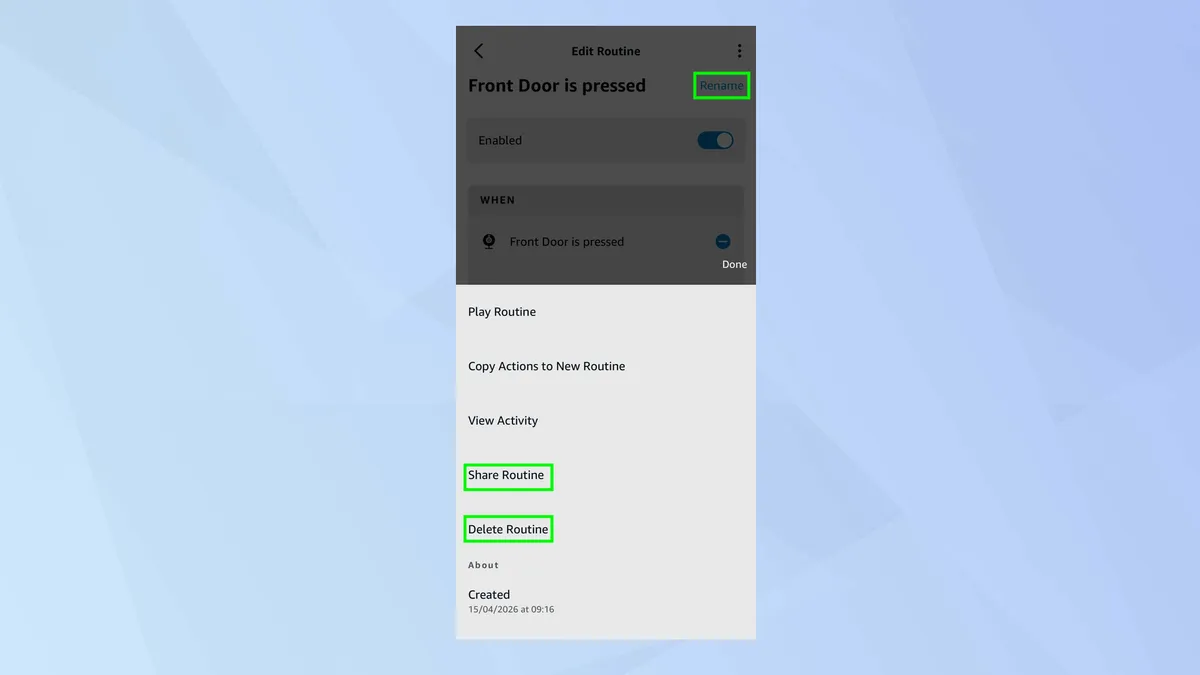
It will appear under Your Routines and you can tap the routine to edit or rename it. If you tap the three dots in the top-right corner, you can also choose the share or delete the routine.

Follow Tom's Guide on Google News and add us as a preferred source to get our up-to-date news, analysis, and reviews in your feeds. Make sure to click the Follow button!
More from Tom's Guide

