







Research used to mean hours of gathering information, organizing notes, and trying to connect the dots between different sources.
NotebookLM changes all that.
This AI-powered tool from Google Labs acts as your personal research assistant, analyzing up to 50 sources and 25 million words to become an instant expert on your topic.
What makes NotebookLM special is its capabilities — you can ask questions about complex information and get thoughtful, cited responses, or you can turn your research notes into a high-quality podcast. It's also great at making connections that you might miss otherwise.
NotebookLM helps organize information for a range of different needs — whether you're researching for school, preparing work presentations, or just satisfying your curiosity about a topic.
Let's explore five practical ways you can put this Gemini-powered assisant to work for your next project.
What is NotebookLM?
At its core, Google's NotebookLM lets you create digital workspaces where you can upload up to 50 different files — things like Google Docs, PDFs, websites, YouTube videos, and more. After you add these materials, the AI reads through everything and starts to understand how all the information fits together.
What makes NotebookLM special is that it works in two ways. First, it reads and understands all your documents.
Second, it acts like a smart study partner. You can ask it questions about your materials, get summaries of long documents, or explore specific topics you're interested in.
When it answers, it always tells you where it found the information. One of its best features is the Audio Overview, which turns your research into a podcast that you can listen to on the go. To access this AI research assistant, go to NotebookLM and click Try NotebookLM.
5 practical ways to use NotebookLM
1. Create a comprehensive research hub

Start by uploading multiple document types to create a knowledge base on your topic. This can include PDFs, Google Docs, web URLs, text files, and even YouTube videos.
NotebookLM will analyze all these sources together, establishing connections between them that might not be immediately obvious.
Click Create New and you'll be brought to your Notebook. Give your Notebook a name and navigate to Sources on the left side of the screen. Then Click Add Source.
...

Now it's time to upload all of your documents and source material. You can add content to NotebookLM in multiple ways: by dragging and dropping files directly, from your Google Drive, pasting text, or adding website links.
Doing this creates a centralized research hub where everything related to your project lives in one place, eliminating the need to juggle multiple tabs and documents.
2. Generate quick summaries
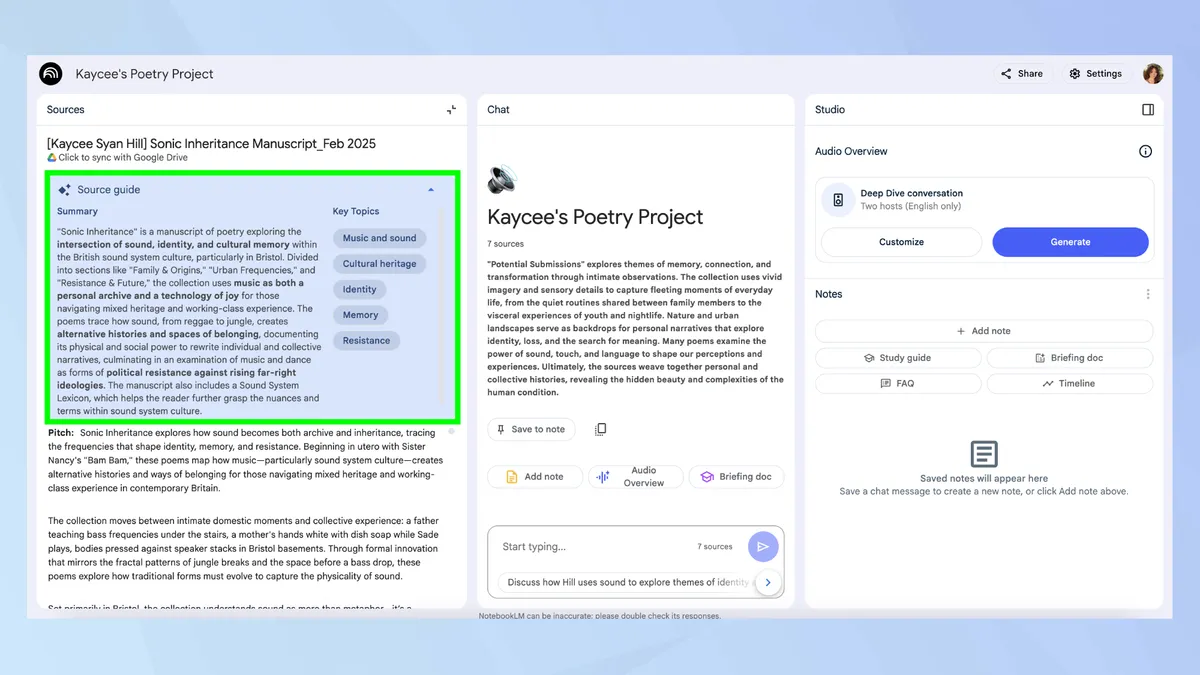
When faced with mountains of data or extensive word counts, ask NotebookLM to create concise summaries of your content. You can request summaries of specific aspects of your project or get an overview of all your sources combined.
To do this, click on your individual sources and you'll be provided with an AI-generated summary in the Source Guide.
The great thing about these summaries is you don't even have to type in a prompt, it's automatically generated the moment you upload the source. And as an added bonus, it breaks the document down into key topics.
...

Another way you can summarize is by using the prompt box in the chat box. Simply type something like "Summarize this project in its entirety."
This is particularly useful when trying to grasp the main points of dense papers or technical documents. And it provides citations for every point in its summaries, allowing you to verify information at the source.
3. Create an audio overview

One of NotebookLM's standout features is its ability to transform your research into an audio format that resembles a podcast.
You can use the tool to create an Audio Overview of your topic, and it will turn the information from all your sources into an engaging audio presentation.
On the right side of the screen you'll see the Audio Overview section. Click Generate to create a deep dive conversation based on your sources.
...

Once it's finished generating (this can take a couple of minutes — maybe longer if its a large document), you'll have, essentially, a podcast episode.
You can download it by clicking the three dots, and you can also amend the playback speed to suit your preference.
Out of all of NotebookLM's features, this is an absolutely game-changer. Transforming your notes into an auditory experience allows you to absorb information while you're on the go.
This is a fantastic option for those who prefer aural learning or don't want to be glued to a screen.
4. Target your questions

Instead of browsing through documents to find specific information, ask NotebookLM direct questions about your research. The AI will search across all your sources to provide comprehensive answers.
Ask your question in the prompt box, or you can take advantage of the automatically generated questions relating to your research.
...

You can ask for comparisons between different concepts, request examples of specific ideas, or probe for counterarguments to particular positions.
Each response comes with citations, so you can easily track the information back to its original context.
5. Structure the info

And lastly, NotebookLM can turn messy information into neat, organized formats such as bullet points, tables, and timelines.
Simply ask it to create a timeline of events from your sources, build a glossary of key terms, or make a table comparing different perspectives.
...

Organizing information in this way helps you spot patterns and connections that are easy to miss when looking at separate documents.
Now that you've learned how to use NotebookLM, why not check out our other AI articles? You can use Claude to design your dream home and these 5 prompts to get the most out of ChatGPT o3-mini.
And if you're interested in using AI to make music, take a look at getting started with Riffusion AI.

