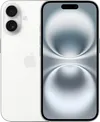
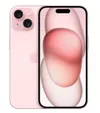
I recently noticed a small dot appearing next to my iPhone's Dynamic Island and honestly had no idea what it was at first. As it turns out, it's a redesigned version of a privacy feature Apple introduced a few years ago. Apple just made them more noticeable by adding a black background and moving their location.
The dot isn't something to worry about, but understanding what triggers it and how to control it is useful, especially if you care about which apps are accessing certain features on your phone. Here's what you need to know about the dot and how to manage when it appears.
1. Understand what the black dot indicates

The orange or green dot is a privacy indicator showing which of your phone's features are currently being used. When you see a green dot with the black background, an app is actively using your iPhone's camera. An orange dot with the black background means an app is using your microphone.
This visual alert helps you stay aware of which apps are accessing these sensors, which is particularly important for privacy and security.
2. Check which app is triggering the indicator

If you see the black dot appear and aren't sure which app is causing it, you can quickly find out. Swipe down from the top-right corner of your iPhone screen to open Control Center. At the top, you should see usage information showing which apps are currently active, including specific notifications about which app is using your camera or microphone.
This is helpful when the indicator appears unexpectedly — it lets you verify that a legitimate app is accessing these features and not something suspicious running in the background. Malware or unauthorized apps sometimes trigger these indicators, so it's worth checking if you see the dot when you're not actively using your camera or mic.
3. Close the app to remove the black dot

The simplest way to make the dot disappear is to close the app that's using your camera or microphone. Once you exit or force-quit the app, the indicator will vanish within a second or two. If you're using multiple apps and aren't sure which one is causing the indicator, check Control Center first to identify the specific app, then close it.
The dot will reappear anytime an app accesses your camera or microphone, so if you're on a video call or recording audio, you'll see it for the duration of that activity. This is by design — the indicator is supposed to keep you informed about ongoing access to these sensitive features.
4. Revoke camera and microphone permissions
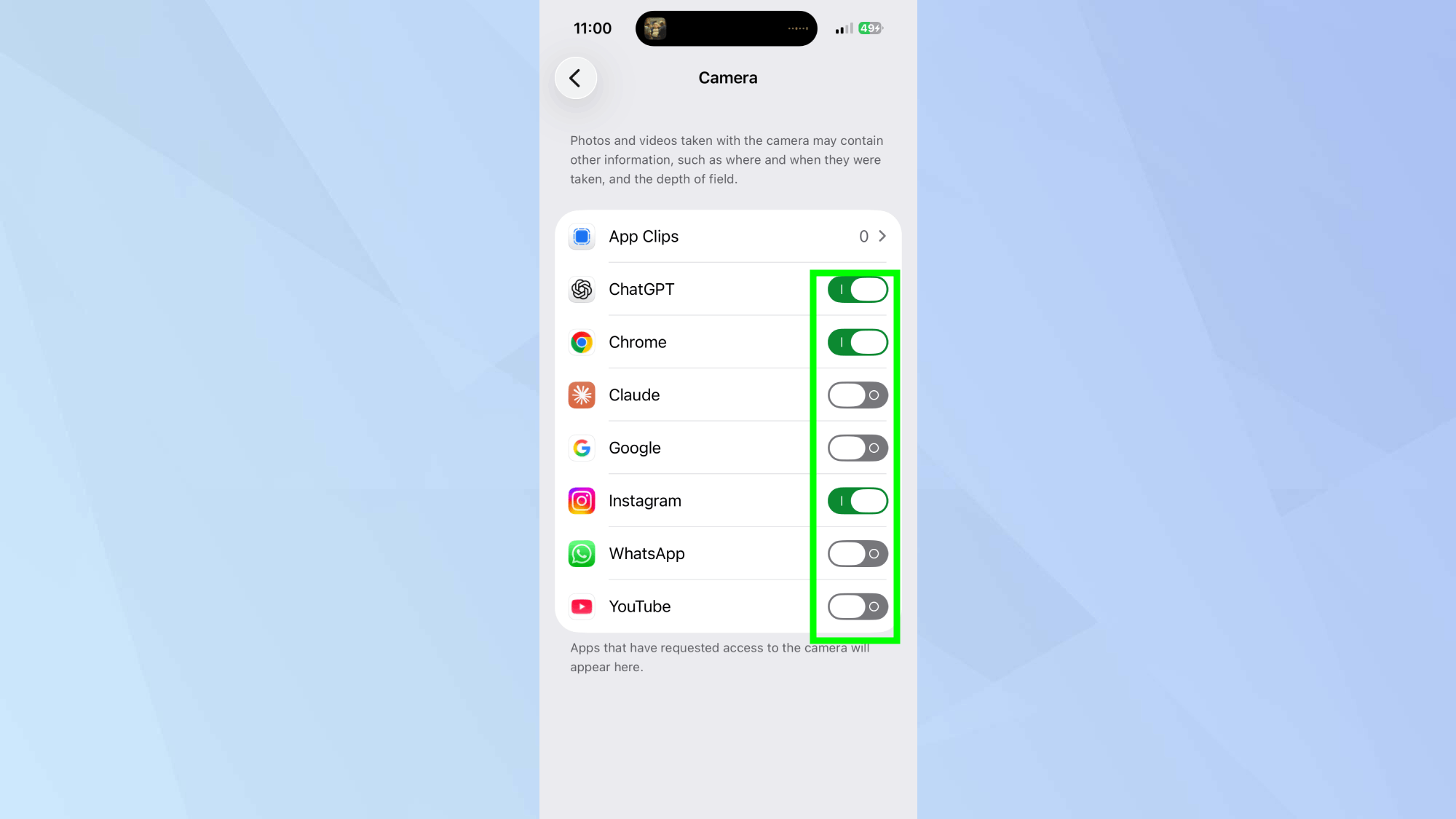
If certain apps are triggering the privacy indicator when you don't want them to, you can revoke their access entirely. Open Settings, tap Privacy & Security, then select either Camera or Microphone depending on which permission you want to manage. You'll see a list of all apps that have requested access to that feature. Toggle off any apps you don't want using your camera or mic.
Once you revoke permission, those apps won't be able to access the feature, and the black dot won't appear when you use that software. Apps will typically ask for permission again if they need camera or mic access for a specific feature, giving you the opportunity to grant temporary access if needed.
5. Use privacy indicators as a security check

Pay attention to unexpected appearances of the dot, especially if you haven't opened any apps that would normally use your camera or mic.
The black dot serves as an important security tool beyond just privacy awareness. If you see the indicator appear when you're not actively using your camera or microphone, it could mean an app is accessing these features without your knowledge.

Follow Tom's Guide on Google News and add us as a preferred source to get our up-to-date news, analysis, and reviews in your feeds. Make sure to click the Follow button!
More from Tom's Guide
- 5 iPhone features Apple buried in Settings
- Your lost or stolen iPhone can be found even if it's turned off
- 3 battery-draining iPhone settings you need to disable