







Apple Intelligence has officially arrived with iOS 18.1, bringing significant AI capabilities across Apple devices. While Apple Intelligence can summarize audio notes and phone call transcripts, these features are just the beginning. The update brings a smarter version of Siri that better understands context and follow-up questions, and introduces Clean Up for Photos, Apple's own take on Samsung's Magic Editor feature.
Getting started with these features isn't quite as simple as a standard iOS update. Apple is managing the rollout carefully to ensure a smooth experience for all users, which means you'll need to follow specific steps to activate Apple Intelligence on your devices. Whether you're using an iPhone, iPad, or Mac, the process requires joining a waiting list before you can access these new capabilities.
Note that Apple Intelligence features are available only on the iPhone 15 Pro, iPhone 15 Pro Max, all iPhone 16 models, and Mac and iPad with M1 or later. Let's walk through how to activate Apple Intelligence on each of your compatible devices.
Apple intelligence on iPhone
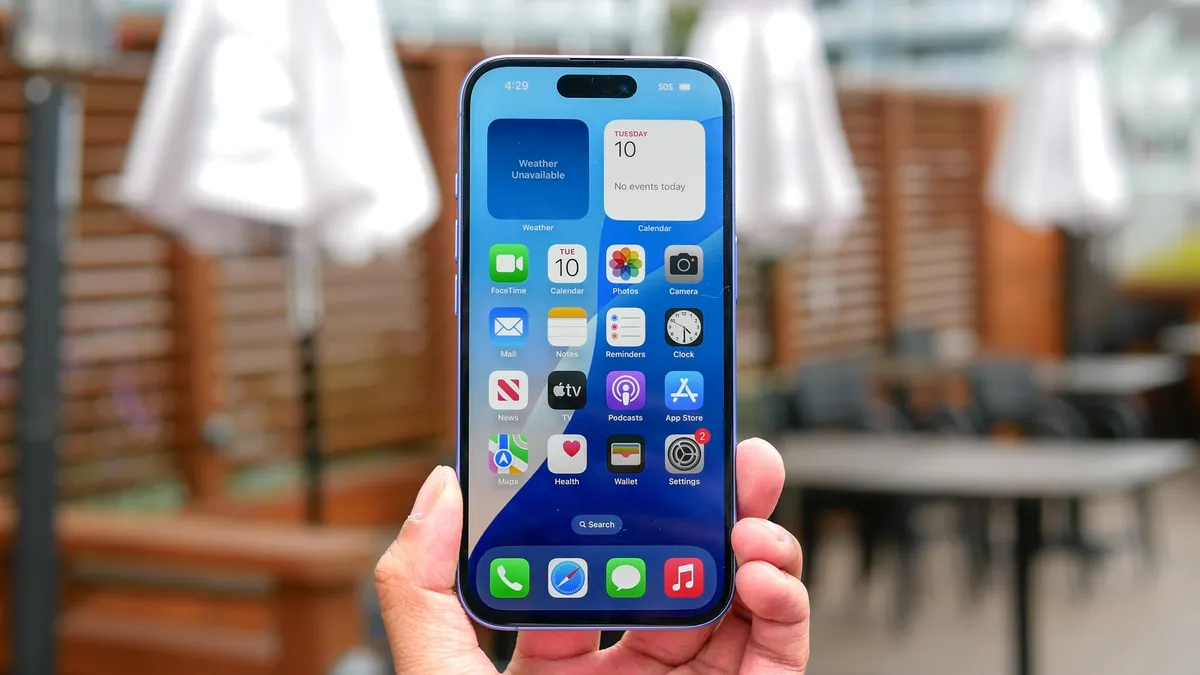
First, ensure your iPhone is compatible — you'll need an iPhone 15 Pro, iPhone 15 Pro Max, or any iPhone 16 model. Your phone also needs to be set to US English in order to join the Apple Intelligence wait list.
Head to Settings, then tap Apple Intelligence & Siri. You'll see an option to "Join the Apple Intelligence Waiting List." Once joined, you'll receive a notification when the features are ready to activate on your device. The system will then download the necessary on-device AI features.
Apple intelligence on iPad
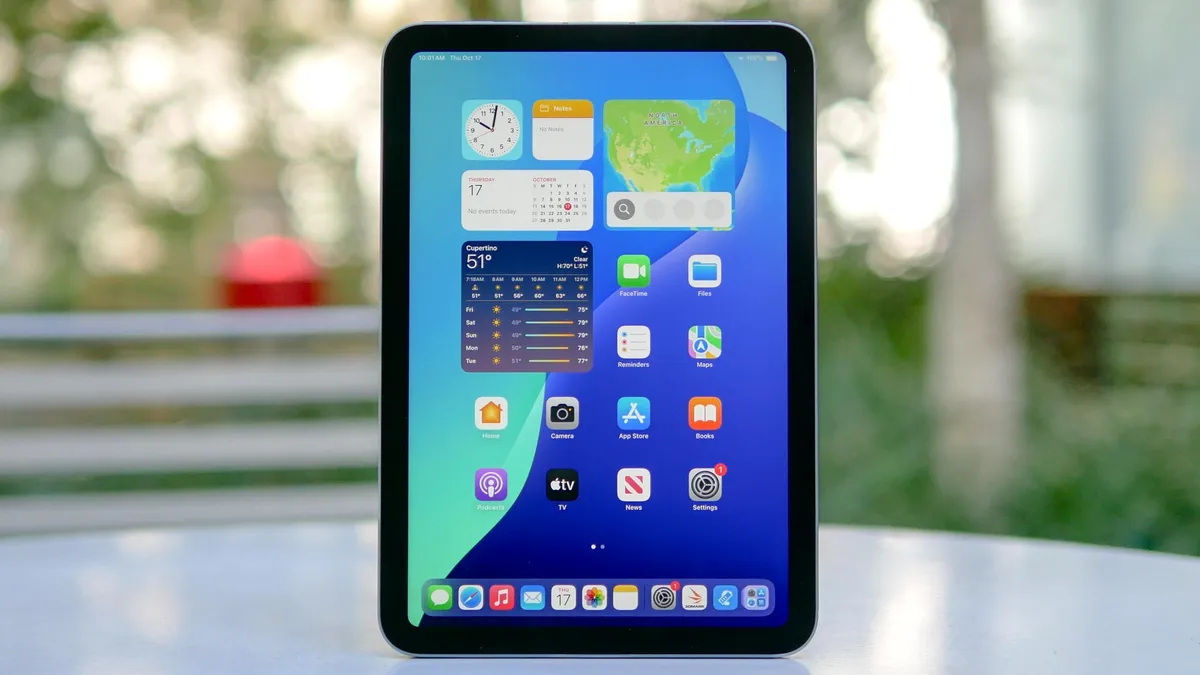
iPad users need a device with an M1 chip or later, or an iPad Pro with M1 or later. The activation process mirrors the iPhone steps: open Settings, navigate to Apple Intelligence & Siri, and join the waiting list.
As with iPhone, you'll be notified when the features are ready, and your iPad will download the required features.
Apple intelligence on Mac
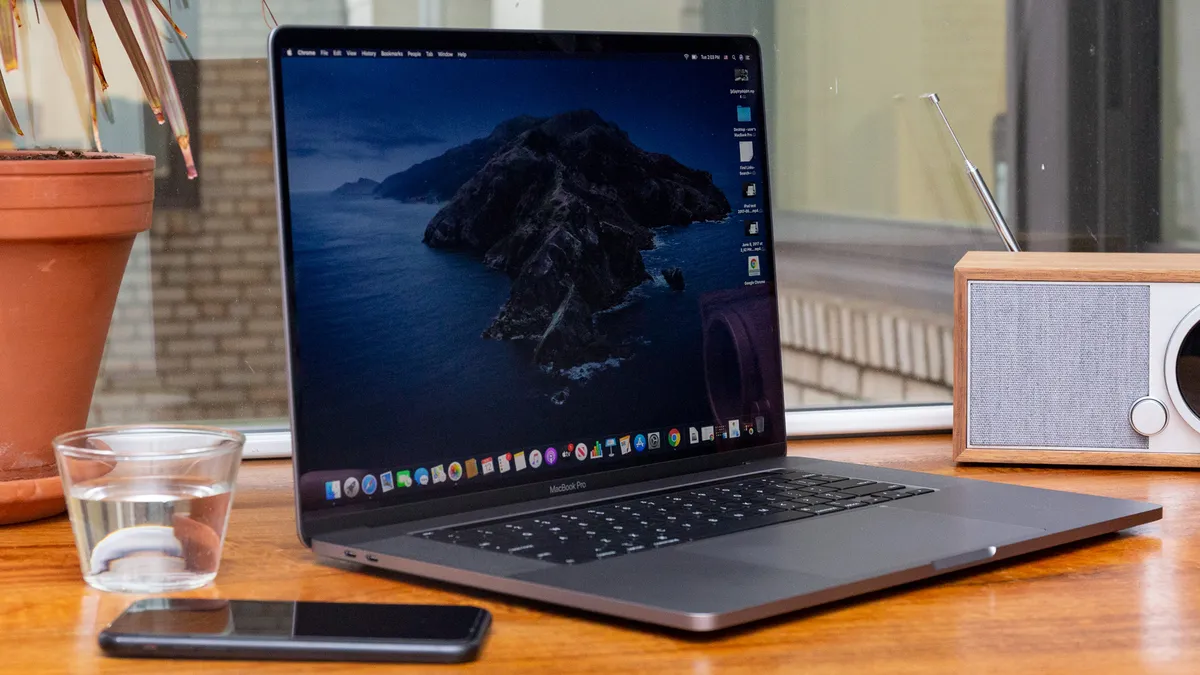
Mac activation follows a slightly different path. Click the Apple menu and select System Settings. Find Apple Intelligence & Siri in the menu, then click "Join the Apple Intelligence Waiting List."
The same notification and download process applies, but ensure your Mac has sufficient storage space for the features.
What to expect after activation?
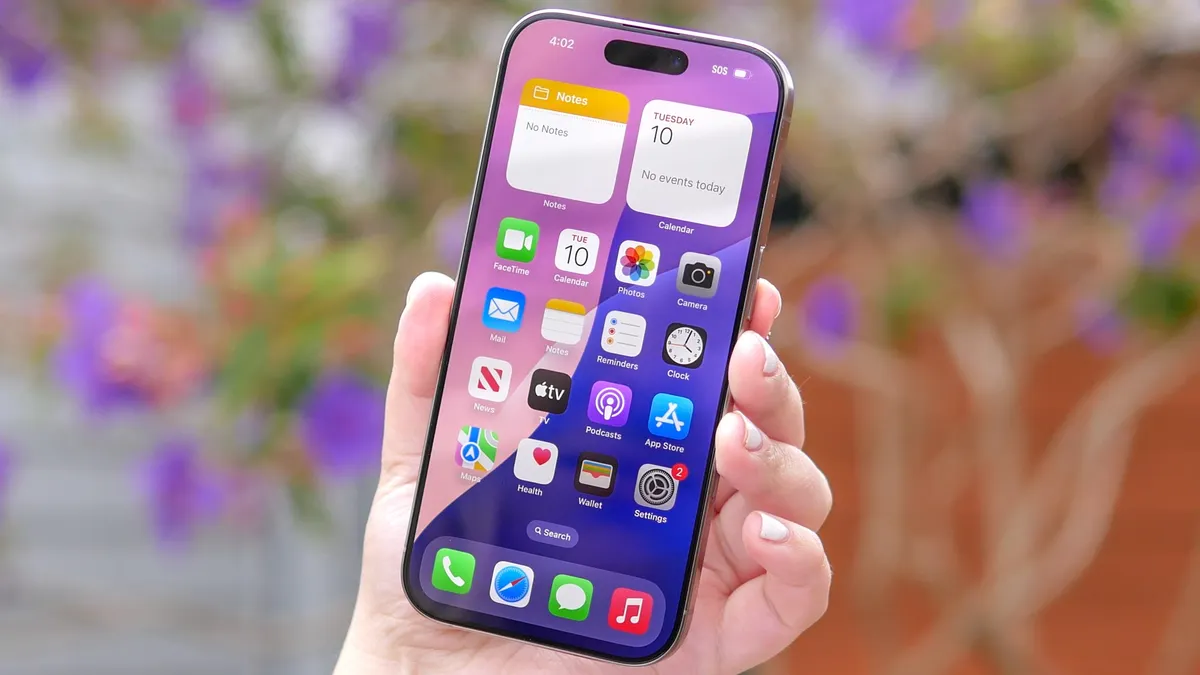
Once activated, Apple Intelligence features will appear across your device. Look for new options in the Photos app, writing assistance in text-based apps, and enhanced Siri capabilities. Email features will automatically integrate into the Mail app, while summarization tools will appear in compatible apps.
Remember, the rollout is gradual to ensure system stability. You most likely won't see the features immediately after joining the waiting list, they should appear within a few hours. Happy AI-ing!
Now that you've activated Apple Intelligence across your devices, you can start exploring its features. If you're looking to tame your inbox, learn how Apple Intelligence can summarize all your emails. For help with documents and messages, Writing Tools is one of Apple Intelligence's most useful features — here's what it can do. And for less well-known features, check out iOS 18 Notes just got a major overhaul — here's how to use it.

