





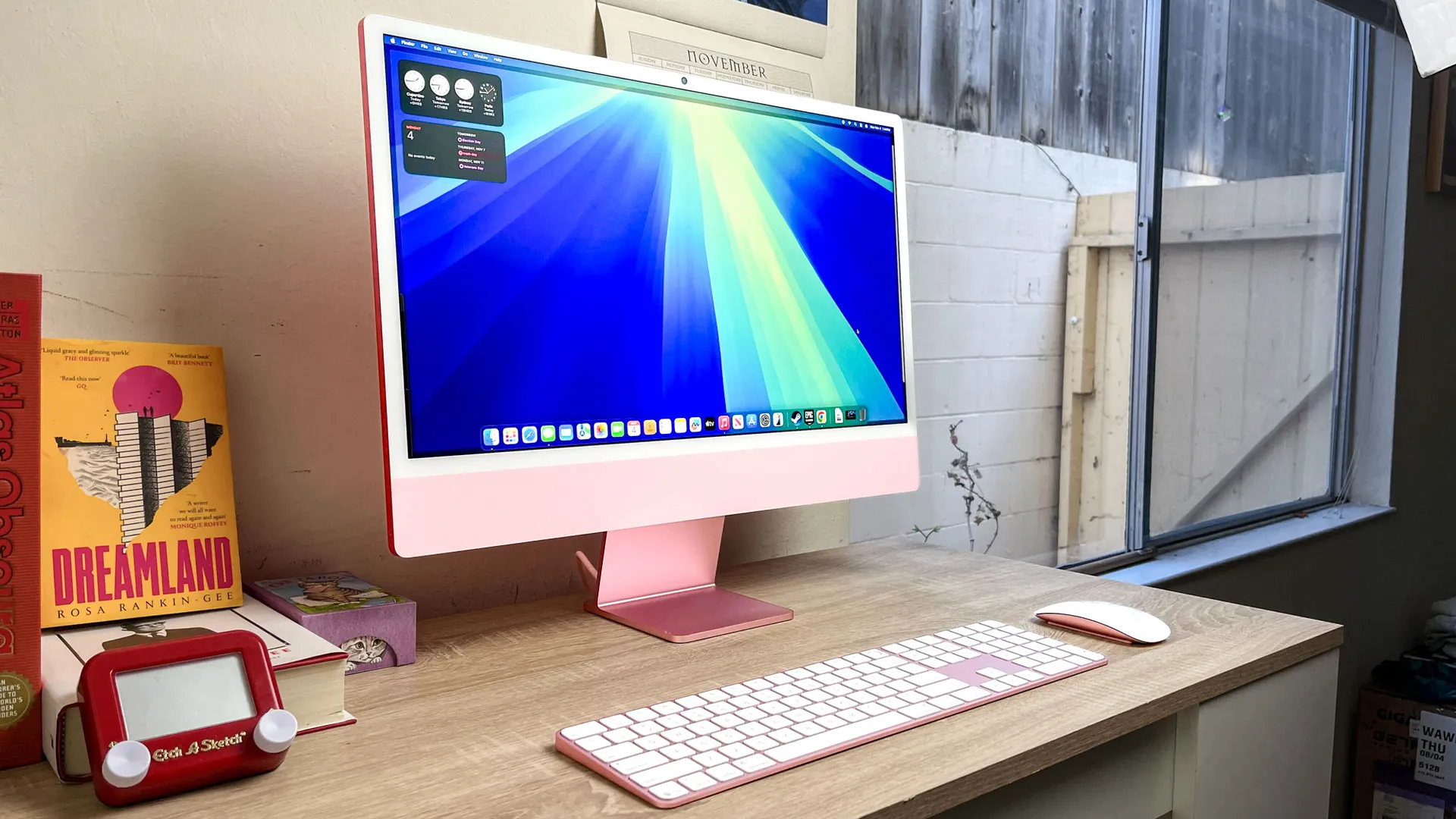
The best all-in-one computers give you the full PC experience in one compact and stylish package. And today, they're better than ever: speedy performance for work and play, impressive screens with well-built peripherals and, most importantly, easy to set up.
We're big believers in having a clean, slick-looking desk here at Tom's Guide, and all-in-one (AIO) PCs are just the machines to clear up any mess of wires without taking up much space — all while looking classy. By smartly packing its CPU, RAM, storage and more within the simple-looking monitors, you're getting the complete PC package. And that includes a mouse, keyboard, webcam and, yes, sometimes even a built-in wireless phone charger!
My team and I review dozens of PCs every year, including AIO PCs from Apple, HP, Lenovo and more. For now, it's hard to beat what the Apple iMac M4 has to offer (and in a lovely selection of colors), from its powerful performance to a vivid 4.5K Retina display. But there's more worth your attention, and we've chosen the three best all-in-one computers to buy today. For more details, scroll on.


Darragh here, and I've been testing PCs, from desktops to laptops, of all types for years, and I'll always have my eyes locked on all-in-one computers. I mean, a screen, keyboard, mouse and webcam packed together in a compact, easy-to-set-up machine? That's not just value; it calls for a lean, clean and space-saving setup. Not all are worth your money, but this guide is here to help you make the right choice.
Apple is expected to announce its next iMac M5 later in 2026, likely around October. There's also talk of a next-gen OLED iMac, which would give its display a major upgrade, but that's not expected to arrive until at least 2029. In the meantime, the current iMac with M4 is a fantastic choice, but we'll keep this page updated with the latest.
The best all-in-one computers you can buy right now
Why you can trust Tom's Guide Our writers and editors spend hours analyzing and reviewing products, services, and apps to help find what's best for you. Find out more about how we test, analyze, and rate.
The best all-in-one computer overall

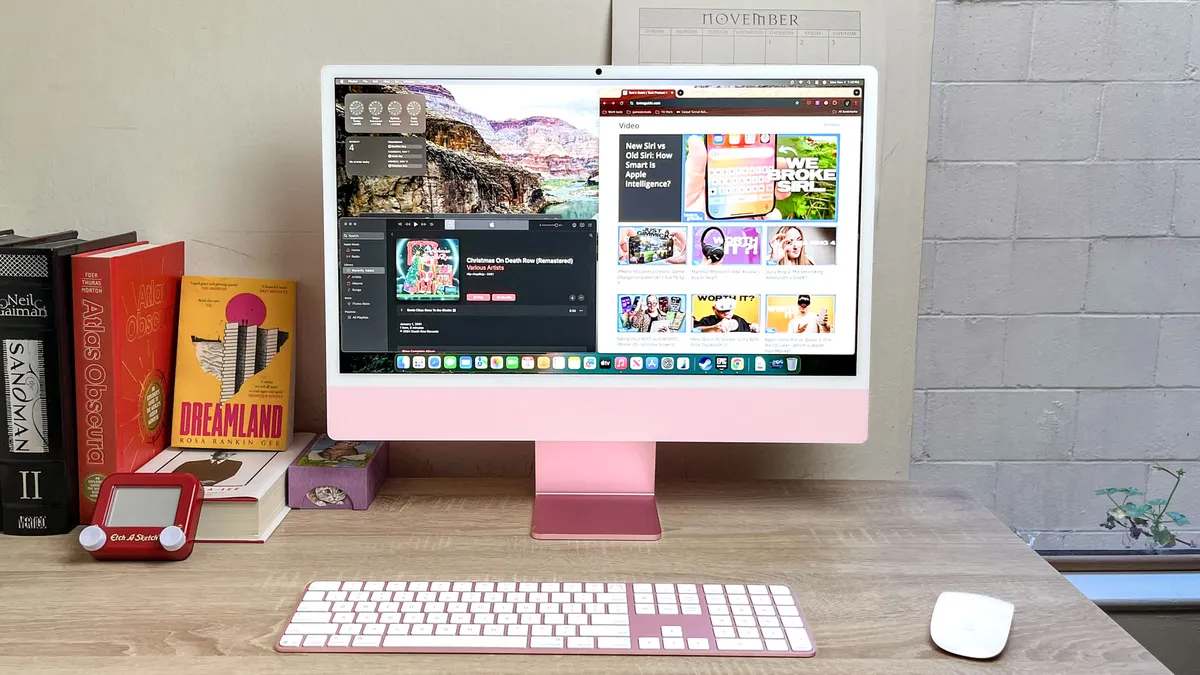
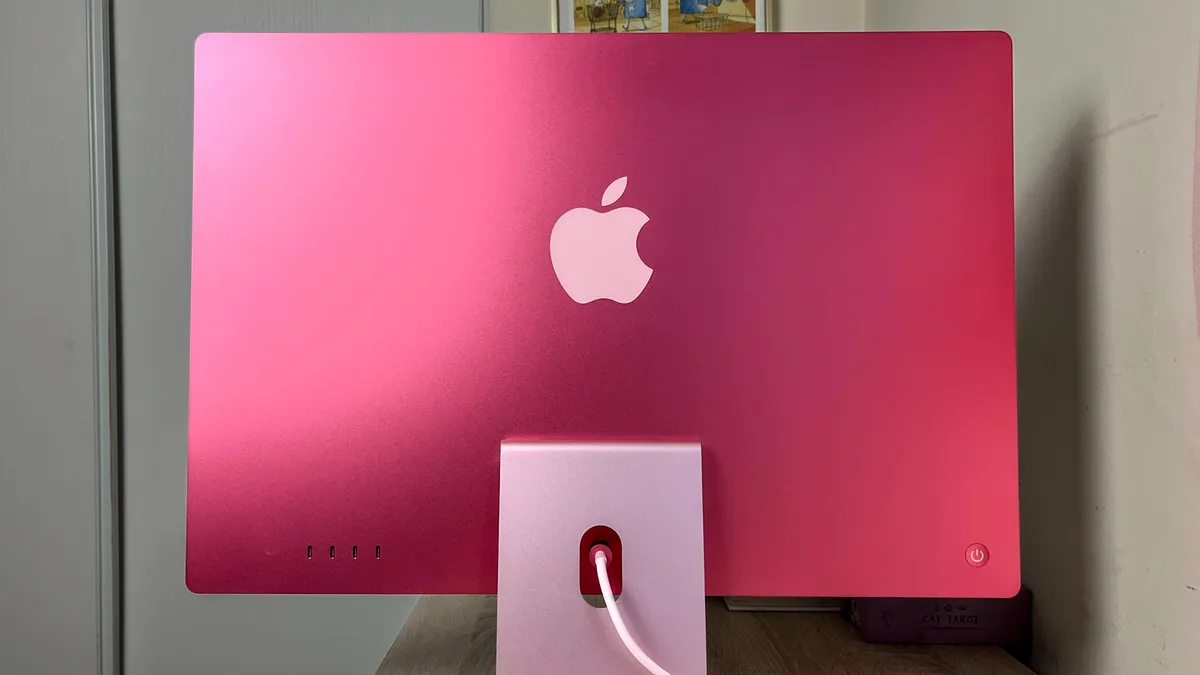
The colorful Apple iMac M4 looks an awful lot like its predecessors, but under the hood, this all-in-one is powered by the all-new Apple M4 chip that helps propel it to our top spot on this list.
I really like the iMac because it combines good performance, a surprisingly good speaker setup and a lovely display with great viewing angles in one attractive package that's easy to fit into your desk.
The 24-inch 4.5K (4480 x 2520) display is among the best you can get on an all-in-one, and its wide viewing angles make it surprisingly good for gathering friends or family around to watch YouTube videos or stream a TV show. Pair that with the six-speaker sound system, which supports Apple's Spatial Audio feature, and you get the best theater experience out of any PC on this list.
Pair that with the speed and power of the M4 chip, which is more than capable of handling basic work tasks, homework, basic video editing and light gaming, and you start to see why I love this machine as a general-purpose PC.
Plus, the 12MP webcam is great for FaceTiming relatives or taking part in remote learning, and if you're using FaceTime, you can use the new Desk View feature to transmit a live feed of whatever's in front of you on your desk in addition to your own video.
The only real down side of the iMac M4, in my eyes, is the fact that it's not very adjustable (you can't tilt it up or down or raise and lower it, for example) and you don't get much in the way of ports: just Thunderbolt 4 ports, an audio jack and an optional Ethernet port for wired connections.
Despite those drawbacks, I maintain the Apple iMac M4 is a great all-in-one that's easy to recommend to families, students and any Mac fan who needs an elegant PC that doesn't take up a ton of space and looks good on a desk.
Read our full Apple iMac 24-inch review.
The best value all-in-one computer


The MSI Modern AM271P 11M is an awkwardly-named AIO that's quite good if you need something (relatively) affordable that's capable of tackling the day-to-day tasks of handling business and getting things done. It's cheaper than the iMac M4 at under $800 (it was over $1,000, but now you can find it for well under this), yet it is more than good enough for basic work and play.
That's because this PC packs a decent Intel Core i7 CPU into its display along with 16GB of RAM and a 512GB SSD. As you'll see from our test results section below, it can't hold a candle to the iMac M4, and the screen isn't as bright or colorful as the iMac's, but the MSI Modern's 27-inch 1080p display is perfectly fine for watching movies, browsing the web and getting work done.
The MSI Modern is more adjustable than the iMac M4 as well, so you can raise, lower, tilt and swivel the display a fair bit, so it's more comfortable for you to use. This lets you accommodate your unique ergonomic needs more easily, and thanks to the built-in VESA mount, you also have the option of mounting it on a wall or monitor arm for more convenient workplace setups.
Plus, this all-in-one comes with both an HDMI in and HDMI out on the port array, which means you can plug in an external PC and use the MSI's screen (so you could hook up your laptop to work from home) or you can plug in an external display and use the MSI on the external screen. That lets you hook up additional displays or use an alternative if the MSI's screen dies, which is a nice option to have.
Admittedly, the 1080p webcam and pair of built-in 2.5W speakers are not the best. They're more than good enough for work calls and getting things done, but you may want to invest in a decent pair of headphones down the road if you like listening to music or watching movies on your all-in-one.
Likewise, the packed-in mouse and keyboard are functional but not premium. You can get by using them just fine, but you will probably want to provide your own down the road for maximum comfort. However, these are the kinds of drawbacks you should expect from a cheap, business-focused all-in-one.
Read our full MSI Modern AM271P 11M review.
The best Windows all-in-one computer


The Lenovo Yoga AIO 27 is our top recommendation for folks who can afford to spend four figures on a fantastic Windows all-in-one. It has everything you need, plus some cool (and useful) features that others don't.
I'm talking, of course, about the Qi wireless charger built into the base of the display, so if you have a compatible smartphone, you can leave it on the stand to charge while you work. The display is adjustable too, so folks in your home can tilt, swivel, raise and lower it to make it more ergonomic to use. The screen rotates too, which is a rare feature that is pretty fun when you're playing vertically-scrolling games or watching vertical videos on sites like TikTok.
The 27-inch QHD (2560 x 1440) IPS panel looks nice and bright in person and delivered vibrant, accurate colors in our display tests, occasionally beating out the iMac M4. The built-in JBL speakers deliver good sound quality, to boot, and I love that you can rotate the screen up to 90 degrees.
And while you can't play the latest games at max framerates on this PC you can have some fun and get some serious work done, too, as our performance tests show the Yoga AIO 27 and its Intel Core Ultra CPU and 16GB of RAM give it enough power to compete with (and even beat in some tests) our top overall pick on this list, the iMac M4.
The included keyboard and mouse are also pretty high-quality for pack-ins, although the keyboard is more satisfying than the flimsy, small mouse. However, be aware that the webcam delivers grainy images and video that can't match the clarity of Apple's Center Stage cameras.
Even so, the Lenovo Yoga AIO is a fantastic all-in-one choice for any Windows fans out there, and if you can afford to upgrade to one, I recommend it!
Read our full Lenovo Yoga AIO 27 review.
Also tested


How to choose
How to choose the best all-in-one computer for you
Even the best all-in-one computers generally don't deliver a ton of power, so if you need a PC for serious photo/video editing, coding or playing games, you should probably look elsewhere (like our regularly-updated list of the best gaming PCs).
But if you need an all-in-one for general computing, you have a lot of great choices. The number one thing to decide when shopping for the best all-in-one computer for your needs is what operating system you want: macOS or Windows?
While there are a few all-in-one Chrome PCs, the vast majority run on either Apple or Microsoft's operating system. And while Windows AIO PCs like the Lenovo Yoga AIO 27 support a wide variety of software and are compatible with any game you care to run, those strengths of Windows 11 matter less when it comes to all-in-ones because these PCs generally don't have the power or cooling to run the most demanding apps and games anyhow.
So if you prefer macOS, you should definitely feel good about choosing an all-in-one like the iMac M4. Macs are more capable than Windows PCs these days, and the webcams built into Apple's PCs are excellent. Plus, the modern iMacs can also run apps from Apple's App Store and support modern features like iPhone Mirroring, so you can easily access iOS apps or even your phone's home screen right on your desktop PC.
Frequently asked questions

What are the advantages and disadvantages of buying an all-in-one?
This is definitely something you should be aware of before you pull the trigger on a new PC, so let's quickly run through the ups and downs of an all-in-one.
First and foremost, when you buy an all-in-one PC, you don't typically have to worry about buying any other accessories because every all-in-one comes with its own monitor, webcam and speakers built in. Most also come with a free keyboard and mouse packaged in, though you'll want to check and make sure before you buy, because sometimes you will have to provide your own mouse or keyboard.
The other advantage of an all-in-one PC is that they are typically more compact than a desktop PC because you don't need space for a tower, monitor and speakers on your desk — they're all built into the all-in-one, so they're great for small apartments, nooks and shared spaces.
But there are also some disadvantages to buying an all-in-one PC. You typically have less room to customize them to your needs, for one, and they typically aren't sold with discrete GPUs, powerful CPUs, or oodles of RAM and storage. What you buy is what you get, although PCs like the iMac or Lenovo Yoga AIO do offer strong performance for workflows and even some gaming.
The other main disadvantage is that all-in-one PCs typically aren't easily repairable. This may not be a big drawback if you're not comfortable troubleshooting a PC anyhow, but it also means that it's harder and more expensive to find someone who can repair a malfunctioning all-in-one. And when a component of your all-in-one fails, it often can't be swapped out and replaced, so you typically have to junk the whole PC instead of just replacing a busted monitor or malfunctioning CPU.
Is a traditional desktop PC or an all-in-one PC better?
This is a common question, and the answer depends on what you need the PC for and if you want to upgrade it in the future.
The simplest answer is: if you want the freedom to modify or upgrade the PC in the future, a traditional desktop PC — that is, one in which the PC is in an accessible case separated from the monitor — is preferable to an all-in-one PC.
On rare occasions, you may find an all-in-one PC for sale that offers the option of upgrading one or two components — typically storage and RAM — but that's fairly uncommon. AIO PCs are specifically designed to be compact and to house every key component in one device (hence the "all-in-one" moniker), which is a key part of their value for families, students and anyone who needs a PC that doesn't take up much room.
So, if you would prefer to buy a PC you can modify or upgrade in the future, I recommend a traditional desktop PC over an all-in-one. You can check out our regularly updated list of the best computers and best gaming PCs on the market for some suggestions.
But if you just need a desktop PC for work, surfing the web and some light gaming, an all-in-one will do you just fine. And since they're typically more compact and elegant than a desktop, a great all-in-one like the Apple iMac is a great choice for a small office, family room or bedroom PC.
Performance tests compared
We run every all-in-one PC we review through our testing lab to see how they perform, so I compiled the CPU performance tests below to show you how each AIO compares.
While CPU performance isn't everything, it does give you a sense of how fast the PC will feel (although RAM also makes a big difference in responsiveness and multitasking) and how capable it is. The table below compares the scores for benchmark tests we run using Geekbench 6 (which measures CPU performance) as well as our own custom tests for measuring file copy speed and video editing speed.
It also includes each display's brightness, which we measured in our testing using a high-quality Klein K 10-A colorimeter. These all-in-ones come packed with a monitor attached, after all, so it's important to see how easy it will be to see the screen.
All-in-one PC benchmarks
Scroll through to see each test
Geekbench 6 (single-core)
| Product | Value |
|---|---|
| Apple iMac M4 | 3646 |
| MSI Modern AM271P 11M | 1591 |
| Lenovo Yoga AIO 27 | 2889 |

How we test the best all-in-one PCs
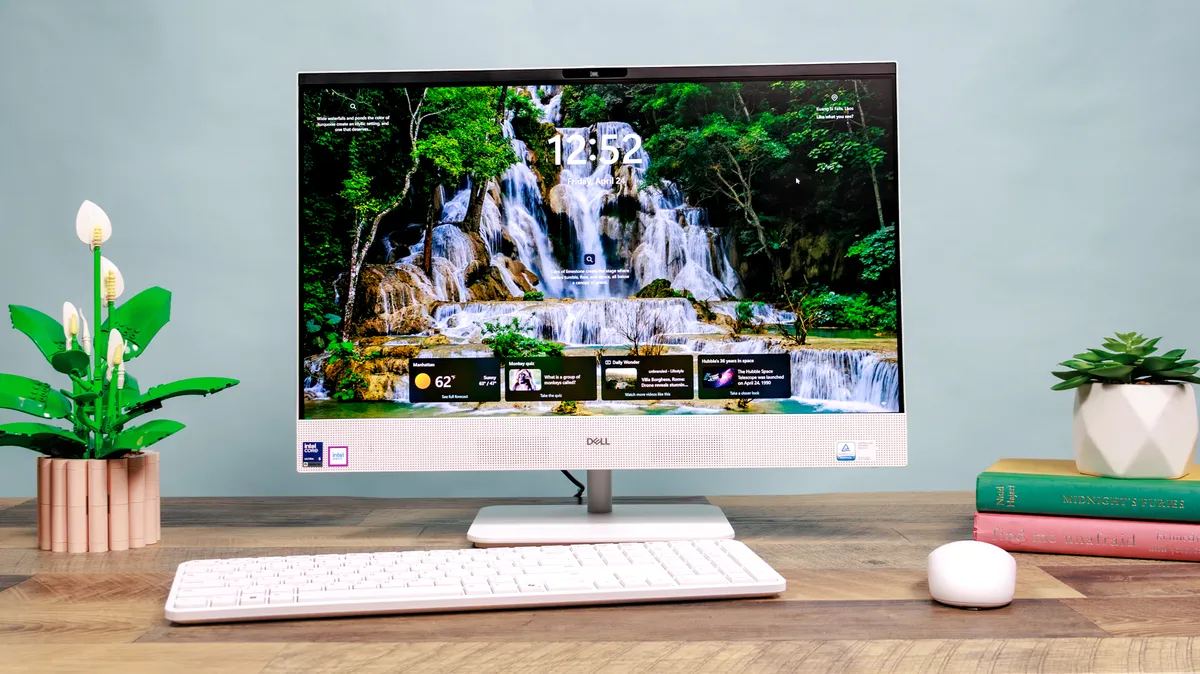
Every all-in-one we review goes through a variety of benchmark tests in our lab as well as long hours of real-world use. As with our laptop reviews, we use a colorimeter to measure the brightness, color accuracy and color gamut of each all-in-one's display.
For performance, we use the Geekbench CPU benchmarking test to measure a system's overall processing abilities. We also run a custom spreadsheet test to see how long a PC takes to match thousands of names to addresses. To evaluate each system's hard drive speed, we measure how long it takes to copy a sizable workload.
Most importantly, we spend a ton of time simply using each all-in-one desktop for everyday activities. We watch movies, do work, play games, and blast music on the speakers, all to get a better sense of which ones are worth your money.
For more information, check out our how we test page for Tom's Guide.
