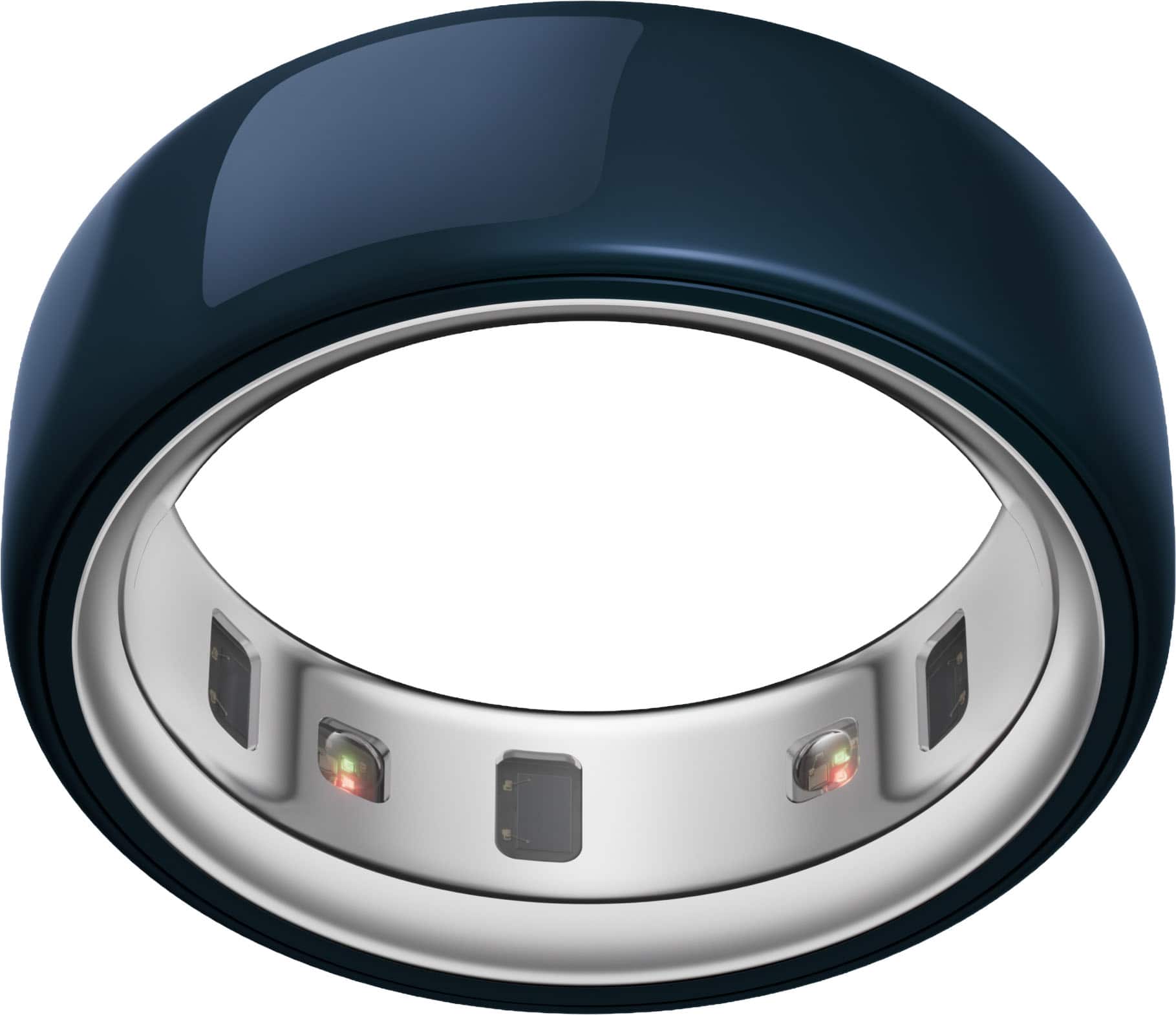
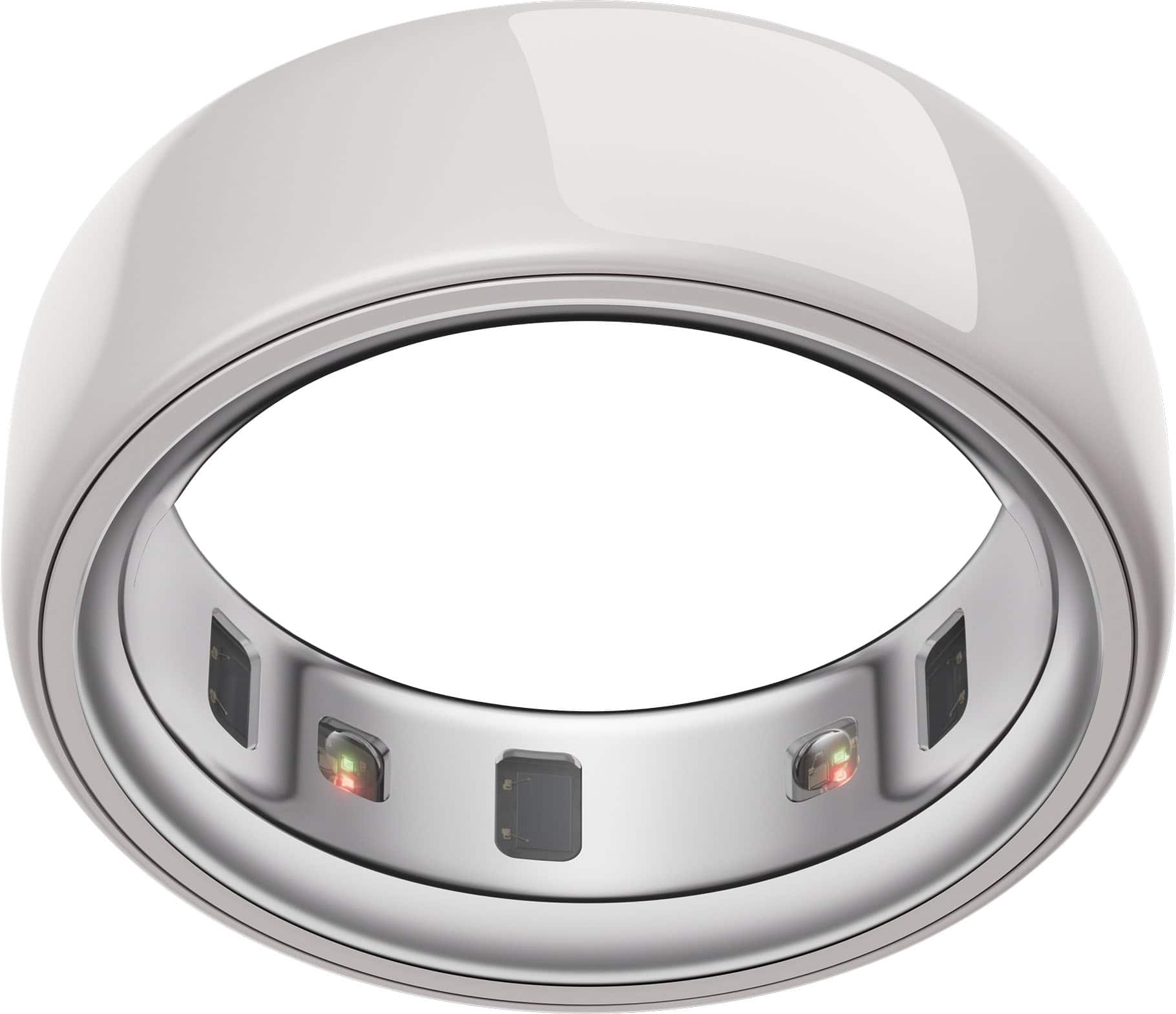
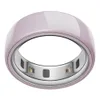
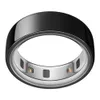
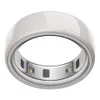
The Oura Ring remains the best smart ring on the market right now, and the release of the Oura Ring 4 last year, plus the latest Oura ceramic range and a brand-new charging case, are all welcome additions.
Whether you’ve just set up your new Oura Ring or you’ve been a smart ring wearer for some years, the number of features available can be overwhelming to navigate — some you might not even know exist. There are a few features I can’t live without, but the journey is different for everyone; the sleep and health data that matter to you may not to others.
That said, I just discovered several features that I want to share with you, and I think they’ll boost everyone's Oura Ring experience this year. Here’s what hidden features you need to know about your Oura Ring, and how to use them.
5 hidden Oura Ring features you should know about (if you don't already)
1. Automatic housework tracking

Bear with me, because there's a reason I think this is cool.
All movement accumulated throughout the day contributes to your health data and overall energy expenditure (read about NEAT). If you have movement goals set up on your ring, any activity will help you hit those targets, as well as boost active calorie burn, including your housework.
Your Oura Ring can automatically detect housework using its Auto Activity Detection feature (AAD), which tracks 24/7 — plus you'll log activities like running, workouts, or walking. Even without manually adding activity via the app, you’ll get credit for “brisk” housework activity.
Oura likes to think I'm constantly doing housework during the day (I'm not, I can assure you) and auto-detects this often, increasing my total activity score, so it can be inaccurate, but you can edit the activity manually and even change the activity type if it is incorrect.
The feature applies to both Android and iOS and any model, as long as you have an active membership. Activities are picked up after 10 minutes and will show as a card at the top of the app’s home screen. You can manually edit the type, duration, time, heart rate and calorie burn, or dismiss the activity altogether.
The more activities you confirm over time, the more accurate the details of detected workouts become; it’s worth it, as this contributes to activity and readiness scores.
- Use the + menu located on the lower right side of the app home screen
- Tap add an activity
- Select the activity (in this case, it would be housework)
- Edit the start time, duration and intensity of the activity
- Hit done.
2. Airplane Mode

Oura Ring's Airplane Mode prevents Bluetooth syncing to save your battery power. But the best bit is that the ring will still collect and store data for up to one week. You must have a charger for this mode, or you cannot use it.
Oura says the airplane mode is a great option for traveling between time zones during a short stay, when you don’t want this to be accounted for. You can activate the mode for up to seven days at a time, and to use it for longer, re-enable it by removing your ring from its charger and following the steps below.
- Tap the battery icon located upper right of the app home screen
- Toggle the slider on for airplane mode
- Hit confirm
- Check that there is an airplane icon in the upper-right corner of your home screen
- To turn off: Place your ring on its charger, wait for it to connect, then allow any syncing to finish and remove.
3. Find My Ring

Lost your Oura Ring? No problem. Oura’s Find My Ring feature can help you locate it. This feature is available for Gen3 and Oura Ring 4 users with an active membership using iOS or Android.
This feature can be toggled on for low power mode, but it may not show if you haven’t enabled this setting before misplacing the ring.
- Tap the three lines at the top left of your app home screen
- Hit settings, then location permissions
- Toggle on Oura location features and choose if you’d like to enable them in low power mode
- The last location of your device will appear from when it was last connected. Note: If the ring is not connected, its location may change without showing up.
4. Widgets

Oura widgets allow you to add data like readiness, sleep and activities to your lock and home screens for easy viewing. You can add iOS widgets using any generation ring and customize them on the fly with a simple press and hold.
For widgets to update, you must open the Oura app and sync for the latest data.
- For iPhone users:
- Touch and hold your phone's home screen
- Hit edit at the top left of your screen
- Tap to add widget
- Scroll to the Oura app
- Select the data you want to show
- Confirm add widget
- Next, touch and hold your phone's lock screen
- Select customize
- Tap the lock screen
- Hit the + button under the time
- Scroll down to the Oura app
- Choose which widgets you want to allow
- Hold and drag each one to the screen
- Hit done.
- For Android users:
- Touch and hold a space on your home or lock screen
- Tap widgets, then scroll to the Oura app
- Tap or drag the widget you want.
5. Tagging

Tagging activities and symptoms (read: symptom radar) contextualizes the Oura experience and can help you unlock health trends related to your fitness or sleep. It can feel time-consuming at first, but it helps to pull trends over time using the Trends view in your home menu if you can manage to form a habit of doing it.
This simply involves selecting a tag to apply to your sleep or other activities and can be done following the steps below. There are so many to choose from, you won't be disappointed.
I like to add the alcohol tag to my sleep whenever I have had a drink or two late in the evening, and I do the same for a late meal. I know that both will impact my sleep data and overall sleep score, so adding this will allow me to see the difference between consuming food and alcohol late at night versus not over the months and years.
It’s well worth diving into the Trends via the three lines on your homepage. From here, you can select and deselect various data points to look at your long-term health and sleep habits and how they impact your longevity.
- Manually select a tag by tapping the + sign at the bottom right of the home screen
- Select add a tag and choose from available options, or add a custom tag. When you complete a meditation session or workout, a tag will automatically be created
- You can also tap the + button, select an unguided session to follow, and a tag will be added afterward
- If you sync with other workout apps, your workout will automatically be imported with a tag
- You can add tags via the timeline on the home screen at any time.
What's your favorite Oura tip or trick? Let us know in the comments below!

Follow Tom's Guide on Google News and add us as a preferred source to get our up-to-date news, analysis, and reviews in your feeds. Make sure to click the Follow button!
More from Tom's Guide
- I wore an Oura Ring for an entire year — here’s why it's the best smart tech I have invested in
- Oura Ring's AI-powered 'Advisor' is rolling out
- The Oura ring accessory I’ve waited years for is finally here