If you've only ever used iPhones, then the iPhone Duo is set to be a very different experience for you. Normally, phones only have one screen, and there are only two possible ways of using them: in a portrait/vertical orientation or landscape/horizontal. Foldables make things a little more complicated .
Not only does the iPhone Duo have two separate displays, it's also capable of detecting the position of the hinge — recognizing if the foldable screen is fully or partially open. That means there are a bunch of different ways you could use the phone, depending on the specific hinge state. While that may sound intimidating to newcomers, it's actually set to be one of the Duo's main advantages.
Here's what you need to know about the iPhone Duo's different modes, and how the Hinge State plays its part.
What is Hinge State?

The key thing that the iPhone Duo's different modes rely on is the Hinge State, or more specifically the angle at which the phone's hinge is positioned. By detecting what angle the hinge is positioned in, the phone can alter the look of what's on screen to offer an optimal experience for the user.
Hinge is at zero degrees? That means the phone is closed, and content should only be displayed on the exterior cover display. 180 degrees? That means the exact opposite, and content should be displayed on the interior screen instead. The intermediary angles then determine just how the on-screen content is displayed.
Other foldables are capable of doing this, dynamically adjusting the on-screen interface in order to take advantage of the nuances of the phone's position. Samsung's Galaxy Z Fold 8 Ultra offers this as a feature called "Flex Mode," though it was sadly removed from the passport-shaped Galaxy Z Fold 8.
Because of the Hinge State, the iPhone Duo offers six distinct modes for you to use.
All the different iPhone Duo modes
1. Closed

The most basic mode the iPhone Duo has to offer is closed. That means the hinge is shut, and the only accessible screen is the exterior cover display. That means you have the 5.4-inch display to work with, complete with all the Dynamic Island and a hole-punch selfie camera. Though it's worth noting that both of those have been moved to a new vertical position on the right-side of the screen.
This mode is how you'll use the iPhone Duo for quick tasks that don't require the use of a larger screen. That includes checking notifications, sending quick messages, taking phone calls, or using Apple Wallet.
2. Open (Horizontal/Landscape)

Fully opening the iPhone Duo switches things over to the larger 7.6-inch display, which defaults to a horizontal/landscape viewing mode. This screen is closer in size to a tablet, and is designed for those times where you need as much screen space as possible. Examples include watching movies or TV shows, gaming, drawing or running two apps side by side.
Essentially this is the default mode for entertainment and productivity. The under-display camera on the top-right side of the screen means this mode is ideal for FaceTiming and other video calls, with the large screen giving you a good view of everyone on the call.
3. Open (Vertical/Portrait)
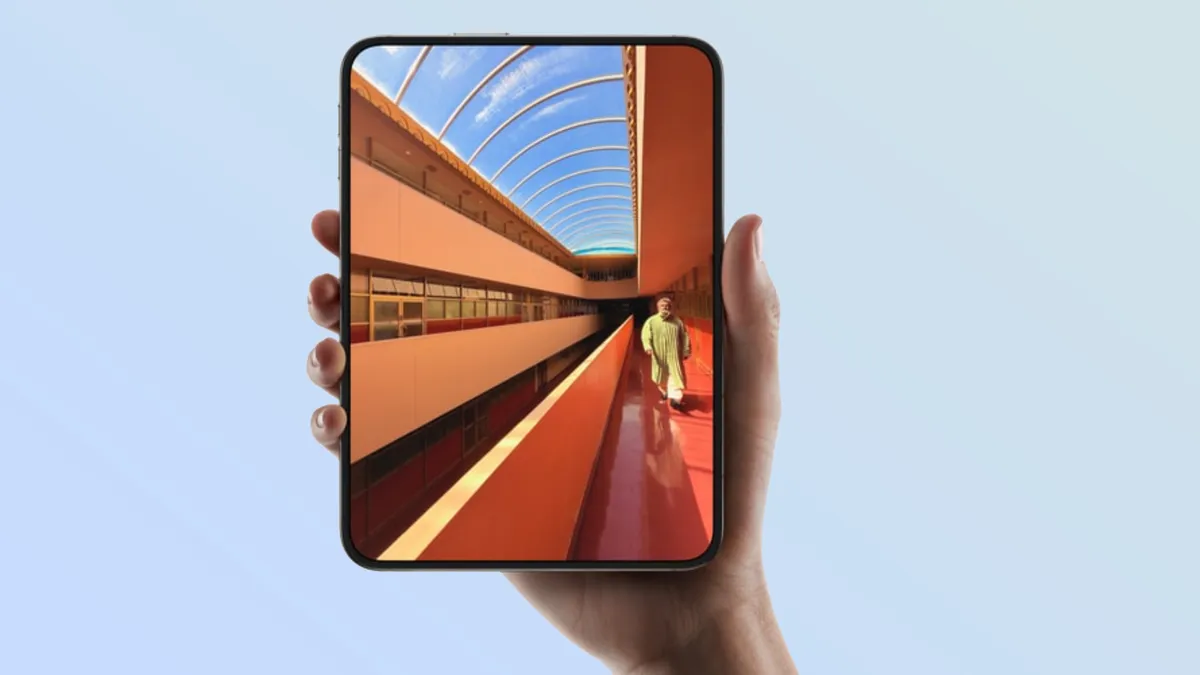
This mode doesn't rely on the Hinge State, but if you flip the iPhone Duo into a vertical/portrait orientation, you can get a better experience for certain tasks and apps. Not only does this flip the navigation bar to the bottom of the phone, the taller aspect ratio means you can better display reading material, whether that's ebooks or articles you've found online.
Other potential benefits gained from this mode include easier note-taking, less scrolling while browsing the web, and the ability to stack two apps on top of each other. In some circumstances, that could prove beneficial for your multitasking needs. TikTok and other vertical videos will also be able to fill up more of the screen and enhance the viewing experience.
4. Book Mode (Partially Folded)

This mode features an iPhone Duo that is almost fully open, but not quite. The hinge is positioned beyond a 90-degree angle, and visually the phone looks a lot like an open book. In this mode, the iPhone Duo adapts to the fact that there's a crease running down the middle of the screen, and moves on-screen elements away from it.
Essentially the iPhone Duo has anticipated the distortion that occurs around the display crease, and has taken steps to ensure you can actually see (and touch) everything you need to.
This mode is good for reading in a more natural book-like way, with one page open on either side of the screen. It may also be useful for multitasking when using an Apple Pencil, since it gives you a nook to hold onto the middle of the iPhone Duo and not try to stretch your hand around the entirety of the unfolded device. This mode also lets you prop the Duo on a flat surface without a stand, which allows you to switch on StandBy Mode.
5. Tabletop mode (90-degree angle fold)
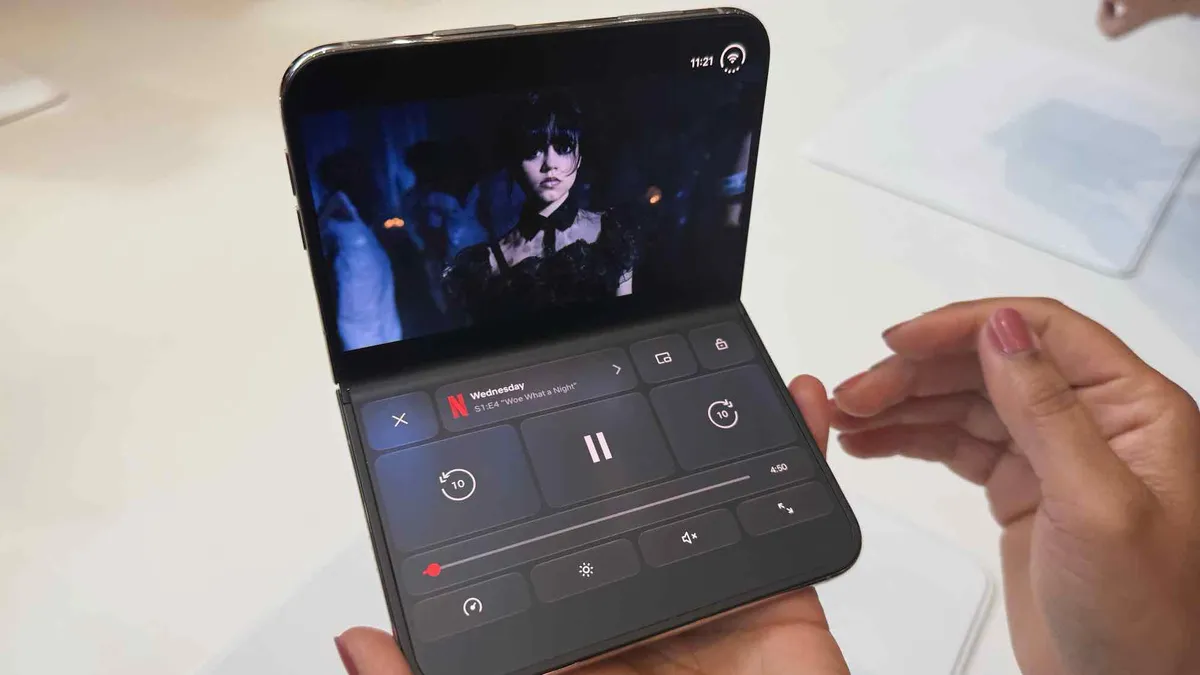
Tabletop mode involves positioning the iPhone Duo like a laptop, with the hinge folded around 90-degrees. In this instance, the phone will split the screen down the crease, and separate different sections of an app for your perusal. Alternatively, it's beneficial for those times you need stable support beneath your phone without relying on some kind of stand.
Instances where tabletop mode would be useful include hands-free video calling, taking long-exposure or timed photos, or streaming content while keeping things like the description and comments sections accessible.
6. Tent/Standing mode
This mode involves folding the iPhone Duo into a "V" shape, and resting it on a flat surface with the exterior display facing outwards. Effectively positioning the phone like a stereotypical tent. In this instance the interior screen switches off, and the outer display takes over all the hard work.
This mode is useful for a number of reasons, particularly since it lets you hold up the phone without the aid of a stand. Possible uses include streaming content on the outer display, which will use less power than the larger inner screen, or propping it up for StandBy mode to show the time and other compatible widgets at a glance.

Follow Tom's Guide on Google News and add us as a preferred source to get our up-to-date news, analysis, and reviews in your feeds.
More from Tom's Guide