Windows 11 has been available as a free update for Windows 10 users ever since it launched in October of 2021. Though it’s not the revolution some hoped it would be, it’s a generally solid operating system that long-time Windows users can quickly acclimate to.
As stated in our Windows 11 review, Microsoft’s OS has several new features, many of which can help both casual and business users be more productive. However, there are a handful of hidden productivity features that even those who’ve used Windows 11 since launch may not know about. We're here to show you the best ones.
Below, you’ll find a list of the 7 hidden Windows 11 features that will make you more productive.
Focus settings

Focus assist is a fantastic Windows 11 productivity feature. If you've used similar features on the best smartphones, then you know how crucial focus assist can be.
To enable Focus assist, open the Start menu and type Focus to bring up the application’s menu. You can set how long you want a focus session to last and enable or disable notifications from certain apps. For example, you may want to set a work-based focus and enable notifications only from your work Gmail and Slack accounts. Conversely, you can disable work-related apps if you set up a focus when you want to unwind.
This is a vital feature that can help you separate your work and personal life, especially if you work from home.
Snap layouts

This one isn’t technically a hidden feature since it was announced prior to Windows 11’s launch. However, we’re including it since it’s often not utilized by users who would otherwise find it handy.
Snap Layouts lets you easily and quickly arrange apps and windows to your liking on your desktop. To use it, hover your cursor over the maximize icon in the upper right corner of an app or window. This will show you six different grid layouts, each with different windows configurations. Simply choose the layout you like and then begin selecting windows and apps to place into a specific arrangement. You can even use Snap Layouts setups on every monitor plugged into your PC or laptop. It’s one of Windows 11’s best features for sure.
Open pinned taskbar items via keyboard shortcuts
If you’ve pinned programs to the Taskbar for faster access, there’s a neat keyboard shortcut that can save you even more time.
You can bring up a pinned program by pressing the Windows key + the number corresponding to the position of the program on the Taskbar. For example, pressing Windows + 1 will bring up the first item pinned on the Taskbar. This shortcut is a game-changer for those seeking maximum productivity.
Shake to minimize
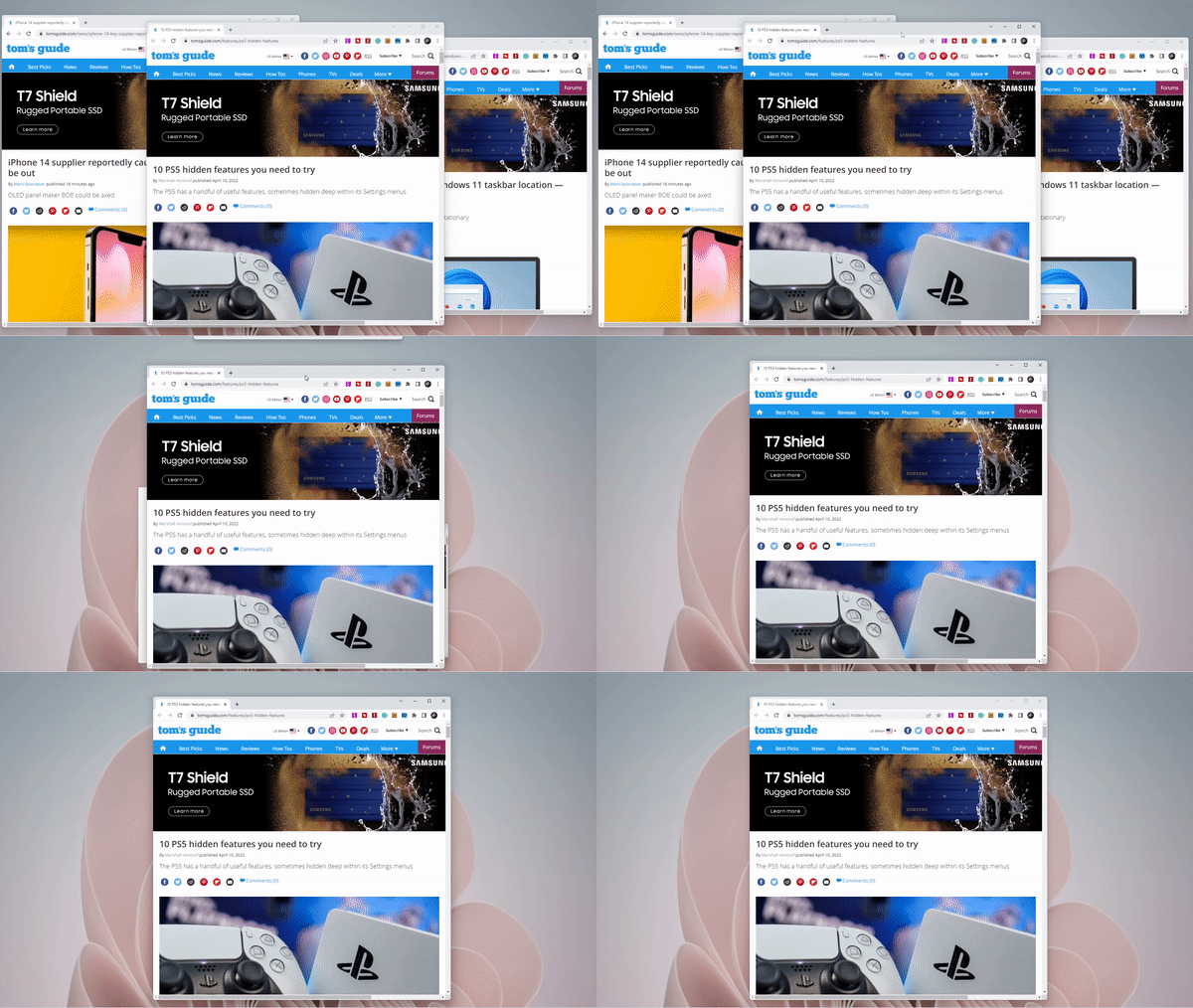
If you’re feeling overwhelmed by all the windows on your desktop, Windows 11 has a neat feature called Shake to minimize that helps you clear away the clutter.
This feature isn’t on by default. To enable it, go to Settings -> System -> Multitasking. From there, toggle Title bar windows shake on. Afterward, you can minimize all open windows by selecting and shaking the title bar of the one you want to keep open.
Closing windows this way can become addictive so be sure not to go overboard. The point is to improve productivity, not hamper it.
Voice to text

Voice typing (or voice to text) is a great feature that many don’t know Windows 11 supports.
To enable voice typing, press Windows + H. Click on the mic icon in the menu and simply start talking. This feature is so accurate that I actually wrote (or spoke) this entry with voice typing. I'm surprised Microsoft didn't advertise this feature since it's one of the handiest (and coolest) in Windows 11.
Dynamic Refresh Rate

If you have a monitor (or monitors) with a high refresh rate then this is a hidden feature you’ll want to turn on the instant you finish reading this entry.
To enable dynamic refresh rate, go to Settings -> System -> Display, then scroll down to Advanced Display. Here, you can choose from any of the available refresh rates in the drop-down menu in the bottom right-hand corner. This will make navigating Windows 11 feel much smoother.
Old context menu

If you can’t make sense of the new context menu or simply prefer the old one, you can still easily access it.
Right click on the desktop to bring up the existing context menu, which has a smattering of options. By clicking on Show more options, you’ll be treated to the one you remember. You can also access this menu by pressing Shift + F10 on your keyboard.
Next: This new Windows 11 Voice Access feature is a game changer for how I work.