



Adding extra layers of protection to your devices will save you a lot of trouble down the road. Invasion of privacy is rampant in this current day and age, and while it may seem like the powers at be might already know everything about you, that doesn’t mean you shouldn’t fight back.
Protect yourself by enabling these simple security settings on your smartphone and PC.
Enable automatic updates
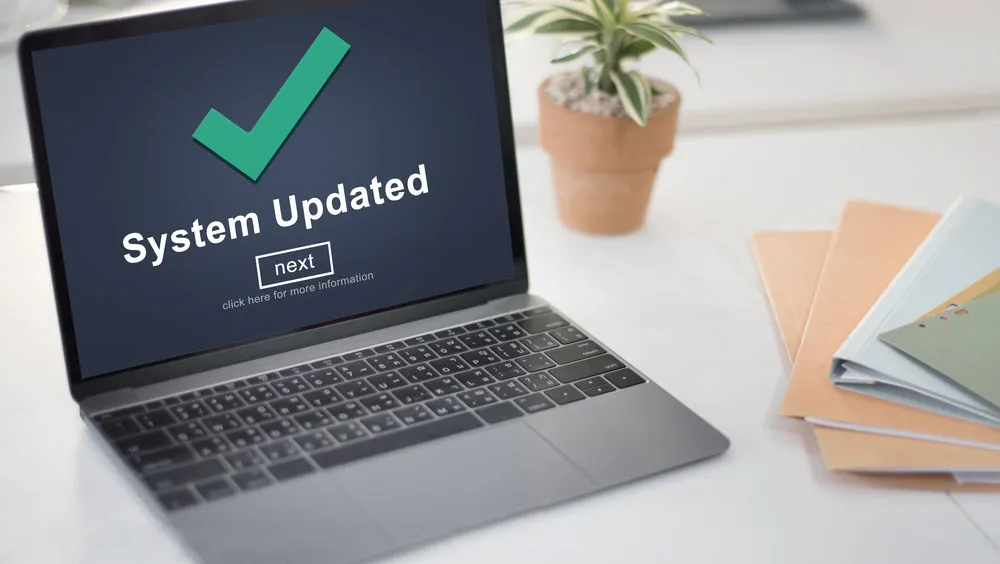
It might feel like there’s an update every other day, but don’t sleep on keeping your devices up to date. Security vulnerabilities are inevitable, and will keep popping up so long as the tech exists. If you’re way behind on your updates, go to the System Settings on your device to enable automatic updates. If that’s unavailable, manually update it and check for updates periodically.
Disable your Advertising ID
Your device is actively collecting your data to feed you “relevant” ads, but you never know exactly what kind of data is being collected and where it’s going. Whatever device you may have, you’ll likely find options for your Advertising ID in the Privacy section of your System Settings. Disable or delete all mention of personalized advertising. You’ll still get ads, mind you, but they won’t be tailored by your personal data.
Disable lock screen notifications
If you’re out in public, it’s best practice to disable your lock screen notifications to prevent onlookers from gleaning your private information, especially if the data being displayed is sensitive. You can find this setting in the Notifications section of your device, where you can disable previews, or hide content.
Limit location permissions

You don’t need social media apps tracking your location all the time. Go to the Privacy or Security settings of your device and disable location permissions or limit them in specific apps. If an app needs your location to function, select the option that only allows it while using the app. Apps don’t need to be tracking your movements in the background when not in use.
Lock your device
Don’t leave your device permanently unlocked or to lock only after a long period of time. Come up with a longer, ideally unique, password and set your device to lock immediately when you move or put it away. You should be able to find this in your Security settings or your Account settings depending on your device. Disable any settings that extend unlock times in “trusted” environments. You could lose access to your device close to your home or car and leave it open to malicious actors.
Block the install of unknown apps
Most devices already have a setting that blocks the installation of unknown apps, but if you’re like me, you might have had to disable this feature in order to download something outside of native app marketplaces. Do yourself a favor and reinstate the block of unknown apps in your Security or App settings.
Enable device encryption (PC & Mac)
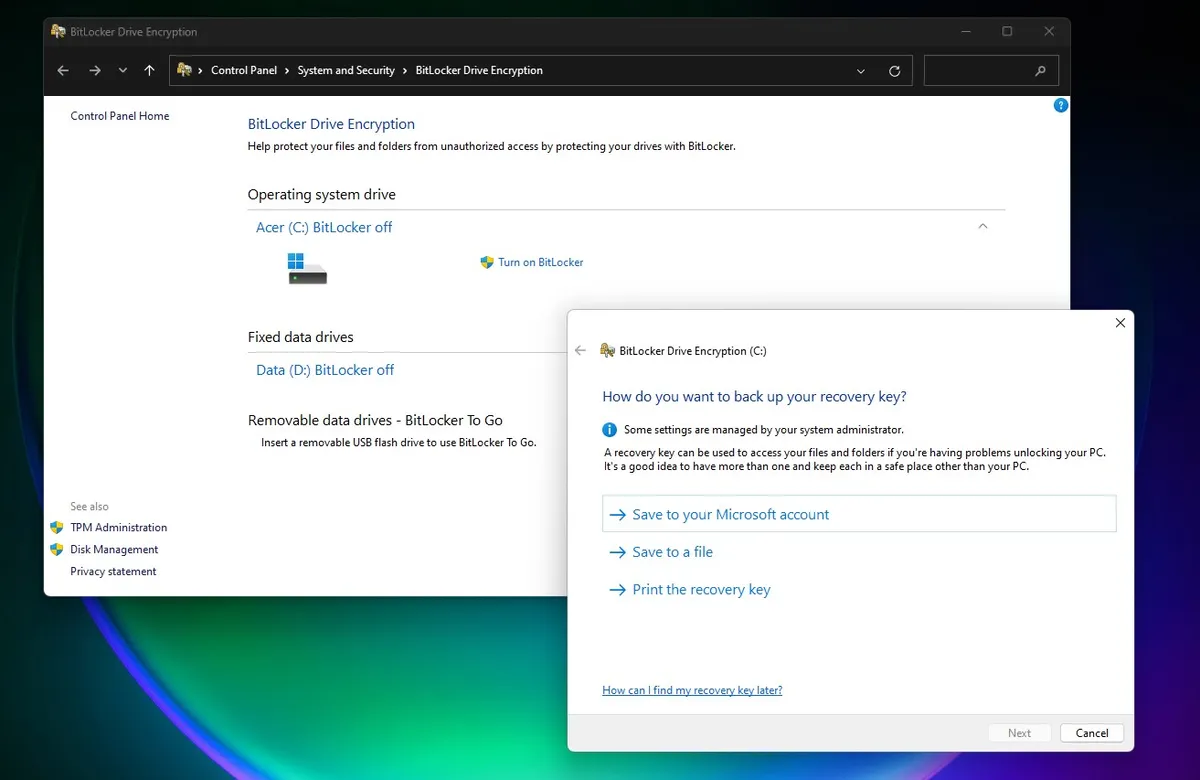
If your Mac or PC is ever stolen, the thieves won’t get access to your data if you’ve scrambled it by encrypting your drive. You’ll find this setting in Privacy & Security in both Windows 11 and macOS. On Windows it’s called BitLocker, and on macOS it’s called FileVault.
Enable Firewall (PC & Mac)
Turn on your network firewall to prevent suspicious connections from exploiting your device. If you have a Windows device, Microsoft Defender Firewall is likely already enabled, but it doesn’t hurt to check it in the Privacy & Security section. Meanwhile, macOS Firewall is actually disabled by default. You can turn that on by going to your System Settings and navigating to Network > Firewall.
Get a VPN
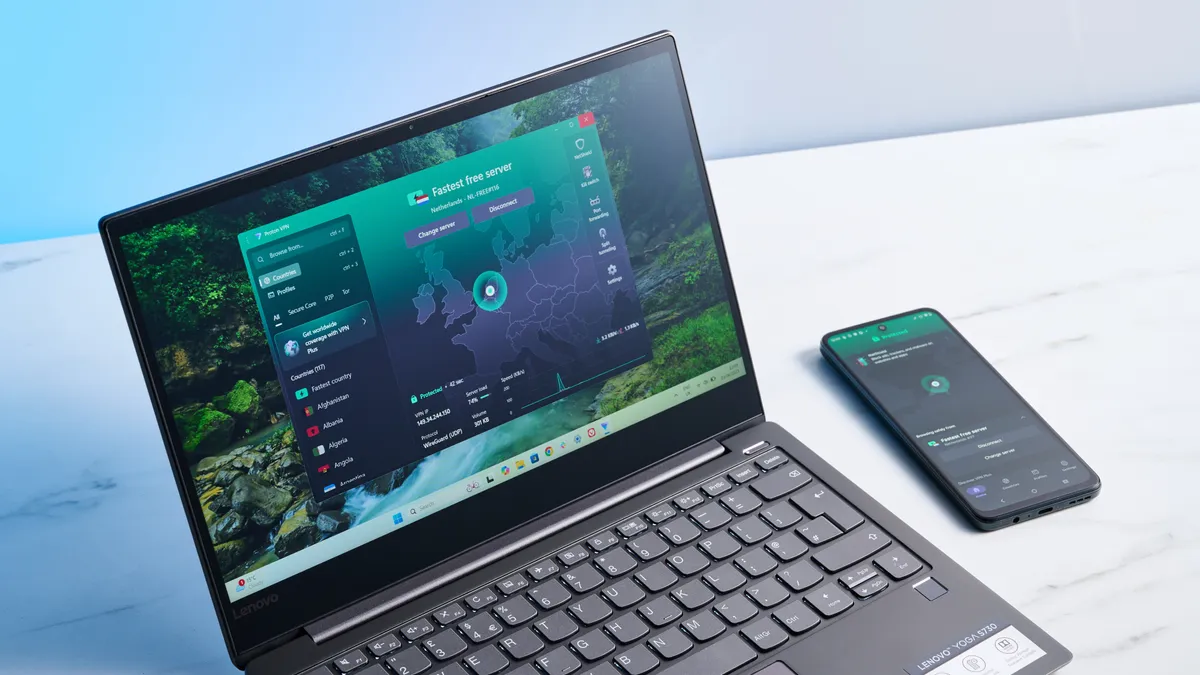
Unfortunately, smartphones and PCs rarely come with built-in VPNs, so it’s not exactly a simple setting you can turn on, but I highly recommend getting one to beef up your network privacy. If you’re not looking to spend money, Proton VPN is a reputable and free VPN.
Update browser permissions
Whatever your primary browser may be, you should adjust your default permissions in your Site Settings, usually found in the Privacy & Security section. Set each of the permissions to “Ask first” if they’re not already. The last thing you need is some random website activating your microphone or downloading files without your permission. You might also find a Safe Browsing setting in your browser, if not already built-in, that you can enable as well for enhanced protection.
Bottom line
Taking charge of your security settings is one of the few things you can do to stay in control of your privacy. Corporations are actively spying on us to try to sell us the “next best thing,” but we don’t have to make it easy for them. And we definitely don’t want to make it easy for hackers to steal our data and wreck our lives.
Follow Tom's Guide on Google News and add us as a preferred source to get our up-to-date news, analysis, and reviews in your feeds. Subscribe to Tom's Guide on YouTube and follow us on TikTok.

More from Tom's Guide

