When you're on your Mac, it's easy to get distracted by your iPhone, especially as it continues buzzing with notifications. Or maybe there's an app on your iPhone that you wish you could use on your Mac. That's where iPhone Mirroring — a new feature of macOS Sequoia — comes in.
Using a combination of Bluetooth and Wi-Fi, your iPhone can pop right up on your MacBook's display in a few seconds, complete with sound. And you can interact with your iPhone using your trackpad and keyboard, including gestures like pinch to zoom. Here's everything you can do and need to know about iPhone Mirroring on macOS Sequoia.
You can get iPhone notifications on your Mac (or turn them off)

I can't tell you how many times I get a notification from LinkedIn, TikTok or other apps on my iPhone while I'm working on my Mac. With iPhone Mirroring, you can view and respond to notifications from your Mac, so you can stay more focused.
You'll also be able to control which iPhone apps show notifications on your Mac or turn off iPhone notifications altogether if you'd rather not be distracted at all. You don't even need to be in mirroring your iPhone screen to get notifications; by clicking on an iPhone notification it will launch iPhone Mirroring mode on your Mac.
It looks great for gaming
iPhone Screen Mirroring supports frame rates up to 60 fps, so you should be able to enjoy your favorite iPhone games right on your Mac. And when you launch a game in iPhone Mirroring mode, the orientation of your iPhone will automatically switch from portrait to landscape on your Mac.
Drag and drop is simple
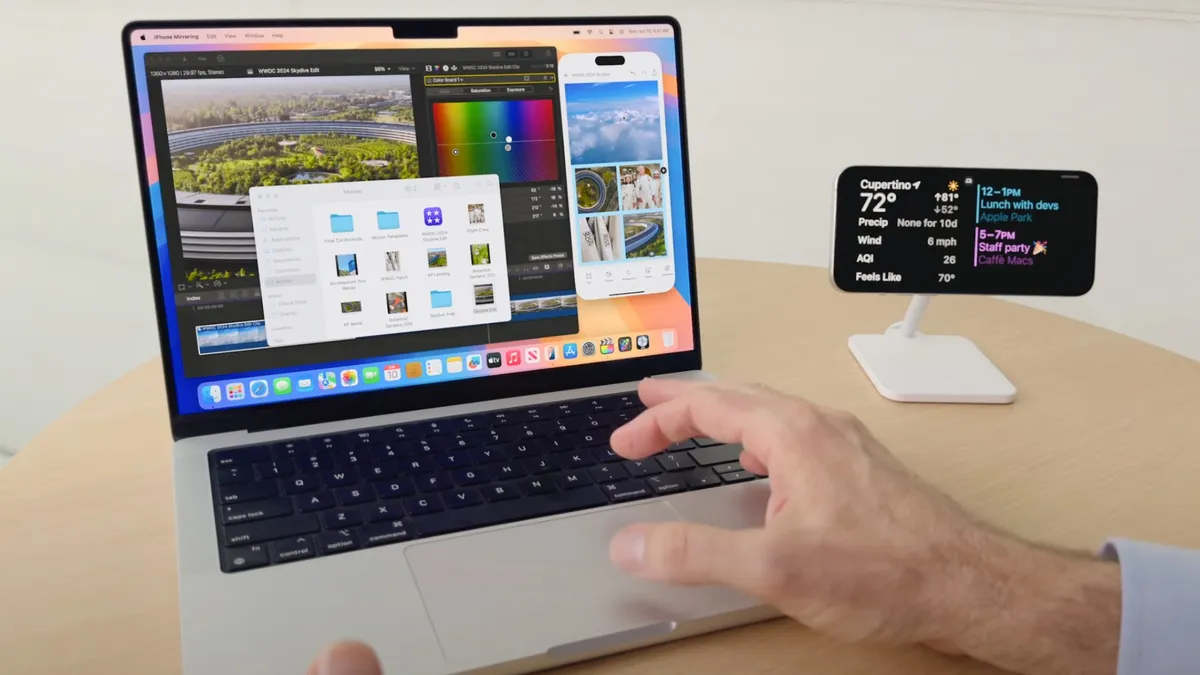
While I use AirDrop all the time to transfer photos and videos from my iPhone to my Mac, iPhone Mirroring could make things even easier for macOS Sequoia users. You can drag and drop files directly into the app you happen to using, whether it's the Finder or Pages.
You can't mirror certain apps
There is some bad news with iPhone Mirroring on macOS Sequoia, and that's the fact that there are certain apps that just won't work. Any app that has DRM restrictions with Apple AirPlay also won't work in iPhone Mirroring mode. This includes Netflix and Disney Plus.
Your iPhone stays locked

Don't worry if you left your iPhone in the other room while using iPhone Mirroring on macOS Sequoia. Your iPhone remains locked, so no one else can access your phone or see what you're doing. And if your phone is right next to you, you can still use StandBy mode while you're mirroring your iPhone to your Mac.
You can also decide if you want your Mac to ask for a password each time you use iPhone Screen Mirroring or not. This option is turned off by default.
There's handy controls built in
You might not have been able to tell during the WWDC keynote, but the iPhone Mirroring interface has dedicated buttons for Home and the App Switcher built in. Otherwise, you interact with the interface just as you'd expect. You can click on your trackpad to tap, swipe up and down and side to side and type using your keyboard.
You'll be able to blow up the screen

We don't know the exact sizes yet, but iPhone Mirroring will allow you to enlarge the window of your iPhone on your Mac. This will come in handy when playing games, streaming videos and editing or reviewing photos. You'll be able to resize windows at launch for macOS Sequoia.
More from Tom's Guide