Claude can do much more than answer questions or help you edit documents. Hidden inside the chatbot are four Skills that let it create and edit the files many of us use every day.
Anthropic has built separate skills for Word documents, Excel spreadsheets, PDFs and PowerPoint presentations. You don’t need to download anything from GitHub or learn how to use Claude Code. They are built directly into Claude and available to Free, Pro, Max, Team and Enterprise users.
What makes these skills useful is that Claude doesn’t simply generate content for you to copy into another program. It can create the finished file, complete with formatting, formulas, charts and page layouts. You can then download it, open it in the appropriate program and continue editing.
Here are the four skills I keep coming back to, along with the prompts you can use to try them yourself.
Where to find Claude’s built-in skills

You don’t need to download these skills from GitHub or install anything separately. Start by opening Claude and click your name or initials in the lower-left corner. Select Settings, open Capabilities and make sure Code execution and file creation is turned on.
Next, return to Claude’s main screen, open Customize and select Skills. You should see Anthropic’s built-in skills for Word documents, Excel spreadsheets, PDFs and PowerPoint presentations. Turn on the ones you want to use.
Once enabled, the skills work automatically. You don’t need to select the Word skill before creating a document or the Excel skill before making a spreadsheet. Tell Claude what you want and specify the finished file type, such as an editable DOCX, XLSX or PPTX file.
If you don’t see the Skills section, check that code execution and file creation are enabled. Team and Enterprise accounts may also require an administrator to enable skills for the organization.
1. Create polished Word documents

Prompt to try: Turn these notes into a polished Word document. Add a title, a short introduction and clear section headings. Keep the tone conversational and preserve all links and direct quotes. Give me the finished document as an editable DOCX file.
Claude’s Word Skill can turn rough information into a properly formatted DOCX file. This is really useful for anyone who has a first draft or even messy notes scattered across a document and need to turn them into something another person could actually read. Claude can organize the material, add headings, clean up the formatting and create a downloadable Word file.
For writers, the most useful part may be the ability to preserve the document’s structure while changing the language. You can ask Claude to tighten an article without removing hyperlinks, alter the tone of a report or turn interview notes into an organized briefing document.
2. Build an Excel spreadsheet from plain English

Prompt to try: Create an Excel spreadsheet from this data. Add a formula that calculates the total for each category and another that calculates the overall total. Include a bar chart comparing the categories. Format the headings clearly and give me the finished XLSX file.
Spreadsheets can become complicated quickly, especially once formulas are involved. Claude’s Excel Skill lets you explain what you need in ordinary language. You can upload a table, a CSV file or even an image containing data. Claude can organize the information into rows and columns, add formulas and create charts based on the results.
For example, you could give Claude a list of monthly expenses and ask it to build a budget. It could categorize the purchases, calculate totals and show which category accounted for the largest share of your spending.
3. Turn information into a shareable PDF
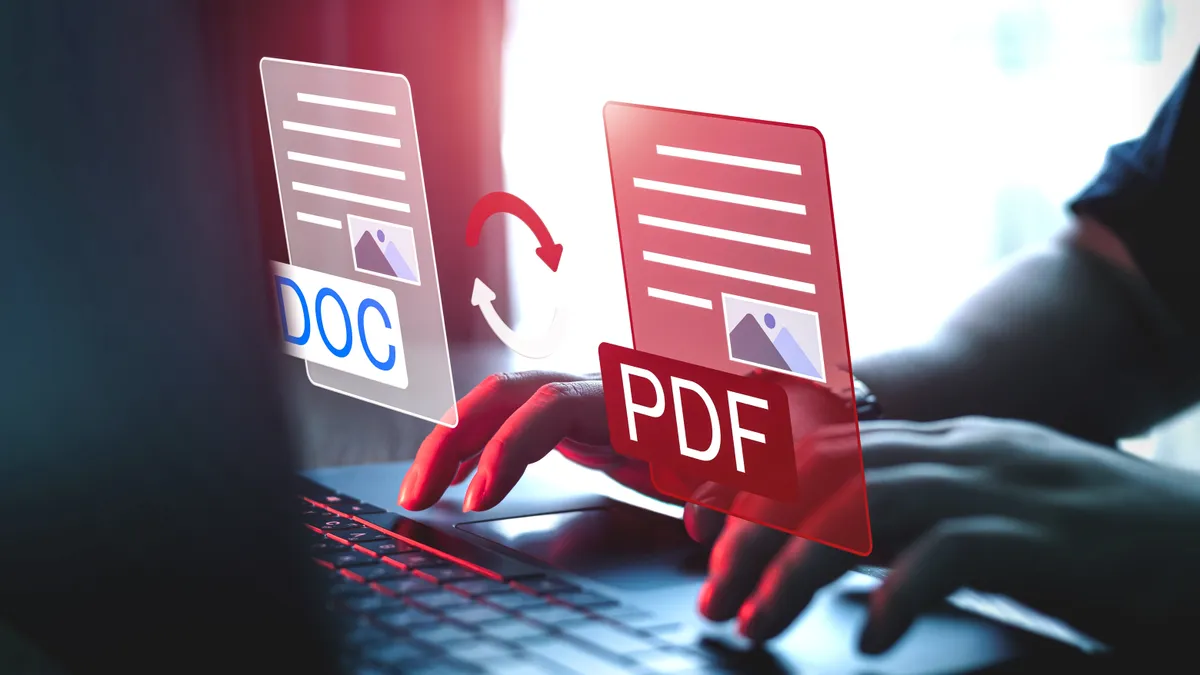
Prompt to try: Turn this information into a clean, one-page PDF guide. Use a clear title, short sections and enough spacing to make it easy to read. Do not add information that is not in my source material. Give me the finished PDF as a download.
PDFs are useful because their layout stays in place when someone opens them on another device. They can also be surprisingly annoying to create or edit.
Claude’s PDF Skill can take text, images or data and turn them into a finished file. That could be a report, a printable checklist, a family schedule, an event guide or a one-page reference sheet. It can also extract information from existing PDFs, including tables that would otherwise be difficult to copy. If a PDF contains a long report, you can ask Claude to pull out specific details and use them to create a shorter document.
4. Create an editable PowerPoint presentation

Prompt to try: Turn this document into an eight-slide PowerPoint presentation for a general audience. Give each slide one clear idea, keep the text concise and include a final slide with the main takeaways. Use a clean, colorful design and give me the finished presentation as an editable PPTX file.
Claude can create a full PowerPoint deck from a prompt, a document or a collection of notes. The PowerPoint Skill is most useful when you already know what you want to say but don’t want to spend an hour arranging slides. Claude can divide the material into sections, write slide titles and create an editable PPTX file.
You can tell it who the presentation is for, how long it should be and what style you want. Giving Claude those details helps it decide what belongs on each slide and what should be left out. The result may still need some visual cleanup. AI-generated presentations have a habit of putting too much text on slides, so I usually specify a slide count and ask for one main idea per slide.
Final thoughts
The biggest change for me was realizing that I didn't have to create a new Skill for these tasks. Rather than copying the answer into Word or Excel, Claude creates the actual file for you.
This saves me lots of time each day, but it's worth noting that AI can make mistakes. You'll want to be sure to stay in the loop and review everything.
Give these four Skills a try and let me know what you think in the comments. You may also want to try making a few of your own based on what tasks you do most.

Follow Tom's Guide on Google News and add us as a preferred source to get our up-to-date news, analysis, and reviews in your feeds. Subscribe to Tom's Guide on YouTube and follow us on TikTok. Finally, you can visit our dedicated Tom's Guide Savings Squad hub for expert help on getting the best products for less.
More from Tom's Guide