





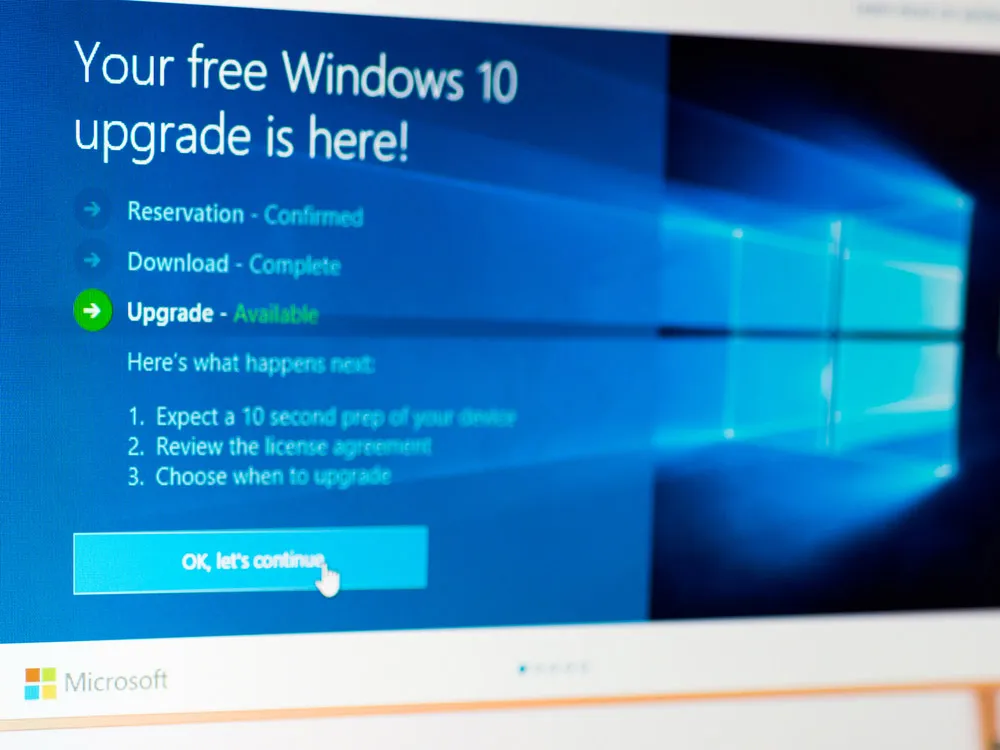
NOTE: This article was first published the day before Windows 7 got its last update, but we tried this method a couple of months ago and it still worked.
Microsoft's long-lived Windows 7 operating system has reached the end of its working life and received its last update Tuesday, Jan. 14, 2020.
We've got a guide to what you need to do to continue using Windows 7 safely, but here's a tip: If your Windows 7 license key is valid, you can upgrade your Windows 7 (or Windows 8.1) machine to Windows 10 for free using Microsoft's own Windows 10 installation tool.

(Here's how to find the Windows license key -- write it down, because you may need to type it in at the end of this process.)
Microsoft's user forums have instructions on how to upgrade to Windows 10 for free, and Bleeping Computer has more detailed instructions. We initially ran into problems with an incompatible application when we tried this, but CNET staffers got the free upgrade to work and later so did we.
One caveat: You can upgrade only to the Windows 10 version that corresponds to your build of Windows 7 or Windows 8.1. So if you have Windows 7 Home Premium, you'll be getting Windows 10 Home. Likewise, Windows 7 Professional maps to Windows 10 Pro.
1. Download Microsoft's Windows 10 Media Creation tool.
As mentioned above, you need to download and install Microsoft's own installation tool from this page. Ignore the "Update now" button -- that's for machines that already have Windows 10 -- and instead click "Download tool now."
1.5 (optional): You may want to update your BIOS and deactivate antivirus software.
Ed Bott over at ZDNet, who has been tracking this stealth upgrade process for years, recommends updating the PC's BIOS/UEFI firmware if the PC was built before 2015, and also uninstalling the antivirus software, just to be safe.
Most people won't know how to update the BIOS, and we're not sure you need to uninstall the AV (especially if it's on our list of the best antivirus software), so do this only if you run into problems in the following steps.
2. Launch the Media Creation Tool and select 'Upgrade this PC now'.
The other option is to create installation media on a burnable DVD or a bootable USB drive, which may be useful in the future but won't help you now.
3. Select 'Keep all apps and files' when prompted.
Bleeping Computer says you need to opt to keep all files and applications to get the free upgrade. The Microsoft user forums say you just need the existing Windows 7 license key. We'd advise erring on the side of caution and taking Bleeping Computer's advice.
4. Uninstall incompatible applications.
The upgrade tool will scan your PC for applications that don't work in Windows 10. Uninstall them by going to Control Panel --> Programs and Features. Right-click on the offending application and select "Uninstall." In most cases, you'll need administrative privileges to do this.
To be safe, reboot the machine after uninstalling all the incompatible applications and go back to Step 2 above.
5. Sit back and let the magic happen.
Your PC will reboot several times during the upgrade process, which could take as long as an hour.
6. Check that the license key works.
The Media Creation Tool should grab the license key from the machine during the upgrade. But just in case it didn't, check it by going to Settings --> Update & Security --> Activation and see if it says that the license is active.
If not, then type your valid Windows 7 (or Windows 8/8.1) product key manually.

