One of the most underrated AI features is Claude Skills. Rather than copying and pasting your perfect prompt into a new chat every time, a Skill remembers what you need and how to execute it.
Simply put, a "Skill" is a reusable set of instructions for a particular kind of task. It includes the steps, preferences, templates and reference files (slide decks, documents and spreadsheets) Claude should use whenever that task comes up.
In other words, instead of re-explaining how I work every time, I write it down once — in a form Claude reaches for on its own — and when I recall the Skill, it saves me hours. Here's how I use Skills every day and why I recommend this often overlooked feature.
What makes Skills different
One thing to be clear about up front, because it trips people up: a Skill is a procedure, not a memory. It doesn't store your data, learn your habits over time or update itself. It does exactly what you wrote into it, every time, until you change it. If you want Claude to actually remember things that keep changing, your calendar, your to-do list, what's in the fridge, that's a different feature (Claude's memory, Projects or a Connector), not Skills.
While Projects load the same background knowledge into every chat inside them, and custom instructions apply to everything, Skills are task-specific. They only switch on when the job in front of Claude actually calls for them. That's the whole idea.
What's great, is that they are available on every plan, including the free one, as long as you have code execution turned on. (More on setup in a minute). After using them for several weeks, these are the Skills I reach for almost every day.
1. My meal-planning playbook
This is the one most people could use tonight. Planning the week's dinners for my family of five used to mean re-explaining the same things to Claude every time such as who eats what, what we keep stocked, how I want the shopping list laid out and other important instructions. So I wrote that down once, as a Skill.
The Skill is basically my standing brief for the job. It tells Claude:
- Our dietary preferences
- The staples we always have on hand
- How to build a week of dinners that don't repeat
- How to turn that into a shopping list, grouped by aisle
Now I just say "plan this week's dinners," and Claude runs the same playbook every time instead of starting from a blank page.
What it can't do is keep track of my real life. It doesn't know what I bought yesterday or what's already in the pantry. That's something Alexa+ does for me, so I still tell Claude "we've got chicken to use up" or "skip Thursday, we're out." The Skill supplies the method; I supply this week's details.
2. Research assistant
I rely on this one every day as it is so important for my work. Whenever I'm researching a new AI feature, I don't want a wall of text; I want it sorted the "who, what, when, where, how" of reporting. It creates the bullet points based on the pages of documentation I give it.
To be clear, the Skill doesn't do the research for me. It can, but that's not what this Skill is for. What Claude does is shape the plethora of research I've found into useable nuggets for reporting.
3. My fact-check checklist
No AI should be trusted blindly. And while Claude is the least people-pleasing of all the chatbots, it can get information wrong just as frequently. So I wrote a Skill that runs a checklist over Claude's own drafts before I see them.
Because the Skill can't independently know what's correct, it forces the checks: flag numbers that need a source, point out where a claim has no evidence behind it and marks statements confident enough to deserve a second look.
Granted, it's not perfect and I still click links and double check everything myself, but it catches plenty of things that would otherwise slip past me until later.
4. Family organizer
From soccer games to gymnastics practice, birthday parties and events, my after-work schedule is packed with family activities. I even use a Skill to stay organized.
It's worth noting here, because "organizer" makes it sound like more than it is. The Skill doesn't hold a calendar or remember appointments — it isn't tracking anything between chats. It's a template plus our usual routine, and I feed it this week's changes each time. If I wanted Claude to actually keep my calendar, that's a connector or its memory, not a Skill.
So the Skill carries the standing version of it: our normal weekly rhythm and the chore rota. When I tell it what's different this week — a dentist appointment Tuesday, swimming moved to Friday — it lays the week out cleanly and divides the chores the way we usually do.
5. Personal assistant
This is the one I almost left out, because "personal assistant" somewhat oversells what a Skill can do. It can't run errands, watch my inbox or hold my to-do list, but what it can do is take the way I plan and apply it every time so I start with consistency each day.
In this case, the Skill is really my planning method, written down. I dump everything on my mind into a chat, and it sorts the pile into a day I'd actually work: top three priorities first, the rest time-boxed, quick wins flagged and the someday-stuff pulled out of the way. Claude lays everything out the way I like to read it.
The thinking is still mine. The Skill just makes Claude do it my way, every Monday, instead of me re-explaining my system from scratch.
How to make your own (it's easier than it sounds)

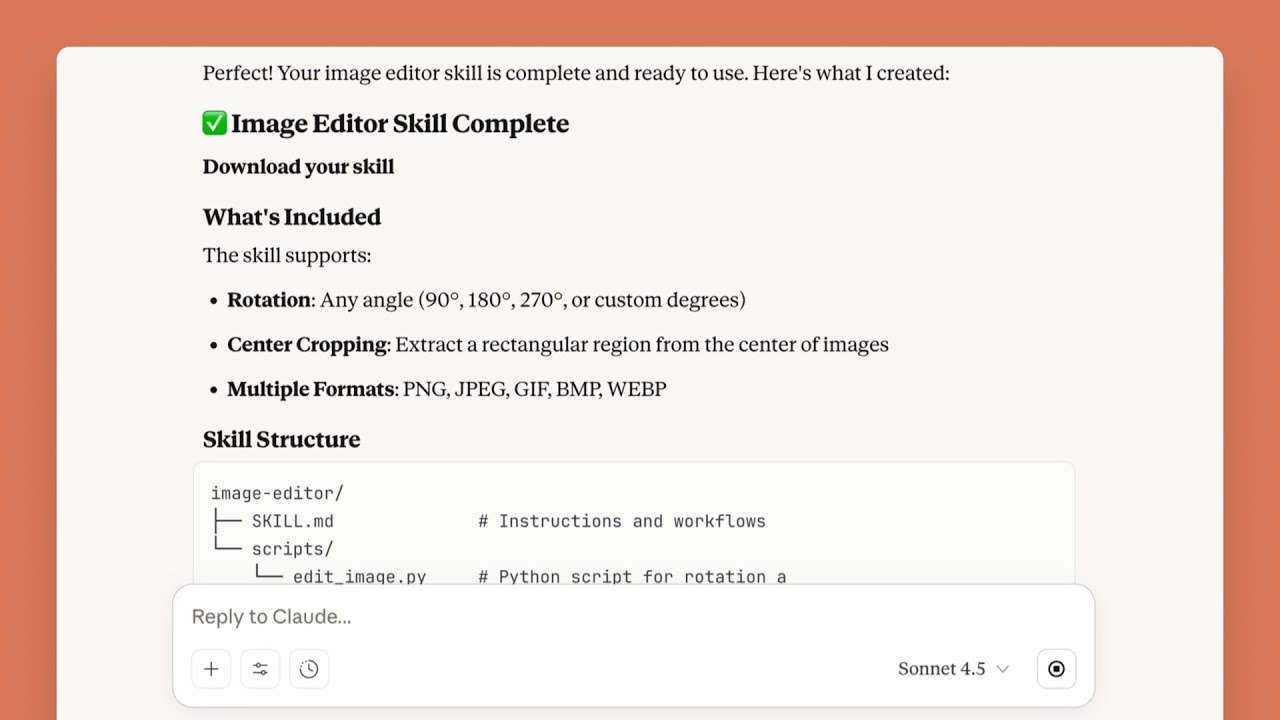
No code is required to create a Skill. Actually, at its simplest, a Skill is a short text file of instructions, wrapped in a folder. Claude reads it the same way a new freelancer would read a one-page brief.
First, turn it on. In Claude's settings, make sure Code execution and file creation is enabled, then head to Customize > Skills. That's where your built-in and custom Skills live, and where you toggle them on or off.
Then build one. A Skill is a folder containing a file called SKILL.md. The top of that file needs two things: a name and a description. The description is the most important sentence you'll write, because Claude uses it to decide when to reach for the Skill. Vague description, and it won't trigger when you expect; specific description, and it fires at the right moment.
A bare-bones version of a Skill might look like:
Name: weekly-meal-plan
Description: Plan a week of dinners and build a shopping list. Use when I ask for a meal plan or what to cook this week. When I ask for a meal plan, give me dinners for seven nights.
Our preferences: two vegetarian nights minimum - nothing too spicy for the kids - one slow-cooker meal for busy weeknights - don't repeat the same protein two nights running. Staples we always have: rice, pasta, chicken, shrimp, steak, onions, garlic, fresh veggies. Then turn the plan into a shopping list, grouped by aisle at [grocery store name], leaving out anything from the staples list.
Then, Save that as SKILL.md, zip the folder, and upload it under Customize > Skills. That's the whole thing. Everything below the description is just instructions in plain language, the same notes you'd type into a chat, except you only type them once.
Final take
I learned a few things the hard way, so be patient when you first start out. That said, it will behoove you to keep each Skill fairly narrow. In other words, one job per Skill works far better than a single Skill that tries to do everything.
Also, you're going to want to spell out the trigger. Write the description as if you're telling Claude exactly when to use it, not just what it does.
Always test it before you trust it. You'll want to run a few real prompts and check that it switches on when it should. If it doesn't, the description usually needs tightening.
It's worth noting that the Custom Skills you upload stay private to your account, so there's no risk in experimenting. But unlike prompts that disappear, Skills accumulate. Now, every time I notice myself repeating the same instructions, I create a new Skill. When AI understands you and how you want your answers, the workflow feels unstoppable.
Have you tried Skills yet? Share your experience by letting me know in the comments how you use them.

Follow Tom's Guide on Google News and add us as a preferred source to get our up-to-date news, analysis, and reviews in your feeds. Subscribe to Tom's Guide on YouTube and follow us on TikTok. Finally, you can visit our dedicated Tom's Guide Savings Squad hub for expert help on getting the best products for less.
More from Tom's Guide