
I spend a good chunk of my day using AI inside a browser — summarizing articles, comparing products, rewriting emails, planning… you name it. And until now, there’s been one constant issue that drives me crazy, maybe you can relate? I keep repeating the same prompts over and over again.
Google just introduced a fix for that. It’s called “Skills” in Chrome, and while the name sounds like a major overhaul, the reality is much simpler — and arguably more useful.
What Chrome 'Skills' actually are

At its core, Skills are reusable prompts built into Chrome’s Gemini sidebar. That means, instead of typing something like: “Summarize this page in bullet points for a busy reader,” you now can save it. When you save a prompt you use frequently as a "Skill," it's saved to run instantly on any page you're viewing.
It’s essentially a way to turn your best prompts into one-click tools that work across the web.
Why this is a bigger deal than it sounds

Before this update, using AI in your browser meant copying text from a webpage, pasting it into Gemini or ChatGPT and re-entering the prompt over and over.
Skills remove that loop entirely. Once saved, a Skill can:
- Work on the page you’re currently viewing
- Apply across multiple open tabs
- Be triggered quickly without rewriting instructions
In other words, you’re no longer chatting with AI — you’re running it with it seamlessly integrated into your workflow.
Even better? There’s also a built-in library of Skills. Google isn’t expecting you to start from scratch. Chrome is rolling out a prebuilt Skills library with ready-to-use options like:
- Summarizing long articles
- Comparing products across tabs
- Extracting key details from a page
- Adapting recipes or instructions
So even if you never write a prompt, you can still use Skills immediately.
How to use Chrome Skills
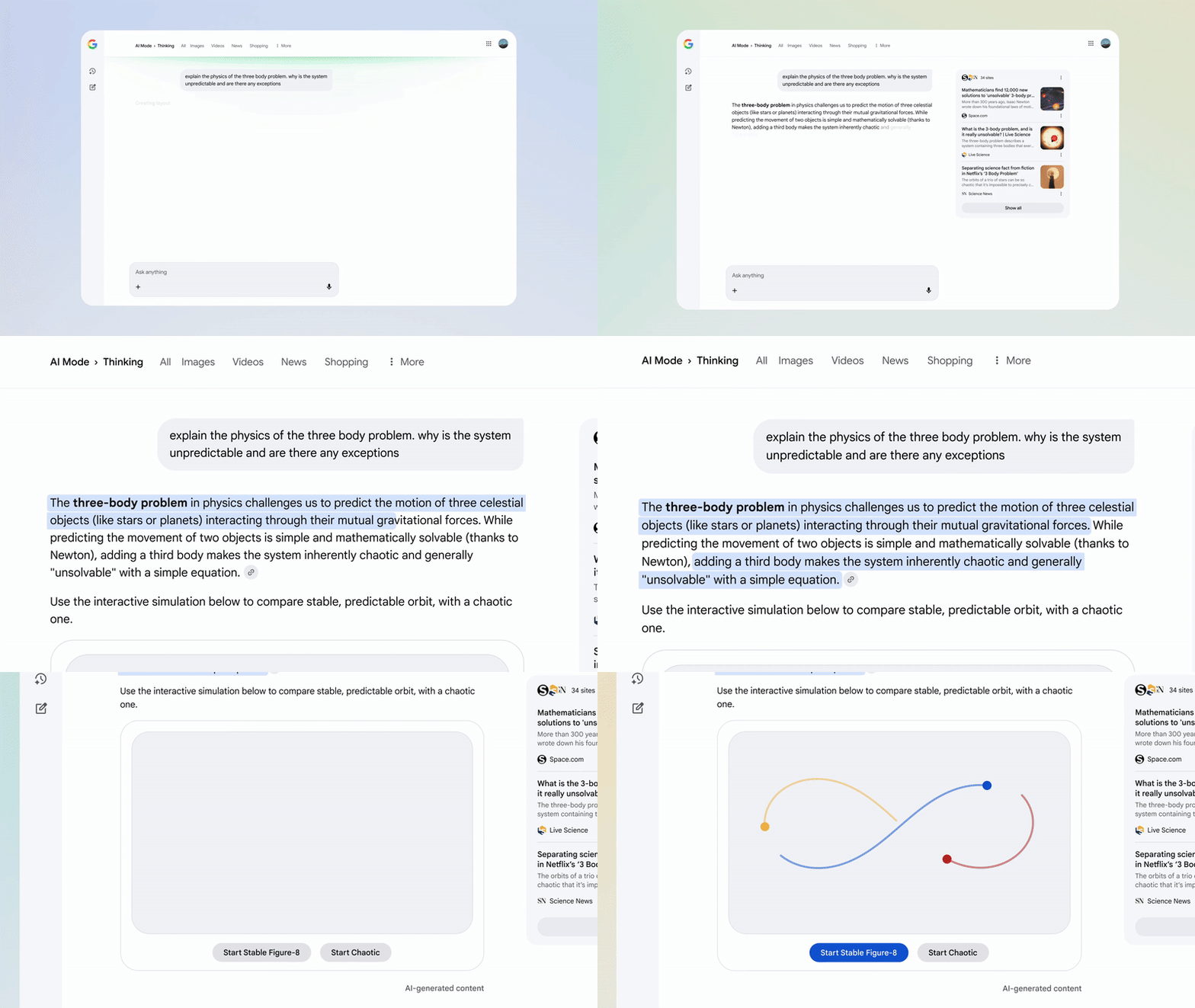
If you want to try it yourself, simply open Chrome and launch the Gemini sidebar. From there you can enter a prompt you use often or try one of the preset options. If you are using a new prompt of your own, save it as a "Skill" so you can use it again any time. Simply run it on any page with a click
What this is not
There’s been some confusion around this launch, so it’s worth clearing up what Skills aren’t:
- It’s not replacing Chrome extensions
- It’s not a new AI model
- It’s not a major redesign of Chrome
This is a layer on top of Gemini — not a replacement for anything.
The takeaway
The real shift here is how this new feature will change behavior, while completely removing one of the biggest annoyances: repeating yourself.
And if you’re already using prompts daily, that small change can make AI feel a lot faster — and a lot more useful.
Google is moving AI from something you ask…to something that acts. And while this might sound subtle, in practice, it’s a big upgrade, especially if you rely on AI for everyday tasks.
I've already tried a few of the preset prompts and have saved a few of my own. Give it a try and let me know in the comments what you think.

Follow Tom's Guide on Google News and add us as a preferred source to get our up-to-date news, analysis, and reviews in your feeds.
More from Tom's Guide