
 Club Benefits






Latest Reviews

Google Home Speaker review: modest upgrades, but Gemini is the star
Aside from its design, the Google Home Speaker isn't a huge upgrade over the Nest Audio, and you can get all the same Gemini features on both devices.
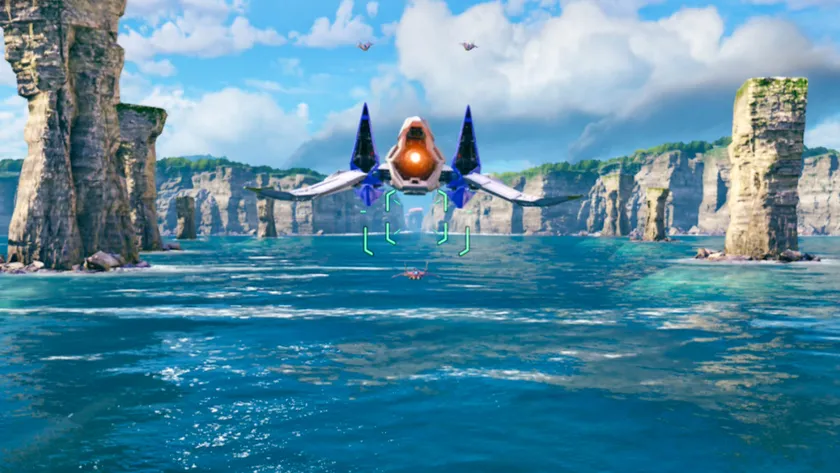
I just finished Star Fox on Switch 2 — and it’s better than the game I imagined I was playing as a kid
RecommendedStar Fox on Switch 2 is the definitive version of the classic rail-shooter thanks to its stunning 4K visuals, tighter controls and expanded narrative.

I tested the TP-Link Archer BE770 and this full-featured Wi-Fi 7 router is an absolute networking bargain
Editor's ChoiceThe TP-Link Archer BE770 is a full-featured Wi-Fi 7 router with loads of useful ports that provides a high-performance experience on a budget.

I played on MSI Claw 8 EX AI+ while traveling around the world, and it is a true next generation gaming handheld with one fatal flaw
RecommendedPricey gaming greatness

I’ve been riding the Segway Muxi for two months, and I’ve never received as many comments as I have with any other ebike
RecommendedThe Segway Muxi is a fun, small e-cargo bike with some incredibly unique styling and good safety and security features, but we wish it had a front shock absorber.

I tested this puck shaped mobile hotspot — and it’s the simplest way to get online
RecommendedI put the Simo Solis Lite to the test to see if this ultra-compact mobile hotspot has what it takes to keep me connected on the go.

Urtopia Carbon Fold 2: More Refined
The Fold 2 is a compact and lightweight folding E-bike that packs in a ton of features, including an E-throttle and optional battery pack, which doubles its range to almost 100 miles.

Motorola Razr Ultra 2026 review: Better does come at a premium price
With a stylish and durable design, the Motorola Razr Ultra 2026 has a lot more to prove given the steeper $1,499 price hike this time around.

I tested the Ninja AutoBarista Pro — and it’s one of the most ambitious automatic coffee machines I’ve ever tested (but I’m not sure it’s in a good way)
The Ninja AutoBarista Pro is an ambitious automatic coffee machine with espresso, drip, and cold brew functions, but I’m not sure it meets all its marks.

