






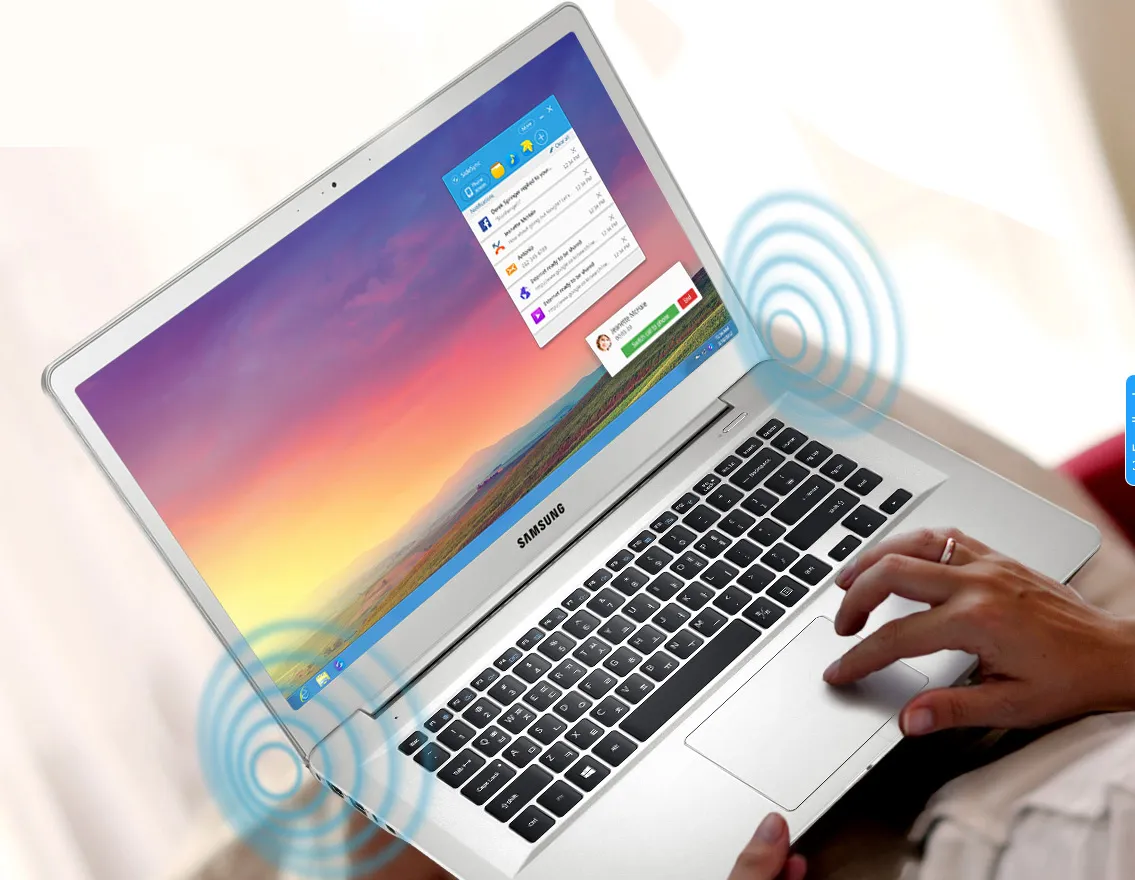
Being able to see and use your Note 5 on your computer has many benefits. You can easily drag and drop files between the two devices, respond to messages with a full-sized keyboard, and get your phone's notifications on your desktop. Thanks to Samsung's cool SideSync software, access to all that is a simple setup away. Here's how to use SideSync on your Galaxy Note 5.
MORE: Samsung Galaxy Note 5: Top 5 Features
1. Download and install SideSync on your computer by going to Samsung's SideSync web page.

2. Open SideSync on both your Note 5 and laptop or computer, and make sure they are on the same Wi-Fi network.

3. Find and select your phone on your computer, or vice versa.

4. Click the phone icon on the top left of the widget at the bottom right of your screen. This opens up a virtual version of your Note 5's screen on your desktop. Tapping any of the three icons for My Files, Music and Gallery next to the phone icon opens up that app in the virtual phone.

5. Drag any file you want to transfer from your desktop to your phone (or vice versa).

6. Click and hold on a file in the virtual phone to select it for transfer. Select as many files as you want by clicking each one.

7. Press and hold again on the selected files until the SideSync logo pops up. This means the files are ready to be dragged across onto your computer.

8. Tap the downward arrow on the top left of the screen to pull up more options.

9. Select Always On Top to make your phone stay above every other window so it doesn't disappear under your dozens of open apps. You can also edit rotation and the transparency of the window by selecting Rotate or Window Transparency, or snap a screenshot of your phone (not desktop) with the Capture option.

Enabling Presentation Mode lets you control your Note 5's screen from the computer — you'll be able to see what's happening on both the phone and desktop.
When your phone and computer are connected, your Note 5 will mirror whatever is being done on the virtual version. If you pick up your phone and do something else with it, the version on your computer goes blank, and can only be used when you activate it on your computer again (with one tap on the screen).

