Club Benefits





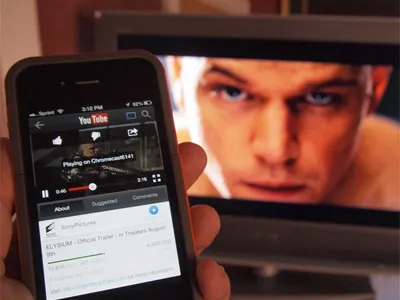
Once you’ve got your Google Chromecast all set up, the next step is to actually watch things on it. In case you missed the streaming tutorial during the setup (or didn’t grok it the first time around), the process is pretty simple.
Just find a compatible app (Google lists a few, although there are thousands), open it up, and press the Cast button. It looks like a little TV screen. Your content should now show up on your TV.
- Cheap TV deals
- The best Hulu movies and TV shows are
- Plus, the best Amazon movies and TV series on Prime Video
If you’re still having trouble, consult our step-by-step guide below.


1. Turn on your TV and mobile device.
This almost goes without saying, but in all seriousness, make sure your TV is switched to the right input. You’d be amazed how often people (read: me) forget to do that.

2. Ensure that Google Home is installed.
Again, the Google Home app is almost certainly installed if you already set up your Chromecast, but just in case it’s not, download it from the Play Store or the App Store.
MORE: Best Streaming Services

3. Open the app you’d like to use.
We’ll use Netflix as an example, but you can do the same thing with Hulu, YouTube, Pandora, or any app that is compatible with Chromecast. (Amazon Video is not. You can still watch it on a Chromecast, but you’ll have to cast it from a laptop.)
4. Tap the Cast button.
The location varies depending on the app you use, but generally, it’s in either the upper-right (as in Netflix's case) or bottom-right corner of the screen. Be aware that some video apps require you to start watching a video before you can actually cast content. If so, the cast option will be on the toolbar along with play, pause, closed captions, and such.

5. Select your Chromecast.
If you have multiple casting devices in your home, just make sure you choose the right one. This is where naming your Chromecast comes in handy.

6. Use your mobile device to navigate.
Content should now be on your screen. You can use your mobile device as a remote control to play, pause, control volume and more. If you want to stop watching, just tap the Cast button again, then select Disconnect.