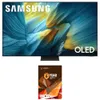
Several Samsung smart TVs are being hit with an annoying pop-up that purportedly alerts the user every two hours of a new privacy update on an endless loop.
The update largely stems from new verbiage surrounding Samsung's use of your watch history and on-screen data, which I previously wrote about regarding a new feature cropping up on several smart TVs. It's a common trait across not just some of the best TVs but devices writ large.
It's a good habit to safeguard your data even if you think it relatively futile in a world that largely runs on data procurement and marketability. That being said, knowing the risks, there are some ways of getting rid of that pesky pop-up despite the fact that Samsung has not released any official solution on the matter yet.
- Head to Samsung's website
- Log in then head to "Privacy"
- Change these settings and click "Go to Samsung Privacy"
- Hover over "Privacy Policy"
- Click "Samsung's Privacy Policy" and read the updated policy
1. Head to Samsung's website

Head to Samsung.com in your specific region and click the person icon at the top of the page.
2. Log-in and head to "Privacy"

Once you sign in to your account, click the "Privacy" tab that's right in between "Security" and "Places."
3. Change these settings and click "Go to Samsung Privacy"

There are a couple of settings you might want to change while you're here, specifically under "Customization Service." Namely, you'll want to toggle off "Viewing information" under TV, as well as any other settings here if you own a Samsung mobile device.

You may also want to toggle off "Improve personalized ads with Samsung account data" and "Improve personalized ads with precise location data."
If you're serious about protecting your data and don't want Samsung knowing everything about you (and selling it to third parties), these settings changes are a must.
Once done, click "Go to Samsung Privacy."
4. Hover over "Privacy Policy"

Once you have the privacy.samsung.com page open, you need to hover over "Privacy Policy" at the top right of the page and click "Samsung's Privacy Policy."
5. Read through the updated policy

You should read through the policy to know exactly what the updated language entails and you also have the option to download it, if you so prefer. This should amend the constant pinging of Privacy Update notices on your Samsung smart TV for the foreseeable future.
And that's all you need to do. It's really simple and shouldn't take more than thirty minutes tops, letting you experience some of the best Samsung TVs without any interruptions. If you need any more assistance with your Samsung TV, check out some of our alternative guides, like how to reset your Samsung TV or download apps to the platform.