






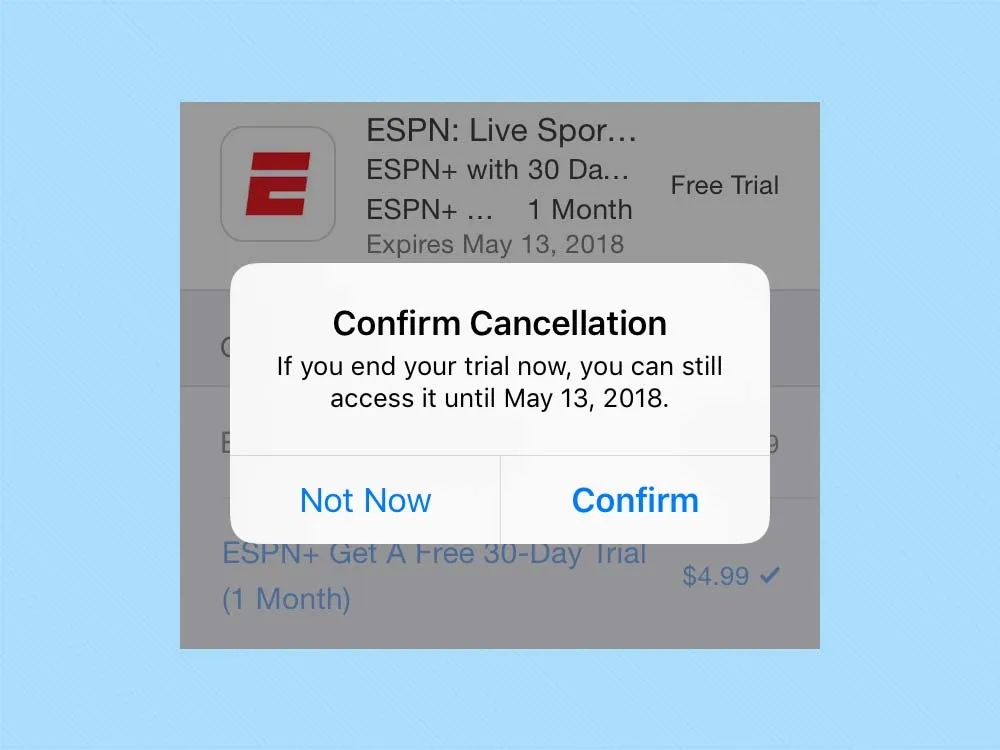
All good things must come to an end, and that goes for any iPhone app-based subscriptions and trials you've signed up for. Whether you've decided to drop a subscription or just want to back out of a free trial before those monthly charges kick in, you'll need to manage that subscription from your Apple account.
The good news is Apple gives you several different ways to reach the iOS subscription page. Unfortunately, they're not necessarily that easy to find. Here are two ways to get there — one that's very quick but requires you to hold on to a confirmation email and the other that requires a bit more tapping.
MORE: iOS 11 Guide: How to Use the New and Improved Features
First, the quick method: when you subscribe to something through the iTunes store, Apple will send a confirmation email. Scroll down in that email and you'll see a link that invites you to review your subscription if you want to get more details or cancel.

Tap that link and you'll immediately jump to a section of the App Store where you can manage your subscription.

That's great if you're the kind of person who holds onto every email you ever receive. But if you've deleted that message from Apple or just can't find it in the morass of your inbox, you can tap your way to that same page. Here's how.

1. Launch the App Store app.

2. At the top of the Today tab, tap the photo of yourself in the right-hand corner. This will take you to your App Store account page.

3. Tap on your name. You may be prompted to confirm your Apple ID either by entering your password or using your fingerprint if you've set up Touch ID.

4. Scroll down on the Account Settings page, and select Subscriptions.

5. You'll see a list of your active and expired subscriptions. Tap on the one you want to manage. (In this example, we'll manage my ESPN+ trial.)

6. Tap the option that lets you cancel your trial or subscription. You'll be asked to confirm your cancellation.
Believe it or not, there's another way to get to your subscriptions, and it's through the Settings app. Just tap on your name at the top of the main Settings screen, and on the ensuing screen, select iTunes & App Store.

Tap your Apple ID, and a pop-up menu will appear. Select View Apple ID here. (Again, you may be prompted to sign in or confirm your identity with Touch ID.)

The page that pops up will look a lot like the Account Settings page in Step 4 up above. Select that Subscriptions optio, and follow steps 5 and 6 to manage whichever subscription you wish.
Me, I prefer going through the App Store app, as it feels more direct, but it's nice to know there are multiple ways to keep your subscriptions in order.

